Android
Integrate the Aghanim to start accepting payments for your game items online through a prebuilt checkout page. The Checkout on Android uses our Android SDK. For it to work properly, you need:
- Android Studio 4.1 or higher.
- Minimum Android API level 24 (Android 7.0) or higher.
The Checkout integration mode that works in the player default browser. Use when you want to redirect the players outside your game.
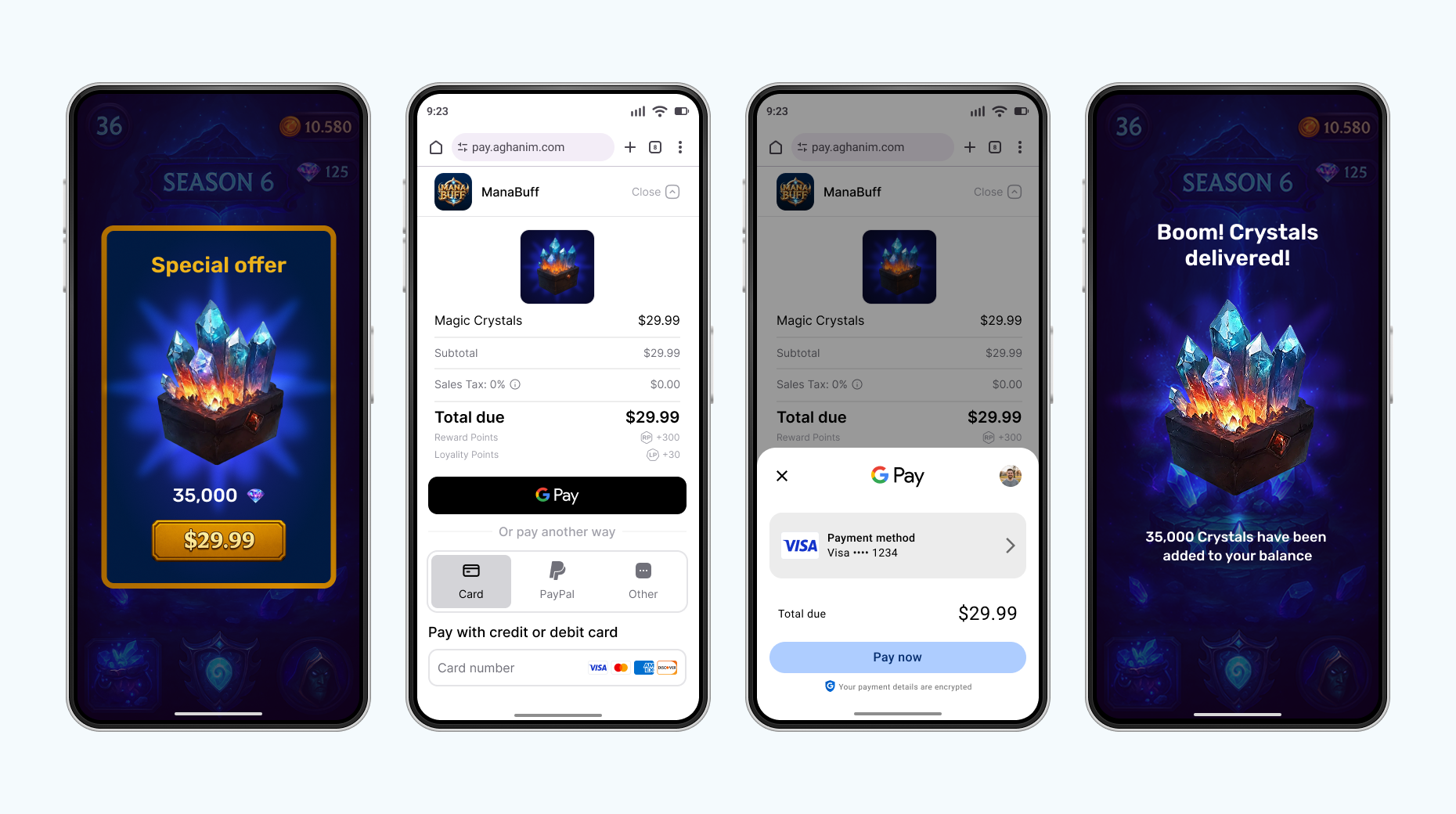
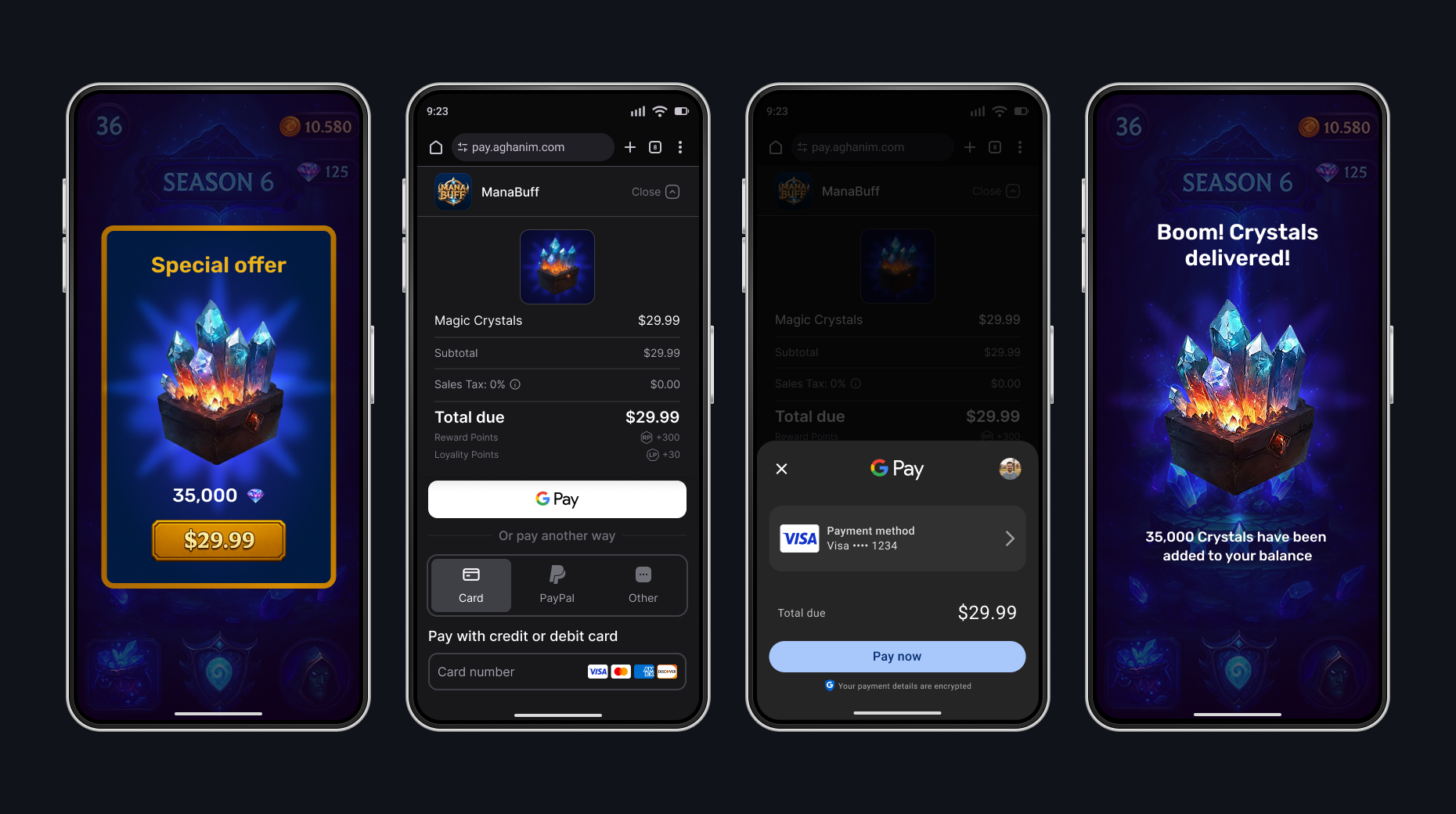
Register with Aghanim and link your game
First, register for an Aghanim account. At the end of registration, add the link to your mobile game. It should be published in Apple App Store or Google Play Store.
Set up environment
If you want to make real payments, you are all set as the live mode is used as default. Otherwise, use a sandbox, an isolated test environment, to simulate the Aghanim events to test payments without real money movement. To turn on the sandbox mode, set the Sandbox toggle to the active position.
Sandbox supports card payments only. Alternative methods (PayPal, wallets, local payment methods) appear only in live. See Test payments for the test cards.
While integrating, you will need an SDK key to authenticate requests to the Aghanim. Keep in mind that the sandbox and live modes have different keys. Find the SDK key in Integration → API keys.
Configure game client-side
Configure your game client to work with the Checkout by setting up the SDK and implementing the necessary code to process its methods.
Install SDK
To install the SDK, add android-sdk to the repositories’ block of your build system so it will know where to find the SDK dependencies.
- Kotlin DSL (build.gradle.kts)
- Groovy DSL (build.gradle)
- Maven (pom.xml)
repositories {
    maven {
        url = uri("https://us-central1-maven.pkg.dev/ag-registry/android-sdk")
    }
}
repositories {
    maven {
        url "https://us-central1-maven.pkg.dev/ag-registry/android-sdk"
    }
}
<repositories>
    <repository>
        <id>gcp-artifact-registry</id>
        <url>https://us-central1-maven.pkg.dev/ag-registry/android-sdk</url>
    </repository>
</repositories>
Configure dependencies
Add android-sdk to the dependencies’ block of your build system as well.
- Kotlin DSL (build.gradle.kts)
- Groovy DSL (build.gradle)
- Maven (pom.xml)
dependencies {
    implementation("com.aghanim.android:checkout-web:1.16.0")
}
dependencies {
    implementation 'com.aghanim.android:checkout-web:1.16.0'
}
<dependencies>
    <dependency>
        <groupId>com.aghanim.android</groupId>
        <artifactId>checkout-web</artifactId>
        <version>1.16.0</version>
    </dependency>
</dependencies>
Initialize SDK
Initialize the SDK manually in the app class.
- Kotlin
import android.app.Application
import com.aghanim.android.sdk.common.api.Aghanim

class MyApplication : Application() {
    lateinit var aghanim: Aghanim

    override fun onCreate() {
        super.onCreate()
        aghanim = Aghanim(
            context = this,
            apiKey = "<YOUR_SDK_KEY>"
        )
    }
}
To let Android SDK know that it should use your app class as an Application, add the app class to the manifest.
- AndroidManifest.xml
<application
    android:name=".MyApplication"
>
</application>
With the SDK, you can read its logs from one of the supported levels. The SDK writes all log messages into Android logcat, the default tool for logging in Android.
- Simple
- Advanced
The simple usage of the SDK log messages means setting the log level you are interested in the most:
DEBUG— detailed debug information on almost every event.INFO— general information on the SDK instance state and its events.WARNING— warnings and recoverable errors.ERROR— critical and fatal errors.NONE— no logging. Used by default.
- Kotlin
import android.app.Application
import com.aghanim.android.sdk.common.api.Aghanim
import com.aghanim.android.sdk.logging.api.LogLevel

class MyApplication : Application() {
    lateinit var aghanim: Aghanim

    override fun onCreate() {
        super.onCreate()
        aghanim = Aghanim(
            context = this,
            apiKey = "<YOUR_SDK_KEY>"
        ) {
            logLevel = LogLevel.DEBUG
        }
    }
}
You can reroute the SDK logs from Android logcat to the system you have chosen for logging. To do so, provide a custom logger implementation to the SDK functions for the log levels:
DEBUG— detailed debug information on almost every event.INFO— general information on the SDK instance state and its events.WARNING— warnings and recoverable errors.ERROR— critical and fatal errors.NONE— no logging. Used by default.
- Kotlin
import android.app.Application
import com.aghanim.android.sdk.common.api.Aghanim
import com.aghanim.android.sdk.logging.api.LogLevel
import com.aghanim.android.sdk.logging.api.Logger

class MyApplication : Application() {
    lateinit var aghanim: Aghanim

    override fun onCreate() {
        super.onCreate()
        aghanim = Aghanim(
            context = this,
            apiKey = "<YOUR_SDK_KEY>"
        ) {
            logLevel = LogLevel.DEBUG

            logger = object : Logger {
                override fun d(message: String, throwable: Throwable?) {
                    // TODO: Send debug messages to your logging system
                }

                override fun i(message: String, throwable: Throwable?) {
                    // TODO: Send information messages to your logging system
                }

                override fun w(message: String, throwable: Throwable?) {
                    // TODO: Send warning messages to your logging system
                }

                override fun e(message: String, throwable: Throwable?) {
                    // TODO: Send error messages to your logging system
                }
            }
        }
    }
}
Configure player ID
Since a mobile game has one instance per device, the SDK allows to set the player ID once to use it in all following method calls.
When your game client has the player ID, set it for the current SDK instance. The call is suspend and returns ApiResult<Unit>, rejecting a blank player ID with ApiError.InvalidArgument.
- Kotlin
import com.aghanim.android.sdk.common.api.result.ApiResult
import android.util.Log

when (val result = aghanim.setPlayerId(playerId)) {
    is ApiResult.Success -> {
        // The SDK attaches the player ID to all following method calls
    }

    is ApiResult.Failure -> {
        // Log debug information for troubleshooting
        Log.e("Aghanim", "Failed to set player ID: ${result.error}")
        // TODO: Handle error
    }
}
When the player signs out, clear the ID so the SDK stops attaching the previous identity to API requests.
- Kotlin
import com.aghanim.android.sdk.common.api.result.ApiResult
import android.util.Log

when (val result = aghanim.clearPlayerId()) {
    is ApiResult.Success -> {
        // The SDK stops attaching the previous player ID to API requests
    }

    is ApiResult.Failure -> {
        // Log debug information for troubleshooting
        Log.e("Aghanim", "Failed to clear player ID: ${result.error}")
        // TODO: Handle error
    }
}
Order creation is tied to the player, so launching the Checkout without a player ID fails with ApiError.PlayerIdNotSet. Set it as soon as the player authenticates.
Create item
The integration needs the items to be added to the Dashboard. When creating items, each should have its SKU, a unique identifier for the item within your game backend. You can add their prices, currency, sale configuration, and more.
To add an item to the Dashboard:
- Go to SKU Management → Items.
- Click Add Item. The site will open the Add Item page.
- Enter the item name New item.
- Enter the item SKU items.new.ba68a028-2d51-46b4-a854-68fc16af328a.
- In the Price block:
- Select the Fiat price type for a real money item.
- Enter the price 1.99.
- Click Add item.
For integration purposes, we have shortened an item setup. Before going live, use every suitable feature while adding items to the Dashboard.
Get items with localized prices
The SDK retrieves items created in the Dashboard with localized prices based on the player's region. Use this to display accurate prices in your in-game store before the player proceeds to checkout.
- Coroutines
- Asynchronous callbacks
- Kotlin
import com.aghanim.android.sdk.common.api.result.ApiResult
import android.util.Log

when (val result = aghanim.items.get(
    skus = listOf("items.new.ba68a028-2d51-46b4-a854-68fc16af328a"),
)) {
    is ApiResult.Success -> {
        val items = result.value
        items.forEach { item ->
            // Use item.name, item.price.display, item.imageUrl to populate your store
            Log.d("Items", "${item.name}: ${item.price.display}")
        }
    }

    is ApiResult.Failure -> {
        // Log debug information for troubleshooting
        Log.e("Items", "Failed to get items: ${result.error}")
        // TODO: Handle error
    }
}
- Kotlin
import com.aghanim.android.sdk.common.api.callbacks.ItemsCallback
import com.aghanim.android.sdk.common.api.models.item.Item
import com.aghanim.android.sdk.common.api.result.ApiError
import android.util.Log

aghanim.items.getAsync(
    skus = listOf("items.new.ba68a028-2d51-46b4-a854-68fc16af328a"),
    locale = null,
    callback = object : ItemsCallback {
        override fun onSuccess(items: List<Item>) {
            items.forEach { item ->
                // Use item.name, item.price.display, item.imageUrl to populate your store
                Log.d("Items", "${item.name}: ${item.price.display}")
            }
        }

        override fun onError(failure: ApiError) {
            // Log debug information for troubleshooting
            Log.e("Items", "Failed to get items: ${failure.debugMessage}")
            // TODO: Handle error
        }
    }
)
Create Checkout item
It is time to create a variable that represents the items to be purchased.
- Kotlin
import com.aghanim.android.sdk.checkout.core.api.models.CheckoutItem

val checkoutItem = CheckoutItem(
    sku = "items.new.ba68a028-2d51-46b4-a854-68fc16af328a"
)
Configure deep links
As the SDK launches the Checkout in the browser, the player needs to be back to your app once they complete the payment. To return the player to your app, the SDK needs you to specify deep links.
- App Links
- Custom Schemes
With Android App Links, the player goes directly to the app without any additional clicks. App Links use standard HTTPS URLs and the Android system verifies their domain. It makes this approach secure and more suitable for the production environment.
Now, create a variable for the deep link URL. We will use it later.
- Kotlin
val backToGameUrl = "https://<YOUR_DOMAIN>/checkout-complete"
The Android SDK can trust the deep links and their domain only when the domain is hosted on a server. The server should have the assetlinks.json file containing this domain information. Host the file at https://<YOUR_DOMAIN>/.well-known/assetlinks.json. The file acts as a bridge to verify the authenticity of the links’ domain and your app by the Android SDK.
- assetlinks.json
[{
  "relation": ["delegate_permission/common.handle_all_urls"],
  "target": {
    "namespace": "android_app",
    "package_name": "com.<YOUR_COMPANY>.<YOUR_APP>",
    "sha256_cert_fingerprints": ["<YOUR_APP_FINGERPRINT>"]
  }
}]
The Android SDK needs to know that the deep links lead to your app. To create this connection, add an intent filter in the manifest.
- AndroidManifest.xml
<activity android:name=".MainActivity">
    <intent-filter android:autoVerify="true">
       <action android:name="android.intent.action.VIEW" />
       <category android:name="android.intent.category.DEFAULT" />
       <category android:name="android.intent.category.BROWSABLE" />

        <!-- URL parts from backToGameUrl -->
       <data
           android:scheme="https"
           android:host="<YOUR_DOMAIN>"
           android:pathPrefix="/checkout"
       />
    </intent-filter>
</activity>
Since configuring the intent filter doesn’t perform any app logic, handle the deep link in the Activity.
- Kotlin
override fun onNewIntent(intent: Intent?) {
    super.onNewIntent(intent)
    intent?.data?.let { uri ->
        // TODO: Handle player returning from Checkout
        if (uri.host == "<YOUR_DOMAIN>" && uri.path?.startsWith("/checkout") == true) {
            // Player has returned from Checkout
            // TODO: Check unconsumed orders and consume order if needed
        }
    }
}
Custom schemes may show a dialog asking the player if they want to open the app. Custom schemes are easier to set up but don’t provide the same security level. It makes this approach suitable for the development and testing environment.
Now, create a variable for the deep link. We will use it later.
- Kotlin
val backToGameUrl = "myapp://checkout-complete"
The Android SDK needs to know the full deep link and its scheme. Only knowing the scheme, the Android SDK is able to recognize that the deep link leads back to your app and can open it. To create this connection, add an intent filter in the manifest.
- AndroidManifest.xml
<activity android:name=".MainActivity">
    <intent-filter>
        <action android:name="android.intent.action.VIEW" />
        <category android:name="android.intent.category.DEFAULT" />
        <category android:name="android.intent.category.BROWSABLE" />

        <!-- Deep link scheme from backToGameUrl -->
        <data android:scheme="myapp" />
    </intent-filter>
</activity>
Since configuring the intent filter doesn’t perform any app logic, handle the deep link in the Activity.
- Kotlin
override fun onNewIntent(intent: Intent?) {
    super.onNewIntent(intent)
    intent?.data?.let { uri ->
        // TODO: Handle player returning from Checkout
        if (uri.scheme == "myapp") {
            // Player has returned from Checkout
            // TODO: Check unconsumed orders and consume order if needed
        }
    }
}
Create Checkout params
When all data variables are ready, create another one that represents Checkout params. Checkout params are the programmatic representation of what the player sees when they are on the payment form. Checkout params are associated with a player and items, they are crucial for the Checkout to work. You can use the existing player from your game or create them at runtime.
- Kotlin
import com.aghanim.android.sdk.checkout.core.api.models.CheckoutParams
import com.aghanim.android.sdk.common.api.models.common.Locale

val checkoutParams = CheckoutParams(
    items = listOf(checkoutItem),
    backToGameUrl = backToGameUrl,
    // Optional. Locale for texts’ localization. Default is system locale
    locale = Locale.EN
)
You can attach custom metadata to the Checkout for item tracking purposes. You can access it through webhooks and in API responses from the Aghanim. Metadata has a structure of “key-value” pairs.
- Kotlin
import com.aghanim.android.sdk.checkout.core.api.models.CheckoutParams

val metadata = mapOf(
    "campaign" to "winter_sale",
    "source" to "mobile_app",
    "user_segment" to "premium",
    "ab_test_variant" to "variant_a",
    "player_level" to "42"
)

val checkoutParams = CheckoutParams(
    items = listOf(checkoutItem),
    backToGameUrl = backToGameUrl,
    metadata = metadata
)
You can choose the behavior of redirecting the player after they have completed the payment successfully. The difference in the provided by the SDK modes is a delay before redirecting or absence of redirecting.
- Immediate
- Delayed
- No redirect
When the player has completed the payment, the SDK redirects them immediately to the deep link from backToGameUrl.
- Kotlin
import com.aghanim.android.sdk.checkout.core.api.models.RedirectSettings
import com.aghanim.android.sdk.checkout.core.api.models.RedirectMode
import com.aghanim.android.sdk.checkout.core.api.models.CheckoutParams

val redirectSettings = RedirectSettings(
    mode = RedirectMode.IMMEDIATE
)

val checkoutParams = CheckoutParams(
    items = listOf(checkoutItem),
    backToGameUrl = backToGameUrl,
    redirectSettings = redirectSettings
)
When the player has completed the payment, the SDK shows the screen for the successful payment and then redirects the player to the deep link from backToGameUrl.
- Kotlin
import com.aghanim.android.sdk.checkout.core.api.models.RedirectSettings
import com.aghanim.android.sdk.checkout.core.api.models.RedirectMode
import com.aghanim.android.sdk.checkout.core.api.models.CheckoutParams

val redirectSettings = RedirectSettings(
    mode = RedirectMode.DELAYED,
    // Optional. Seconds to delay for. Default is 5 seconds
    delaySeconds = 5
)

val checkoutParams = CheckoutParams(
    items = listOf(checkoutItem),
    backToGameUrl = backToGameUrl,
    redirectSettings = redirectSettings
)
When the player has completed the payment, they stay on the screen for the successful payment. To exit it, they manually close it or navigate away. After, you should redirect them to the deep link from backToGameUrl by yourself.
- Kotlin
import com.aghanim.android.sdk.checkout.core.api.models.RedirectSettings
import com.aghanim.android.sdk.checkout.core.api.models.RedirectMode
import com.aghanim.android.sdk.checkout.core.api.models.CheckoutParams

val redirectSettings = RedirectSettings(
    mode = RedirectMode.NO_REDIRECT
)

val checkoutParams = CheckoutParams(
    items = listOf(checkoutItem),
    backToGameUrl = backToGameUrl,
    redirectSettings = redirectSettings
)
You can set the appearance mode for the Checkout UI. The SDK supports automatic detection based on the system setting, or you can force a specific mode.
- Auto
- Dark
- Light
The SDK automatically detects and applies the appropriate appearance mode based on the system setting.
- Kotlin
import com.aghanim.android.sdk.checkout.core.api.models.UiSettings
import com.aghanim.android.sdk.checkout.core.api.models.UiMode
import com.aghanim.android.sdk.checkout.core.api.models.CheckoutParams

val uiSettings = UiSettings(
    mode = UiMode.AUTO
)

val checkoutParams = CheckoutParams(
    items = listOf(checkoutItem),
    uiSettings = uiSettings
)
The SDK forces dark mode appearance for the Checkout UI.
- Kotlin
import com.aghanim.android.sdk.checkout.core.api.models.UiSettings
import com.aghanim.android.sdk.checkout.core.api.models.UiMode
import com.aghanim.android.sdk.checkout.core.api.models.CheckoutParams

val uiSettings = UiSettings(
    mode = UiMode.DARK
)

val checkoutParams = CheckoutParams(
    items = listOf(checkoutItem),
    uiSettings = uiSettings
)
The SDK forces light mode appearance for the Checkout UI.
- Kotlin
import com.aghanim.android.sdk.checkout.core.api.models.UiSettings
import com.aghanim.android.sdk.checkout.core.api.models.UiMode
import com.aghanim.android.sdk.checkout.core.api.models.CheckoutParams

val uiSettings = UiSettings(
    mode = UiMode.LIGHT
)

val checkoutParams = CheckoutParams(
    items = listOf(checkoutItem),
    uiSettings = uiSettings
)
Launch Checkout
Add a checkout button to your game client that launches the payment form. To display the form, the SDK uses the current activity context. The SDK creates an order from the provided checkout params and opens the Checkout UI. On success, you receive the Order ID to track the order. On failure, you receive an error with debug information for troubleshooting.
- Coroutines
- Asynchronous callbacks
- Kotlin
import com.aghanim.android.sdk.checkout.web.api.startWebCheckout
import com.aghanim.android.sdk.checkout.web.api.models.LaunchMode
import com.aghanim.android.sdk.common.api.result.ApiResult
import android.util.Log

when (val result = aghanim.startWebCheckout(
    context = context,
    checkoutParams = checkoutParams,
    launchMode = LaunchMode.DefaultBrowser,
)) {
    is ApiResult.Success -> {
        // Order is created and checkout has launched successfully
        val orderId = result.value
        // TODO: Save order ID for further granting or tracking
    }

    is ApiResult.Failure -> {
        // Log debug information for troubleshooting
        Log.e("Checkout", "Failed to launch Checkout: ${result.error}")
        // TODO: Show user-friendly error message to player
    }
}
- Kotlin
import com.aghanim.android.sdk.checkout.web.api.startWebCheckoutAsync
import com.aghanim.android.sdk.checkout.web.api.models.LaunchMode
import com.aghanim.android.sdk.checkout.core.api.callbacks.LaunchCheckoutCallback
import com.aghanim.android.sdk.common.api.result.ApiError
import android.util.Log

aghanim.startWebCheckoutAsync(
    context = context,
    checkoutParams = checkoutParams,
    launchMode = LaunchMode.DefaultBrowser,
    callback = object : LaunchCheckoutCallback {
        override fun onSuccess(orderId: String) {
            // Order is created and checkout has launched successfully
            // TODO: Save order ID for further granting or tracking
        }

        override fun onError(error: ApiError) {
            // Log debug information for troubleshooting
            Log.e("Checkout", "Failed to launch Checkout: ${error.debugMessage}")
            // TODO: Show user-friendly error message to player
        }
    }
)
Check unconsumed Orders
After the Checkout page has launched and the Order ID is ready, the player can leave the page and come back, and pay for the items in the Order or not pay for them. The main goal of the Checkout launch result is to tell whether the player has opened it successfully, closed it, or the launch has failed. So after, you need to know which Orders have been paid for and should be granted to the player. The SDK has functionality to get the list of the player paid Orders. When you know their IDs, you should mark them as consumed and grant to the player.
- Coroutines
- Asynchronous callbacks
- Kotlin
import com.aghanim.android.sdk.common.api.result.ApiResult
import android.util.Log

when (val unconsumedResult = aghanim.orders.getUnconsumed()) {
    is ApiResult.Success -> {
        // Player has paid but not granted items from orders
        val unconsumedOrderIds = unconsumedResult.value
        // TODO: Save order IDs for further consuming and granting
    }

    is ApiResult.Failure -> {
        // Log debug information for troubleshooting
        Log.e("Orders", "Failed to get unconsumed orders: ${unconsumedResult.error}")
        // TODO: Handle error
    }
}
- Kotlin
import com.aghanim.android.sdk.common.api.callbacks.OrderListCallback
import com.aghanim.android.sdk.common.api.result.ApiError
import android.util.Log

aghanim.orders.getUnconsumedAsync(
    callback = object : OrderListCallback {
        override fun onSuccess(orderIds: List<String>) {
            // Player has paid but not granted items from orders
            val unconsumedOrderIds = orderIds
            // TODO: Save order IDs for further consuming and granting
        }

        override fun onError(failure: ApiError) {
            // Log debug information for troubleshooting
            Log.e("Orders", "Failed to get unconsumed orders: ${failure.debugMessage}")
            // TODO: Handle error
        }
    }
)
Consume paid Orders
When you know the Order IDs that the player has paid for, you should mark them as consumed and grant to the player within your game logic.
- Coroutines
- Asynchronous callbacks
- Kotlin
import com.aghanim.android.sdk.common.api.result.ApiResult
import android.util.Log

when (val consumeResult = aghanim.orders.consume(orderId)) {
    is ApiResult.Success -> {
        // Paid orders are marked as consumed
        Log.d("Orders", "Order $orderId is successfully consumed")
        // TODO: Grant items in order to player
    }

    is ApiResult.Failure -> {
        // Log debug information for troubleshooting
        Log.e("Orders", "Failed to consume order: ${consumeResult.error}")
        // TODO: Handle error
    }
}
- Kotlin
import com.aghanim.android.sdk.common.api.callbacks.ConsumeCallback
import com.aghanim.android.sdk.common.api.result.ApiError
import android.util.Log

aghanim.orders.consumeAsync(
    orderId = orderId,
    callback = object : ConsumeCallback {
        override fun onSuccess() {
            // Paid orders are marked as consumed
            Log.d("Orders", "Order $orderId is successfully consumed")
            // TODO: Grant items in order to player
        }

        override fun onError(failure: ApiError) {
            // Log debug information for troubleshooting
            Log.e("Orders", "Failed to consume order: ${failure.debugMessage}")
            // TODO: Handle error
        }
    }
)
Full implementation code
- Coroutines
- Asynchronous callbacks
- Kotlin
import com.aghanim.android.sdk.checkout.core.api.models.CheckoutItem
import com.aghanim.android.sdk.checkout.core.api.models.CheckoutParams
import com.aghanim.android.sdk.checkout.web.api.startWebCheckout
import com.aghanim.android.sdk.checkout.web.api.models.LaunchMode
import com.aghanim.android.sdk.common.api.result.ApiResult
import android.util.Log

val checkoutItem = CheckoutItem(
    sku = "items.new.ba68a028-2d51-46b4-a854-68fc16af328a"
)

val checkoutParams = CheckoutParams(
    items = listOf(checkoutItem),
    backToGameUrl = backToGameUrl
)

when (val result = aghanim.startWebCheckout(
    context = context,
    checkoutParams = checkoutParams,
    launchMode = LaunchMode.DefaultBrowser,
)) {
    is ApiResult.Success -> {
        // Order is created and checkout has launched successfully
        val orderId = result.value
        // TODO: Save order ID for further granting or tracking
    }

    is ApiResult.Failure -> {
        // Log debug information for troubleshooting
        Log.e("Checkout", "Failed to launch Checkout: ${result.error}")
        // TODO: Show user-friendly error message to player
    }
}
- Kotlin
import com.aghanim.android.sdk.checkout.core.api.models.CheckoutItem
import com.aghanim.android.sdk.checkout.core.api.models.CheckoutParams
import com.aghanim.android.sdk.checkout.web.api.startWebCheckoutAsync
import com.aghanim.android.sdk.checkout.web.api.models.LaunchMode
import com.aghanim.android.sdk.checkout.core.api.callbacks.LaunchCheckoutCallback
import com.aghanim.android.sdk.common.api.result.ApiError
import android.util.Log

val checkoutItem = CheckoutItem(
    sku = "items.new.ba68a028-2d51-46b4-a854-68fc16af328a"
)

val checkoutParams = CheckoutParams(
    items = listOf(checkoutItem),
    backToGameUrl = backToGameUrl
)

aghanim.startWebCheckoutAsync(
    context = context,
    checkoutParams = checkoutParams,
    launchMode = LaunchMode.DefaultBrowser,
    callback = object : LaunchCheckoutCallback {
        override fun onSuccess(orderId: String) {
            // Order is created and checkout has launched successfully
            // TODO: Save order ID for further granting or tracking
        }

        override fun onError(error: ApiError) {
            // Log debug information for troubleshooting
            Log.e("Checkout", "Failed to launch Checkout: ${error.debugMessage}")
            // TODO: Show user-friendly error message to player
        }
    }
)
Make payment
Make a payment. If you have set the sandbox mode, use the test card below. In the sandbox, you can make payments only with the test cards — alternative methods like PayPal, wallets, and local payment methods appear only in the live environment. The test cards accept any digits as CVV and any future date as expiry date. Don’t forget to fill in an email address to check the receipt is sent and any postal code as a billing address.
Successful payments
After you complete the payment, you will receive a receipt sent to the specified email address and a transaction record in Aghanim Dashboard → Transactions.
| Card Brand | Card Number | CVV | Expiry date | Country |
|---|---|---|---|---|
| VISA (credit) | 4242 4242 4242 4242 | Any 3 digits | Any future date | GB |
Unsuccessful payments
Make an unsuccessful payment just in case you are curious. You will see the transaction in Aghanim Dashboard → Transactions as well.
| Number | CVV | Expiry date | Response code | Description |
|---|---|---|---|---|
4832 2850 6160 9015 | Any 3 digits | Any future date | 16 | Payment declined |
For the live mode, you can find all supported payment methods in Company settings → Payment methods. Turn on or off those you see suitable. Some payment methods are available globally by default. You can’t disable Credit cards, Apple Pay, Google Pay, and PayPal.
In Checkout, the Aghanim evaluates the currency and any restrictions, then dynamically presents only the payment methods available to the player based on evaluation.
When you use the live mode, the payment form shows to the player a setting to save their payment method so they can make a one-click payment in the future.
Handle post-payment events on game server-side
To complete the Checkout, handle items’ granting and chargebacks on your game backend. To do so, implement a webhook system that accepts the item.add and item.remove webhooks. See the code example with the implementation.
Comply with the Aghanim requirements for these webhooks:
- Use HTTPS schema for the single POST webhook endpoint.
- Check that webhooks are generated and signed by the Aghanim.
- Handle the
idempotency_keyfield in the webhook payload to prevent processing duplicate webhooks. - Respond with the HTTP status codes:
2xxfor successfully processed webhooks.4xxand5xxfor errors.
Grant items to player
The Aghanim sends the item.add webhook to let you know about the purchased items and ask for your permission to grant them to the player.
When the Aghanim has your 2xx answer, it can complete the checkout logic and redirect the player to a deep link if provided.
Support refunds and chargebacks
The Aghanim sends the item.remove webhook when a bank or payment system reverses the transaction, or you have requested refund in Aghanim Dashboard → Transactions. Partial refunds are not supported.
The suggested implementation handles the webhooks mentioned before:
item.addfor granting items. You need it for integration.item.removefor refunds and chargebacks. You might need it for integration.
- Python
- Ruby
- Node.js
- Go
# Use this sample code to handle webhook events in your integration.
#
# 1. Paste this code into a new file `server.py`.
#
# 2. Install dependencies:
#    python -m pip install fastapi[all]
#
# 3. Run the server on http://localhost:8000
#    python server.py

import fastapi, hashlib, hmac, json, typing
from fastapi.responses import JSONResponse

app = fastapi.FastAPI()

@app.post("/webhook")
async def webhook(request: fastapi.Request) -> dict[str, typing.Any]:
    secret_key = "<YOUR_S2S_KEY>"  # Replace with your actual webhook secret key

    raw_payload = await request.body()
    payload = raw_payload.decode()
    timestamp = request.headers["x-aghanim-signature-timestamp"]
    received_signature = request.headers["x-aghanim-signature"]

    if not verify_signature(secret_key, payload, timestamp, received_signature):
        raise fastapi.HTTPException(status_code=403, detail="Invalid signature")

    data = json.loads(payload)
    event_type = data["event_type"]
    event_data = data["event_data"]

    if event_type == "item.add":
        add_item(event_data)
        return {"status": "ok"}

    if event_type == "item.remove":
        remove_item(event_data)
        return {"status": "ok"}

    raise fastapi.HTTPException(status_code=400, detail="Unknown event type")

def verify_signature(secret_key: str, payload: str, timestamp: str, received_signature: str) -> bool:
    signature_data = f"{timestamp}.{payload}"
    computed_hash = hmac.new(secret_key.encode(), signature_data.encode(), hashlib.sha256)
    computed_signature = computed_hash.hexdigest()
    return hmac.compare_digest(computed_signature, received_signature)

def add_item(event_data: dict[str, typing.Any]) -> None:
    # Placeholder logic for processing the event and adding item.
    # In a real application, this function would interact with your database or inventory system.
    player_id = event_data["player_id"]
    for item in event_data["items"]:
      sku = item["sku"]
      print(f"Item {sku} has been credited to player's {player_id} account.")

def remove_item(event_data: dict[str, typing.Any]) -> None:
    # Placeholder logic for processing the event and removing item.
    # In a real application, this function would interact with your database or inventory system.
    player_id = event_data["player_id"]
    for item in event_data["items"]:
      sku = item["sku"]
      print(f"Item {sku} has been removed from player's {player_id} account.")

if __name__ == "__main__":
    import uvicorn
    uvicorn.run(app, host="0.0.0.0", port=8000)
# Use this sample code to handle webhook events in your integration.
#
# 1. Paste this code into a new file `server.rb`.
#
# 2. Install dependencies:
#    gem install sinatra json hmac
#
# 3. Run the server on http://localhost:8000
#    ruby server.rb

require 'sinatra'
require 'json'
require 'openssl'

post '/webhook' do
  secret_key = "<YOUR_S2S_KEY>"  # Replace with your actual webhook secret key

  payload = request.body.read
  timestamp = request.env["HTTP_X_AGHANIM_SIGNATURE_TIMESTAMP"]
  received_signature = request.env["HTTP_X_AGHANIM_SIGNATURE"]

  unless verify_signature(secret_key, payload, timestamp, received_signature)
    halt 403, "Invalid signature"
  end

  data = JSON.parse(payload)
  event_type = data["event_type"]
  event_data = data["event_data"]

  if event_type == "item.add"
    add_item(event_data)
    return { status: "ok" }.to_json
  end

  if event_type == "item.remove"
    remove_item(event_data)
    return { status: "ok" }.to_json
  end

  halt 400, "Unknown event type"
end

def verify_signature(secret_key, payload, timestamp, received_signature)
  signature_data = "#{timestamp}.#{payload}"
  computed_signature = OpenSSL::HMAC.hexdigest('sha256', secret_key, signature_data)
  OpenSSL.secure_compare(computed_signature, received_signature)
end

def add_item(event_data)
  # Placeholder logic for processing the event and adding item.
  # In a real application, this function would interact with your database or inventory system.
  player_id = event_data["player_id"]
  for item in event_data["items"] do
    sku = item["sku"]
    puts "Item #{sku} has been credited to player's #{player_id} account."
  end
end

def remove_item(event_data)
  # Placeholder logic for processing the event and removing item.
  # In a real application, this function would interact with your database or inventory system.
  player_id = event_data["player_id"]
  for item in event_data["items"] do
    sku = item["sku"]
    puts "Item #{sku} has been removed from player's #{player_id} account."
  end
end

if __FILE__ == $0
  require 'sinatra'
  set :bind, '0.0.0.0'
  set :port, 8000
end
// Use this sample code to handle webhook events in your integration.
//
// 1. Paste this code into a new file `server.js`.
//
// 2. Install dependencies:
//    npm install express
//
// 3. Run the server on http://localhost:8000
//    node server.js

const express = require('express');
const crypto = require('crypto');

const app = express();

app.post('/webhook', express.raw({ type: "*/*" }), async (req, res) => {
  const secretKey = '<YOUR_S2S_KEY>'; // Replace with your actual webhook secret key

  const rawPayload = req.body;
  const timestamp = req.headers['x-aghanim-signature-timestamp'];
  const receivedSignature = req.headers['x-aghanim-signature'];

  if (!verifySignature(secretKey, rawPayload, timestamp, receivedSignature)) {
    return res.status(403).send('Invalid signature');
  }

  const payload = JSON.parse(req.body);
  const { event_type, event_data } = payload;

  if (event_type === 'item.add') {
    addItem(event_data);
    return res.json({ status: 'ok' });
  }

  if (event_type === 'item.remove') {
    removeItem(event_data);
    return res.json({ status: 'ok' });
  }

  return res.status(400).send('Unknown event type');
});

function verifySignature(secretKey, payload, timestamp, receivedSignature) {
  const signatureData = `${timestamp}.${payload}`;
  const computedSignature = crypto
    .createHmac('sha256', secretKey)
    .update(signatureData)
    .digest('hex');
  return crypto.timingSafeEqual(Buffer.from(computedSignature), Buffer.from(receivedSignature));
}

function addItem(event_data) {
  // Placeholder logic for processing the event and adding item.
  // In a real application, this function would interact with your database or inventory system.
  const playerId = event_data.player_id;
  for (const item of event_data.items) {
    const sku = item.sku;
    console.log(`Item ${item.sku} has been credited to player's ${playerId} account.`);
 }
}

function removeItem(event_data) {
  // Placeholder logic for processing the event and removing item.
  // In a real application, this function would interact with your database or inventory system.
  const playerId = event_data.player_id;
  for (const item of event_data.items) {
    const sku = item.sku;
    console.log(`Item ${item.sku} has been removed from player's ${playerId} account.`);
 }
}

app.listen(8000, () => {
  console.log('Server is running on http://localhost:8000');
});
// Use this sample code to handle webhook events in your integration.
//
// 1. Paste this code into a new file `server.go`.
//
// 2. Run the server on http://localhost:8000
//    go run server.go

package main

import (
  "crypto/hmac"
  "crypto/sha256"
  "encoding/hex"
  "encoding/json"
  "fmt"
  "io/ioutil"
  "net/http"
)

func webhookHandler(w http.ResponseWriter, r *http.Request) {
  secretKey := "<YOUR_S2S_KEY>"  // Replace with your actual webhook secret key

  rawPayload, _ := ioutil.ReadAll(r.Body)
  payload := string(rawPayload)
  timestamp := r.Header.Get("X-Aghanim-Signature-Timestamp")
  receivedSignature := r.Header.Get("X-Aghanim-Signature")

  if !verifySignature(secretKey, payload, timestamp, receivedSignature) {
    http.Error(w, "Invalid signature", http.StatusForbidden)
    return
  }

  var data map[string]interface{}
  if err := json.Unmarshal(rawPayload, &data); err != nil {
    http.Error(w, "Invalid payload", http.StatusBadRequest)
    return
  }

  eventType := data["event_type"].(string)
  eventData := data["event_data"].(map[string]interface{})

  if eventType == "item.add" {
    addItem(eventData)
    w.WriteHeader(http.StatusOK)
    json.NewEncoder(w).Encode(map[string]string{"status": "ok"})
    return
  }

  if eventType == "item.remove" {
    removeItem(eventData)
    w.WriteHeader(http.StatusOK)
    json.NewEncoder(w).Encode(map[string]string{"status": "ok"})
    return
  }

  http.Error(w, "Unknown event type", http.StatusBadRequest)
}

func verifySignature(secretKey, payload, timestamp, receivedSignature string) bool {
  signatureData := fmt.Sprintf("%s.%s", timestamp, payload)
  mac := hmac.New(sha256.New, []byte(secretKey))
  mac.Write([]byte(signatureData))
  computedSignature := hex.EncodeToString(mac.Sum(nil))
  return hmac.Equal([]byte(computedSignature), []byte(receivedSignature))
}

func addItem(eventData map[string]interface{}) {
  // Placeholder logic for processing the event and adding item.
  // In a real application, this function would interact with your database or inventory system.
  playerID := eventData["player_id"].(string)
  items := eventData["items"].([]interface{})
  for _, item := range items {
    itemMap := item.(map[string]interface{})
    sku := itemMap["sku"].(string)
    fmt.Printf("Item %s has been credited to player's %s account.\\n", sku, playerID)
  }
}

func removeItem(eventData map[string]interface{}) {
  // Placeholder logic for processing the event and removing item.
  // In a real application, this function would interact with your database or inventory system.
  playerID := eventData["player_id"].(string)
  items := eventData["items"].([]interface{})
  for _, item := range items {
    itemMap := item.(map[string]interface{})
    sku := itemMap["sku"].(string)
    fmt.Printf("Item %s has been removed from player's %s account.\\n", sku, playerID)
  }
}

func main() {
  http.HandleFunc("/webhook", webhookHandler)
  fmt.Println("Server is running on http://localhost:8000")
  http.ListenAndServe(":8000", nil)
}
Add webhook endpoint to Aghanim
When the webhook handling is ready, add the endpoint to the account so the Aghanim could start sending the events.
- Dashboard
- API
- Go to Integration → Webhooks.
- Click Add webhook. The site will open the Create webhook window.
- Copy and paste the URL
https://<YOUR_DOMAIN>/webhook. - Click Select events. The site will open the Select events to send window.
- Expand the Main class and select the Item add, Item remove checkboxes.
- Click Apply.
- Click Add. The site will redirect you to the webhook page.
- Click Back.
- cURL
- Python
- Ruby
- Node.js
- Go
curl -X POST https://api.aghanim.com/s2s/v1/webhooks \
  -H 'Content-Type: application/json' \
  -H 'Authorization: Bearer <YOUR_S2S_KEY>' \
  -d '{
    "events": [
      "item.add",
      "item.remove"
    ],
    "url": "https://<YOUR_DOMAIN>/webhook",
    "description": "The endpoint for all webhooks",
    "method": "POST",
    "enabled": true,
    "enabled_logs": true,
    "player_context_enabled": true
  }'
import requests

def create_webhook():
    payload = {
        "events": ["item.add", "item.remove"],
        "url": "https://<YOUR_DOMAIN>/webhook",
        "description": "The endpoint for all webhooks",
        "method": "POST",
        "enabled": True,
        "enabled_logs": True,
        "player_context_enabled": True
    }

    headers = {"Authorization": "Bearer <YOUR_S2S_KEY>", "Content-Type": "application/json"}
    resp = requests.post("https://api.aghanim.com/s2s/v1/webhooks", json=payload, headers=headers)
    return resp.json()
require 'net/http'
require 'json'
require 'uri'

def create_webhook
  uri = URI("https://api.aghanim.com/s2s/v1/webhooks")
  req = Net::HTTP::Post.new(uri, 'Content-Type' => 'application/json', 'Authorization' => 'Bearer <YOUR_S2S_KEY>')
  req.body = {
    events: ["item.add", "item.remove"],
    url: "https://<YOUR_DOMAIN>/webhook",
    description: "The endpoint for all webhooks",
    method: "POST",
    enabled: true,
    enabled_logs: true,
    player_context_enabled: true
  }.to_json

  res = Net::HTTP.start(uri.hostname, uri.port, use_ssl: true) { |http| http.request(req) }
  JSON.parse(res.body)
end
const axios = require('axios');

async function createWebhook() {
  const payload = {
    events: ["item.add", "item.remove"],
    url: "https://<YOUR_DOMAIN>/webhook",
    description: "The endpoint for all webhooks",
    method: "POST",
    enabled: true,
    enabled_logs: true,
    player_context_enabled: true
  };

  const res = await axios.post('https://api.aghanim.com/s2s/v1/webhooks', payload, {
    headers: { 'Authorization': 'Bearer <YOUR_S2S_KEY>', 'Content-Type': 'application/json' }
  });
  return res.data;
}
package main

import (
	"bytes"
	"encoding/json"
	"net/http"
)

func createWebhook() map[string]interface{} {
	payload := map[string]interface{}{
		"events":                 []string{"item.add", "item.remove"},
		"url":                    "https://<YOUR_DOMAIN>/webhook",
		"description":            "The endpoint for all webhooks",
		"method":                 "POST",
		"enabled":                true,
		"enabled_logs":           true,
		"player_context_enabled": true,
	}
	data, _ := json.Marshal(payload)

	req, _ := http.NewRequest("POST", "https://api.aghanim.com/s2s/v1/webhooks", bytes.NewBuffer(data))
	req.Header.Set("Authorization", "Bearer <YOUR_S2S_KEY>")
	req.Header.Set("Content-Type", "application/json")

	client := &http.Client{}
	resp, _ := client.Do(req)
	defer resp.Body.Close()

	var webhook map[string]interface{}
	json.NewDecoder(resp.Body).Decode(&webhook)
	return webhook
}
Test your integration
After you have handled the webhooks, check that the purchased items are in your inventory. That’s all.
Next steps
- See Currency codes and minor units to learn how the Aghanim represents monetary amounts.
- See Payment Webhook to learn about the payment progress when the player visits the payment form.
FAQ
checkout-ui supports the Checkout for the Native UI integration mode with maximum control over appearance and behavior.
checkout-web supports the Checkout for the In-app browser or Default browser integration modes, providing quick integration and automatic UI updating.
You can use the modules independently or together according to your needs.
The size impact depends on your build setup and which SDK modules you integrate. In comparison, checkout-ui has higher impact than checkout-web. The SDK itself is already minified, and we strive to keep the footprint as small as possible.
Key factors that affect the final binary size:
- R8/ProGuard configuration.
- Code shrinking.
- Feature usage.
The SDK should have minimal impact on app startup:
- No operations are performed automatically when the app launches.
- Initialization can be triggered either manually or at app startup, but even then it has little effect since all components use lazy initialization.
- All operations are completed when the payment UI is closed.
As a result, the SDK has no measurable impact on app startup time.
Your app performance may still depend on the app configuration:
- Initialization order.
- Baseline profiles.
- And build optimizations.
The SDK works optimally with apps that use EdgeToEdge mode. The modern Android UI approach provides a seamless, immersive experience by extending your app content behind the system bars.
The SDK supports R8, the default code shrinker and obfuscator for modern Android projects. It has all required rules for proper operation of the Android SDK already bundled in the artifact and will be applied automatically during the build process. So if you use R8 or ProGuard, you don’t need to add extra rules.
The Checkout integration mode that works in Custom Tabs for the seamless players’ experience.
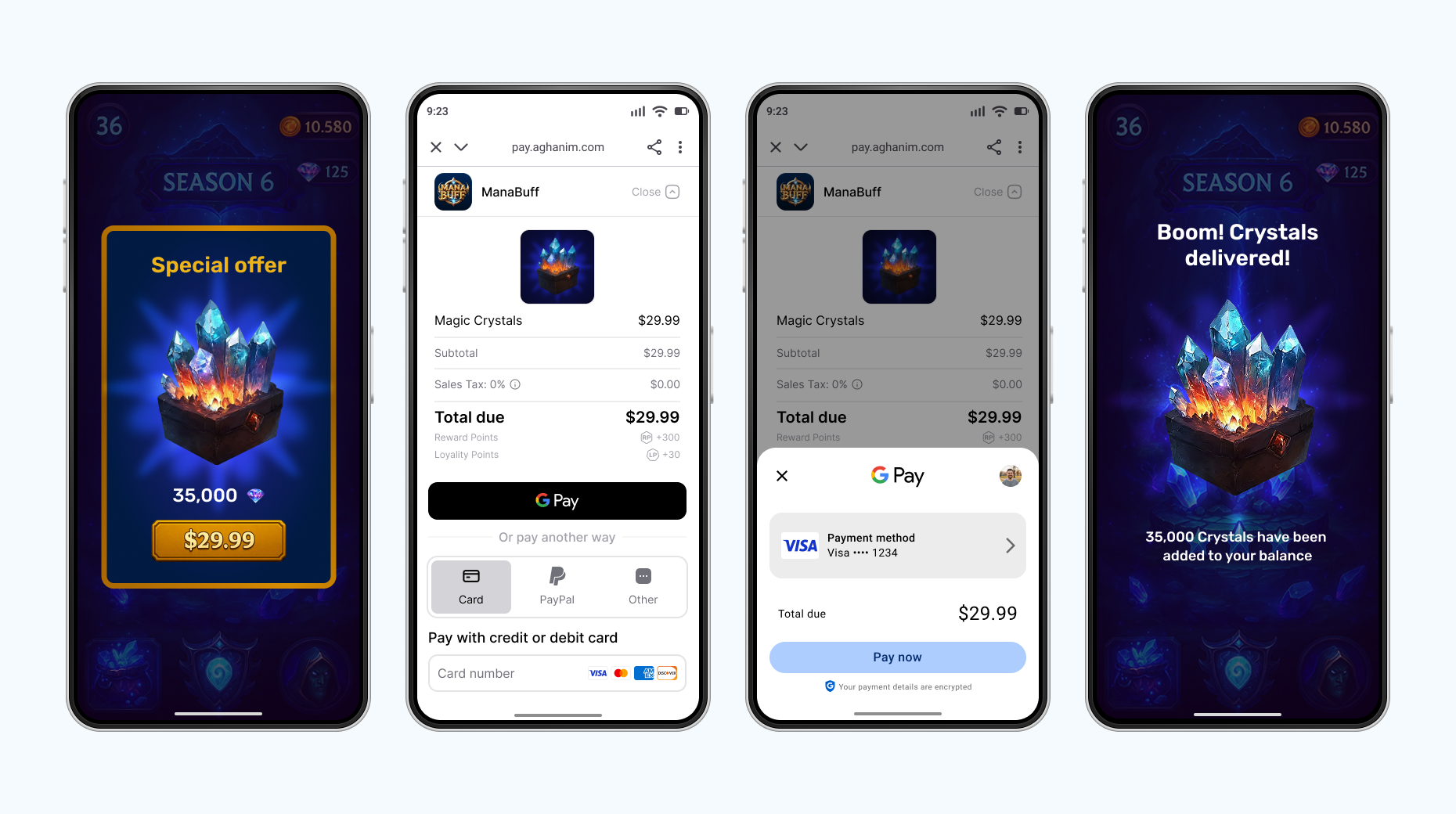
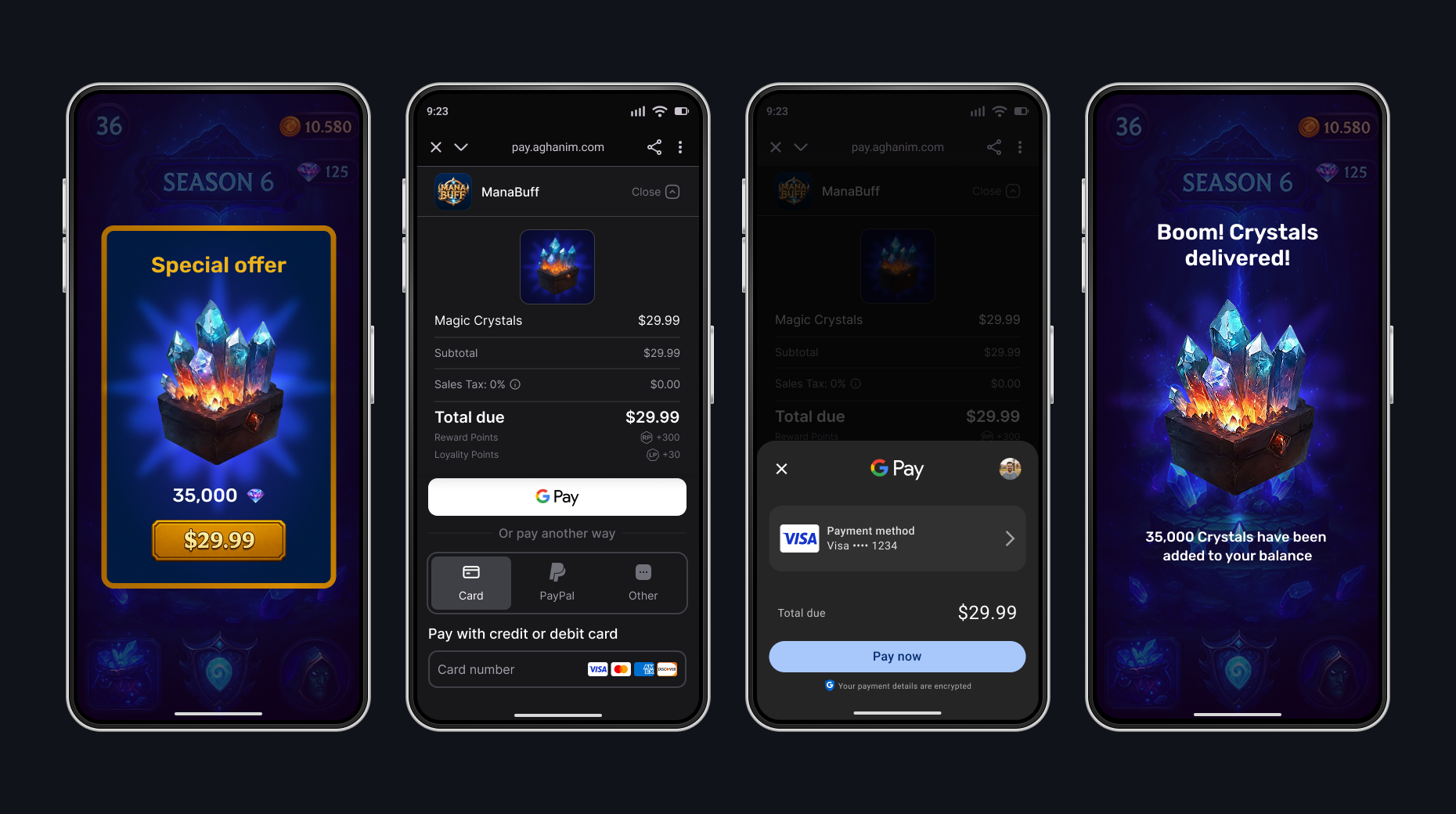
Register with Aghanim and link your game
First, register for an Aghanim account. At the end of registration, add the link to your mobile game. It should be published in Apple App Store or Google Play Store.
Set up environment
If you want to make real payments, you are all set as the live mode is used as default. Otherwise, use a sandbox, an isolated test environment, to simulate the Aghanim events to test payments without real money movement. To turn on the sandbox mode, set the Sandbox toggle to the active position.
Sandbox supports card payments only. Alternative methods (PayPal, wallets, local payment methods) appear only in live. See Test payments for the test cards.
While integrating, you will need an SDK key to authenticate requests to the Aghanim. Keep in mind that the sandbox and live modes have different keys. Find the SDK key in Integration → API keys.
Configure game client-side
Configure your game client to work with the Checkout by setting up the SDK and implementing the necessary code to process its methods.
Install SDK
To install the SDK, add android-sdk to the repositories’ block of your build system so it will know where to find the SDK dependencies.
- Kotlin DSL (build.gradle.kts)
- Groovy DSL (build.gradle)
- Maven (pom.xml)
repositories {
    maven {
        url = uri("https://us-central1-maven.pkg.dev/ag-registry/android-sdk")
    }
}
repositories {
    maven {
        url "https://us-central1-maven.pkg.dev/ag-registry/android-sdk"
    }
}
<repositories>
    <repository>
        <id>gcp-artifact-registry</id>
        <url>https://us-central1-maven.pkg.dev/ag-registry/android-sdk</url>
    </repository>
</repositories>
Configure dependencies
Add android-sdk to the dependencies’ block of your build system as well.
- Kotlin DSL (build.gradle.kts)
- Groovy DSL (build.gradle)
- Maven (pom.xml)
dependencies {
    implementation("com.aghanim.android:checkout-web:1.16.0")
}
dependencies {
    implementation 'com.aghanim.android:checkout-web:1.16.0'
}
<dependencies>
    <dependency>
        <groupId>com.aghanim.android</groupId>
        <artifactId>checkout-web</artifactId>
        <version>1.16.0</version>
    </dependency>
</dependencies>
Initialize SDK
Initialize the SDK manually in the app class.
- Kotlin
import android.app.Application
import com.aghanim.android.sdk.common.api.Aghanim

class MyApplication : Application() {
    lateinit var aghanim: Aghanim

    override fun onCreate() {
        super.onCreate()
        aghanim = Aghanim(
            context = this,
            apiKey = "<YOUR_SDK_KEY>"
        )
    }
}
To let Android SDK know that it should use your app class as an Application, add the app class to the manifest.
- AndroidManifest.xml
<application
    android:name=".MyApplication"
>
</application>
With the SDK, you can read its logs from one of the supported levels. The SDK writes all log messages into Android logcat, the default tool for logging in Android.
- Simple
- Advanced
The simple usage of the SDK log messages means setting the log level you are interested in the most:
DEBUG— detailed debug information on almost every event.INFO— general information on the SDK instance state and its events.WARNING— warnings and recoverable errors.ERROR— critical and fatal errors.NONE— no logging. Used by default.
- Kotlin
import android.app.Application
import com.aghanim.android.sdk.common.api.Aghanim
import com.aghanim.android.sdk.logging.api.LogLevel

class MyApplication : Application() {
    lateinit var aghanim: Aghanim

    override fun onCreate() {
        super.onCreate()
        aghanim = Aghanim(
            context = this,
            apiKey = "<YOUR_SDK_KEY>"
        ) {
            logLevel = LogLevel.DEBUG
        }
    }
}
You can reroute the SDK logs from Android logcat to the system you have chosen for logging. To do so, provide a custom logger implementation to the SDK functions for the log levels:
DEBUG— detailed debug information on almost every event.INFO— general information on the SDK instance state and its events.WARNING— warnings and recoverable errors.ERROR— critical and fatal errors.NONE— no logging. Used by default.
- Kotlin
import android.app.Application
import com.aghanim.android.sdk.common.api.Aghanim
import com.aghanim.android.sdk.logging.api.LogLevel
import com.aghanim.android.sdk.logging.api.Logger

class MyApplication : Application() {
    lateinit var aghanim: Aghanim

    override fun onCreate() {
        super.onCreate()
        aghanim = Aghanim(
            context = this,
            apiKey = "<YOUR_SDK_KEY>"
        ) {
            logLevel = LogLevel.DEBUG

            logger = object : Logger {
                override fun d(message: String, throwable: Throwable?) {
                    // TODO: Send debug messages to your logging system
                }

                override fun i(message: String, throwable: Throwable?) {
                    // TODO: Send information messages to your logging system
                }

                override fun w(message: String, throwable: Throwable?) {
                    // TODO: Send warning messages to your logging system
                }

                override fun e(message: String, throwable: Throwable?) {
                    // TODO: Send error messages to your logging system
                }
            }
        }
    }
}
Configure player ID
Since a mobile game has one instance per device, the SDK allows to set the player ID once to use it in all following method calls.
When your game client has the player ID, set it for the current SDK instance. The call is suspend and returns ApiResult<Unit>, rejecting a blank player ID with ApiError.InvalidArgument.
- Kotlin
import com.aghanim.android.sdk.common.api.result.ApiResult
import android.util.Log

when (val result = aghanim.setPlayerId(playerId)) {
    is ApiResult.Success -> {
        // The SDK attaches the player ID to all following method calls
    }

    is ApiResult.Failure -> {
        // Log debug information for troubleshooting
        Log.e("Aghanim", "Failed to set player ID: ${result.error}")
        // TODO: Handle error
    }
}
When the player signs out, clear the ID so the SDK stops attaching the previous identity to API requests.
- Kotlin
import com.aghanim.android.sdk.common.api.result.ApiResult
import android.util.Log

when (val result = aghanim.clearPlayerId()) {
    is ApiResult.Success -> {
        // The SDK stops attaching the previous player ID to API requests
    }

    is ApiResult.Failure -> {
        // Log debug information for troubleshooting
        Log.e("Aghanim", "Failed to clear player ID: ${result.error}")
        // TODO: Handle error
    }
}
Order creation is tied to the player, so launching the Checkout without a player ID fails with ApiError.PlayerIdNotSet. Set it as soon as the player authenticates.
Create item
The integration needs the items to be added to the Dashboard. When creating items, each should have its SKU, a unique identifier for the item within your game backend. You can add their prices, currency, sale configuration, and more.
To add an item to the Dashboard:
- Go to SKU Management → Items.
- Click Add Item. The site will open the Add Item page.
- Enter the item name New item.
- Enter the item SKU items.new.ba68a028-2d51-46b4-a854-68fc16af328a.
- In the Price block:
- Select the Fiat price type for a real money item.
- Enter the price 1.99.
- Click Add item.
For integration purposes, we have shortened an item setup. Before going live, use every suitable feature while adding items to the Dashboard.
Get items with localized prices
The SDK retrieves items created in the Dashboard with localized prices based on the player's region. Use this to display accurate prices in your in-game store before the player proceeds to checkout.
- Coroutines
- Asynchronous callbacks
- Kotlin
import com.aghanim.android.sdk.common.api.result.ApiResult
import android.util.Log

when (val result = aghanim.items.get(
    skus = listOf("items.new.ba68a028-2d51-46b4-a854-68fc16af328a"),
)) {
    is ApiResult.Success -> {
        val items = result.value
        items.forEach { item ->
            // Use item.name, item.price.display, item.imageUrl to populate your store
            Log.d("Items", "${item.name}: ${item.price.display}")
        }
    }

    is ApiResult.Failure -> {
        // Log debug information for troubleshooting
        Log.e("Items", "Failed to get items: ${result.error}")
        // TODO: Handle error
    }
}
- Kotlin
import com.aghanim.android.sdk.common.api.callbacks.ItemsCallback
import com.aghanim.android.sdk.common.api.models.item.Item
import com.aghanim.android.sdk.common.api.result.ApiError
import android.util.Log

aghanim.items.getAsync(
    skus = listOf("items.new.ba68a028-2d51-46b4-a854-68fc16af328a"),
    locale = null,
    callback = object : ItemsCallback {
        override fun onSuccess(items: List<Item>) {
            items.forEach { item ->
                // Use item.name, item.price.display, item.imageUrl to populate your store
                Log.d("Items", "${item.name}: ${item.price.display}")
            }
        }

        override fun onError(failure: ApiError) {
            // Log debug information for troubleshooting
            Log.e("Items", "Failed to get items: ${failure.debugMessage}")
            // TODO: Handle error
        }
    }
)
Create Checkout item
It is time to create a variable that represents the items to be purchased.
- Kotlin
import com.aghanim.android.sdk.checkout.core.api.models.CheckoutItem

val checkoutItem = CheckoutItem(
    sku = "items.new.ba68a028-2d51-46b4-a854-68fc16af328a"
)
Configure deep links
As the SDK launches the Checkout in the browser, the player needs to be back to your app once they complete the payment. To return the player to your app, the SDK needs you to specify deep links.
- App Links
- Custom Schemes
With Android App Links, the player goes directly to the app without any additional clicks. App Links use standard HTTPS URLs and the Android system verifies their domain. It makes this approach secure and more suitable for the production environment.
Now, create a variable for the deep link URL. We will use it later.
- Kotlin
val backToGameUrl = "https://<YOUR_DOMAIN>/checkout-complete"
The Android SDK can trust the deep links and their domain only when the domain is hosted on a server. The server should have the assetlinks.json file containing this domain information. Host the file at https://<YOUR_DOMAIN>/.well-known/assetlinks.json. The file acts as a bridge to verify the authenticity of the links’ domain and your app by the Android SDK.
- assetlinks.json
[{
  "relation": ["delegate_permission/common.handle_all_urls"],
  "target": {
    "namespace": "android_app",
    "package_name": "com.<YOUR_COMPANY>.<YOUR_APP>",
    "sha256_cert_fingerprints": ["<YOUR_APP_FINGERPRINT>"]
  }
}]
The Android SDK needs to know that the deep links lead to your app. To create this connection, add an intent filter in the manifest.
- AndroidManifest.xml
<activity android:name=".MainActivity">
    <intent-filter android:autoVerify="true">
       <action android:name="android.intent.action.VIEW" />
       <category android:name="android.intent.category.DEFAULT" />
       <category android:name="android.intent.category.BROWSABLE" />

        <!-- URL parts from backToGameUrl -->
       <data
           android:scheme="https"
           android:host="<YOUR_DOMAIN>"
           android:pathPrefix="/checkout"
       />
    </intent-filter>
</activity>
Since configuring the intent filter doesn’t perform any app logic, handle the deep link in the Activity.
- Kotlin
override fun onNewIntent(intent: Intent?) {
    super.onNewIntent(intent)
    intent?.data?.let { uri ->
        // TODO: Handle player returning from Checkout
        if (uri.host == "<YOUR_DOMAIN>" && uri.path?.startsWith("/checkout") == true) {
            // Player has returned from Checkout
            // TODO: Check unconsumed orders and consume order if needed
        }
    }
}
Custom schemes may show a dialog asking the player if they want to open the app. Custom schemes are easier to set up but don’t provide the same security level. It makes this approach suitable for the development and testing environment.
Now, create a variable for the deep link. We will use it later.
- Kotlin
val backToGameUrl = "myapp://checkout-complete"
The Android SDK needs to know the full deep link and its scheme. Only knowing the scheme, the Android SDK is able to recognize that the deep link leads back to your app and can open it. To create this connection, add an intent filter in the manifest.
- AndroidManifest.xml
<activity android:name=".MainActivity">
    <intent-filter>
        <action android:name="android.intent.action.VIEW" />
        <category android:name="android.intent.category.DEFAULT" />
        <category android:name="android.intent.category.BROWSABLE" />

        <!-- Deep link scheme from backToGameUrl -->
        <data android:scheme="myapp" />
    </intent-filter>
</activity>
Since configuring the intent filter doesn’t perform any app logic, handle the deep link in the Activity.
- Kotlin
override fun onNewIntent(intent: Intent?) {
    super.onNewIntent(intent)
    intent?.data?.let { uri ->
        // TODO: Handle player returning from Checkout
        if (uri.scheme == "myapp") {
            // Player has returned from Checkout
            // TODO: Check unconsumed orders and consume order if needed
        }
    }
}
Create Checkout params
When all data variables are ready, create another one that represents Checkout params. Checkout params are the programmatic representation of what the player sees when they are on the payment form. Checkout params are associated with a player and items, they are crucial for the Checkout to work. You can use the existing player from your game or create them at runtime.
- Kotlin
import com.aghanim.android.sdk.checkout.core.api.models.CheckoutParams
import com.aghanim.android.sdk.common.api.models.common.Locale

val checkoutParams = CheckoutParams(
    items = listOf(checkoutItem),
    backToGameUrl = backToGameUrl,
    // Optional. Locale for texts’ localization. Default is system locale
    locale = Locale.EN
)
You can attach custom metadata to the Checkout for item tracking purposes. You can access it through webhooks and in API responses from the Aghanim. Metadata has a structure of “key-value” pairs.
- Kotlin
import com.aghanim.android.sdk.checkout.core.api.models.CheckoutParams

val metadata = mapOf(
    "campaign" to "winter_sale",
    "source" to "mobile_app",
    "user_segment" to "premium",
    "ab_test_variant" to "variant_a",
    "player_level" to "42"
)

val checkoutParams = CheckoutParams(
    items = listOf(checkoutItem),
    backToGameUrl = backToGameUrl,
    metadata = metadata
)
You can choose the behavior of redirecting the player after they have completed the payment successfully. The difference in the provided by the SDK modes is a delay before redirecting or absence of redirecting.
- Immediate
- Delayed
- No redirect
When the player has completed the payment, the SDK redirects them immediately to the deep link from backToGameUrl.
- Kotlin
import com.aghanim.android.sdk.checkout.core.api.models.RedirectSettings
import com.aghanim.android.sdk.checkout.core.api.models.RedirectMode
import com.aghanim.android.sdk.checkout.core.api.models.CheckoutParams

val redirectSettings = RedirectSettings(
    mode = RedirectMode.IMMEDIATE
)

val checkoutParams = CheckoutParams(
    items = listOf(checkoutItem),
    backToGameUrl = backToGameUrl,
    redirectSettings = redirectSettings
)
When the player has completed the payment, the SDK shows the screen for the successful payment and then redirects the player to the deep link from backToGameUrl.
- Kotlin
import com.aghanim.android.sdk.checkout.core.api.models.RedirectSettings
import com.aghanim.android.sdk.checkout.core.api.models.RedirectMode
import com.aghanim.android.sdk.checkout.core.api.models.CheckoutParams

val redirectSettings = RedirectSettings(
    mode = RedirectMode.DELAYED,
    // Optional. Seconds to delay for. Default is 5 seconds
    delaySeconds = 5
)

val checkoutParams = CheckoutParams(
    items = listOf(checkoutItem),
    backToGameUrl = backToGameUrl,
    redirectSettings = redirectSettings
)
When the player has completed the payment, they stay on the screen for the successful payment. To exit it, they manually close it or navigate away. After, you should redirect them to the deep link from backToGameUrl by yourself.
- Kotlin
import com.aghanim.android.sdk.checkout.core.api.models.RedirectSettings
import com.aghanim.android.sdk.checkout.core.api.models.RedirectMode
import com.aghanim.android.sdk.checkout.core.api.models.CheckoutParams

val redirectSettings = RedirectSettings(
    mode = RedirectMode.NO_REDIRECT
)

val checkoutParams = CheckoutParams(
    items = listOf(checkoutItem),
    backToGameUrl = backToGameUrl,
    redirectSettings = redirectSettings
)
You can set the appearance mode for the Checkout UI. The SDK supports automatic detection based on the system setting, or you can force a specific mode.
- Auto
- Dark
- Light
The SDK automatically detects and applies the appropriate appearance mode based on the system setting.
- Kotlin
import com.aghanim.android.sdk.checkout.core.api.models.UiSettings
import com.aghanim.android.sdk.checkout.core.api.models.UiMode
import com.aghanim.android.sdk.checkout.core.api.models.CheckoutParams

val uiSettings = UiSettings(
    mode = UiMode.AUTO
)

val checkoutParams = CheckoutParams(
    items = listOf(checkoutItem),
    uiSettings = uiSettings
)
The SDK forces dark mode appearance for the Checkout UI.
- Kotlin
import com.aghanim.android.sdk.checkout.core.api.models.UiSettings
import com.aghanim.android.sdk.checkout.core.api.models.UiMode
import com.aghanim.android.sdk.checkout.core.api.models.CheckoutParams

val uiSettings = UiSettings(
    mode = UiMode.DARK
)

val checkoutParams = CheckoutParams(
    items = listOf(checkoutItem),
    uiSettings = uiSettings
)
The SDK forces light mode appearance for the Checkout UI.
- Kotlin
import com.aghanim.android.sdk.checkout.core.api.models.UiSettings
import com.aghanim.android.sdk.checkout.core.api.models.UiMode
import com.aghanim.android.sdk.checkout.core.api.models.CheckoutParams

val uiSettings = UiSettings(
    mode = UiMode.LIGHT
)

val checkoutParams = CheckoutParams(
    items = listOf(checkoutItem),
    uiSettings = uiSettings
)
Launch Checkout
Add a checkout button to your game client that launches the payment form. To display the form, the SDK uses the current activity context. The SDK creates an order from the provided checkout params and opens the Checkout UI. On success, you receive the Order ID to track the order. On failure, you receive an error with debug information for troubleshooting.
- Coroutines
- Asynchronous callbacks
- Kotlin
import com.aghanim.android.sdk.checkout.web.api.startWebCheckout
import com.aghanim.android.sdk.checkout.web.api.models.LaunchMode
import com.aghanim.android.sdk.common.api.result.ApiResult
import android.util.Log

when (val result = aghanim.startWebCheckout(
    context = context,
    checkoutParams = checkoutParams,
    launchMode = LaunchMode.InAppBrowser,
)) {
    is ApiResult.Success -> {
        // Order is created and checkout has launched successfully
        val orderId = result.value
        // TODO: Save order ID for further granting or tracking
    }

    is ApiResult.Failure -> {
        // Log debug information for troubleshooting
        Log.e("Checkout", "Failed to launch Checkout: ${result.error}")
        // TODO: Show user-friendly error message to player
    }
}
- Kotlin
import com.aghanim.android.sdk.checkout.web.api.startWebCheckoutAsync
import com.aghanim.android.sdk.checkout.web.api.models.LaunchMode
import com.aghanim.android.sdk.checkout.core.api.callbacks.LaunchCheckoutCallback
import com.aghanim.android.sdk.common.api.result.ApiError
import android.util.Log

aghanim.startWebCheckoutAsync(
    context = context,
    checkoutParams = checkoutParams,
    launchMode = LaunchMode.InAppBrowser,
    callback = object : LaunchCheckoutCallback {
        override fun onSuccess(orderId: String) {
            // Order is created and checkout has launched successfully
            // TODO: Save order ID for further granting or tracking
        }

        override fun onError(error: ApiError) {
            // Log debug information for troubleshooting
            Log.e("Checkout", "Failed to launch Checkout: ${error.debugMessage}")
            // TODO: Show user-friendly error message to player
        }
    }
)
Check unconsumed Orders
After the Checkout page has launched and the Order ID is ready, the player can leave the page and come back, and pay for the items in the Order or not pay for them. The main goal of the Checkout launch result is to tell whether the player has opened it successfully, closed it, or the launch has failed. So after, you need to know which Orders have been paid for and should be granted to the player. The SDK has functionality to get the list of the player paid Orders. When you know their IDs, you should mark them as consumed and grant to the player.
- Coroutines
- Asynchronous callbacks
- Kotlin
import com.aghanim.android.sdk.common.api.result.ApiResult
import android.util.Log

when (val unconsumedResult = aghanim.orders.getUnconsumed()) {
    is ApiResult.Success -> {
        // Player has paid but not granted items from orders
        val unconsumedOrderIds = unconsumedResult.value
        // TODO: Save order IDs for further consuming and granting
    }

    is ApiResult.Failure -> {
        // Log debug information for troubleshooting
        Log.e("Orders", "Failed to get unconsumed orders: ${unconsumedResult.error}")
        // TODO: Handle error
    }
}
- Kotlin
import com.aghanim.android.sdk.common.api.callbacks.OrderListCallback
import com.aghanim.android.sdk.common.api.result.ApiError
import android.util.Log

aghanim.orders.getUnconsumedAsync(
    callback = object : OrderListCallback {
        override fun onSuccess(orderIds: List<String>) {
            // Player has paid but not granted items from orders
            val unconsumedOrderIds = orderIds
            // TODO: Save order IDs for further consuming and granting
        }

        override fun onError(failure: ApiError) {
            // Log debug information for troubleshooting
            Log.e("Orders", "Failed to get unconsumed orders: ${failure.debugMessage}")
            // TODO: Handle error
        }
    }
)
Consume paid Orders
When you know the Order IDs that the player has paid for, you should mark them as consumed and grant to the player within your game logic.
- Coroutines
- Asynchronous callbacks
- Kotlin
import com.aghanim.android.sdk.common.api.result.ApiResult
import android.util.Log

when (val consumeResult = aghanim.orders.consume(orderId)) {
    is ApiResult.Success -> {
        // Paid orders are marked as consumed
        Log.d("Orders", "Order $orderId is successfully consumed")
        // TODO: Grant items in order to player
    }

    is ApiResult.Failure -> {
        // Log debug information for troubleshooting
        Log.e("Orders", "Failed to consume order: ${consumeResult.error}")
        // TODO: Handle error
    }
}
- Kotlin
import com.aghanim.android.sdk.common.api.callbacks.ConsumeCallback
import com.aghanim.android.sdk.common.api.result.ApiError
import android.util.Log

aghanim.orders.consumeAsync(
    orderId = orderId,
    callback = object : ConsumeCallback {
        override fun onSuccess() {
            // Paid orders are marked as consumed
            Log.d("Orders", "Order $orderId is successfully consumed")
            // TODO: Grant items in order to player
        }

        override fun onError(failure: ApiError) {
            // Log debug information for troubleshooting
            Log.e("Orders", "Failed to consume order: ${failure.debugMessage}")
            // TODO: Handle error
        }
    }
)
Full implementation code
- Coroutines
- Asynchronous callbacks
- Kotlin
import com.aghanim.android.sdk.checkout.core.api.models.CheckoutItem
import com.aghanim.android.sdk.checkout.core.api.models.CheckoutParams
import com.aghanim.android.sdk.checkout.web.api.startWebCheckout
import com.aghanim.android.sdk.checkout.web.api.models.LaunchMode
import com.aghanim.android.sdk.common.api.result.ApiResult
import android.util.Log

val checkoutItem = CheckoutItem(
    sku = "items.new.ba68a028-2d51-46b4-a854-68fc16af328a"
)

val checkoutParams = CheckoutParams(
    items = listOf(checkoutItem),
    backToGameUrl = backToGameUrl
)

when (val result = aghanim.startWebCheckout(
    context = context,
    checkoutParams = checkoutParams,
    launchMode = LaunchMode.InAppBrowser,
)) {
    is ApiResult.Success -> {
        // Order is created and checkout has launched successfully
        val orderId = result.value
        // TODO: Save order ID for further granting or tracking
    }

    is ApiResult.Failure -> {
        // Log debug information for troubleshooting
        Log.e("Checkout", "Failed to launch Checkout: ${result.error}")
        // TODO: Show user-friendly error message to player
    }
}
- Kotlin
import com.aghanim.android.sdk.checkout.core.api.models.CheckoutItem
import com.aghanim.android.sdk.checkout.core.api.models.CheckoutParams
import com.aghanim.android.sdk.checkout.web.api.startWebCheckoutAsync
import com.aghanim.android.sdk.checkout.web.api.models.LaunchMode
import com.aghanim.android.sdk.checkout.core.api.callbacks.LaunchCheckoutCallback
import com.aghanim.android.sdk.common.api.result.ApiError
import android.util.Log

val checkoutItem = CheckoutItem(
    sku = "items.new.ba68a028-2d51-46b4-a854-68fc16af328a"
)

val checkoutParams = CheckoutParams(
    items = listOf(checkoutItem),
    backToGameUrl = backToGameUrl
)

aghanim.startWebCheckoutAsync(
    context = context,
    checkoutParams = checkoutParams,
    launchMode = LaunchMode.InAppBrowser,
    callback = object : LaunchCheckoutCallback {
        override fun onSuccess(orderId: String) {
            // Order is created and checkout has launched successfully
            // TODO: Save order ID for further granting or tracking
        }

        override fun onError(error: ApiError) {
            // Log debug information for troubleshooting
            Log.e("Checkout", "Failed to launch Checkout: ${error.debugMessage}")
            // TODO: Show user-friendly error message to player
        }
    }
)
Make payment
Make a payment. If you have set the sandbox mode, use the test card below. In the sandbox, you can make payments only with the test cards — alternative methods like PayPal, wallets, and local payment methods appear only in the live environment. The test cards accept any digits as CVV and any future date as expiry date. Don’t forget to fill in an email address to check the receipt is sent and any postal code as a billing address.
Successful payments
After you complete the payment, you will receive a receipt sent to the specified email address and a transaction record in Aghanim Dashboard → Transactions.
| Card Brand | Card Number | CVV | Expiry date | Country |
|---|---|---|---|---|
| VISA (credit) | 4242 4242 4242 4242 | Any 3 digits | Any future date | GB |
Unsuccessful payments
Make an unsuccessful payment just in case you are curious. You will see the transaction in Aghanim Dashboard → Transactions as well.
| Number | CVV | Expiry date | Response code | Description |
|---|---|---|---|---|
4832 2850 6160 9015 | Any 3 digits | Any future date | 16 | Payment declined |
For the live mode, you can find all supported payment methods in Company settings → Payment methods. Turn on or off those you see suitable. Some payment methods are available globally by default. You can’t disable Credit cards, Apple Pay, Google Pay, and PayPal.
In Checkout, the Aghanim evaluates the currency and any restrictions, then dynamically presents only the payment methods available to the player based on evaluation.
When you use the live mode, the payment form shows to the player a setting to save their payment method so they can make a one-click payment in the future.
Handle post-payment events on game server-side
To complete the Checkout, handle items’ granting and chargebacks on your game backend. To do so, implement a webhook system that accepts the item.add and item.remove webhooks. See the code example with the implementation.
Comply with the Aghanim requirements for these webhooks:
- Use HTTPS schema for the single POST webhook endpoint.
- Check that webhooks are generated and signed by the Aghanim.
- Handle the
idempotency_keyfield in the webhook payload to prevent processing duplicate webhooks. - Respond with the HTTP status codes:
2xxfor successfully processed webhooks.4xxand5xxfor errors.
Grant items to player
The Aghanim sends the item.add webhook to let you know about the purchased items and ask for your permission to grant them to the player.
When the Aghanim has your 2xx answer, it can complete the checkout logic and redirect the player to a deep link if provided.
Support refunds and chargebacks
The Aghanim sends the item.remove webhook when a bank or payment system reverses the transaction, or you have requested refund in Aghanim Dashboard → Transactions. Partial refunds are not supported.
The suggested implementation handles the webhooks mentioned before:
item.addfor granting items. You need it for integration.item.removefor refunds and chargebacks. You might need it for integration.
- Python
- Ruby
- Node.js
- Go
# Use this sample code to handle webhook events in your integration.
#
# 1. Paste this code into a new file `server.py`.
#
# 2. Install dependencies:
#    python -m pip install fastapi[all]
#
# 3. Run the server on http://localhost:8000
#    python server.py

import fastapi, hashlib, hmac, json, typing
from fastapi.responses import JSONResponse

app = fastapi.FastAPI()

@app.post("/webhook")
async def webhook(request: fastapi.Request) -> dict[str, typing.Any]:
    secret_key = "<YOUR_S2S_KEY>"  # Replace with your actual webhook secret key

    raw_payload = await request.body()
    payload = raw_payload.decode()
    timestamp = request.headers["x-aghanim-signature-timestamp"]
    received_signature = request.headers["x-aghanim-signature"]

    if not verify_signature(secret_key, payload, timestamp, received_signature):
        raise fastapi.HTTPException(status_code=403, detail="Invalid signature")

    data = json.loads(payload)
    event_type = data["event_type"]
    event_data = data["event_data"]

    if event_type == "item.add":
        add_item(event_data)
        return {"status": "ok"}

    if event_type == "item.remove":
        remove_item(event_data)
        return {"status": "ok"}

    raise fastapi.HTTPException(status_code=400, detail="Unknown event type")

def verify_signature(secret_key: str, payload: str, timestamp: str, received_signature: str) -> bool:
    signature_data = f"{timestamp}.{payload}"
    computed_hash = hmac.new(secret_key.encode(), signature_data.encode(), hashlib.sha256)
    computed_signature = computed_hash.hexdigest()
    return hmac.compare_digest(computed_signature, received_signature)

def add_item(event_data: dict[str, typing.Any]) -> None:
    # Placeholder logic for processing the event and adding item.
    # In a real application, this function would interact with your database or inventory system.
    player_id = event_data["player_id"]
    for item in event_data["items"]:
      sku = item["sku"]
      print(f"Item {sku} has been credited to player's {player_id} account.")

def remove_item(event_data: dict[str, typing.Any]) -> None:
    # Placeholder logic for processing the event and removing item.
    # In a real application, this function would interact with your database or inventory system.
    player_id = event_data["player_id"]
    for item in event_data["items"]:
      sku = item["sku"]
      print(f"Item {sku} has been removed from player's {player_id} account.")

if __name__ == "__main__":
    import uvicorn
    uvicorn.run(app, host="0.0.0.0", port=8000)
# Use this sample code to handle webhook events in your integration.
#
# 1. Paste this code into a new file `server.rb`.
#
# 2. Install dependencies:
#    gem install sinatra json hmac
#
# 3. Run the server on http://localhost:8000
#    ruby server.rb

require 'sinatra'
require 'json'
require 'openssl'

post '/webhook' do
  secret_key = "<YOUR_S2S_KEY>"  # Replace with your actual webhook secret key

  payload = request.body.read
  timestamp = request.env["HTTP_X_AGHANIM_SIGNATURE_TIMESTAMP"]
  received_signature = request.env["HTTP_X_AGHANIM_SIGNATURE"]

  unless verify_signature(secret_key, payload, timestamp, received_signature)
    halt 403, "Invalid signature"
  end

  data = JSON.parse(payload)
  event_type = data["event_type"]
  event_data = data["event_data"]

  if event_type == "item.add"
    add_item(event_data)
    return { status: "ok" }.to_json
  end

  if event_type == "item.remove"
    remove_item(event_data)
    return { status: "ok" }.to_json
  end

  halt 400, "Unknown event type"
end

def verify_signature(secret_key, payload, timestamp, received_signature)
  signature_data = "#{timestamp}.#{payload}"
  computed_signature = OpenSSL::HMAC.hexdigest('sha256', secret_key, signature_data)
  OpenSSL.secure_compare(computed_signature, received_signature)
end

def add_item(event_data)
  # Placeholder logic for processing the event and adding item.
  # In a real application, this function would interact with your database or inventory system.
  player_id = event_data["player_id"]
  for item in event_data["items"] do
    sku = item["sku"]
    puts "Item #{sku} has been credited to player's #{player_id} account."
  end
end

def remove_item(event_data)
  # Placeholder logic for processing the event and removing item.
  # In a real application, this function would interact with your database or inventory system.
  player_id = event_data["player_id"]
  for item in event_data["items"] do
    sku = item["sku"]
    puts "Item #{sku} has been removed from player's #{player_id} account."
  end
end

if __FILE__ == $0
  require 'sinatra'
  set :bind, '0.0.0.0'
  set :port, 8000
end
// Use this sample code to handle webhook events in your integration.
//
// 1. Paste this code into a new file `server.js`.
//
// 2. Install dependencies:
//    npm install express
//
// 3. Run the server on http://localhost:8000
//    node server.js

const express = require('express');
const crypto = require('crypto');

const app = express();

app.post('/webhook', express.raw({ type: "*/*" }), async (req, res) => {
  const secretKey = '<YOUR_S2S_KEY>'; // Replace with your actual webhook secret key

  const rawPayload = req.body;
  const timestamp = req.headers['x-aghanim-signature-timestamp'];
  const receivedSignature = req.headers['x-aghanim-signature'];

  if (!verifySignature(secretKey, rawPayload, timestamp, receivedSignature)) {
    return res.status(403).send('Invalid signature');
  }

  const payload = JSON.parse(req.body);
  const { event_type, event_data } = payload;

  if (event_type === 'item.add') {
    addItem(event_data);
    return res.json({ status: 'ok' });
  }

  if (event_type === 'item.remove') {
    removeItem(event_data);
    return res.json({ status: 'ok' });
  }

  return res.status(400).send('Unknown event type');
});

function verifySignature(secretKey, payload, timestamp, receivedSignature) {
  const signatureData = `${timestamp}.${payload}`;
  const computedSignature = crypto
    .createHmac('sha256', secretKey)
    .update(signatureData)
    .digest('hex');
  return crypto.timingSafeEqual(Buffer.from(computedSignature), Buffer.from(receivedSignature));
}

function addItem(event_data) {
  // Placeholder logic for processing the event and adding item.
  // In a real application, this function would interact with your database or inventory system.
  const playerId = event_data.player_id;
  for (const item of event_data.items) {
    const sku = item.sku;
    console.log(`Item ${item.sku} has been credited to player's ${playerId} account.`);
 }
}

function removeItem(event_data) {
  // Placeholder logic for processing the event and removing item.
  // In a real application, this function would interact with your database or inventory system.
  const playerId = event_data.player_id;
  for (const item of event_data.items) {
    const sku = item.sku;
    console.log(`Item ${item.sku} has been removed from player's ${playerId} account.`);
 }
}

app.listen(8000, () => {
  console.log('Server is running on http://localhost:8000');
});
// Use this sample code to handle webhook events in your integration.
//
// 1. Paste this code into a new file `server.go`.
//
// 2. Run the server on http://localhost:8000
//    go run server.go

package main

import (
  "crypto/hmac"
  "crypto/sha256"
  "encoding/hex"
  "encoding/json"
  "fmt"
  "io/ioutil"
  "net/http"
)

func webhookHandler(w http.ResponseWriter, r *http.Request) {
  secretKey := "<YOUR_S2S_KEY>"  // Replace with your actual webhook secret key

  rawPayload, _ := ioutil.ReadAll(r.Body)
  payload := string(rawPayload)
  timestamp := r.Header.Get("X-Aghanim-Signature-Timestamp")
  receivedSignature := r.Header.Get("X-Aghanim-Signature")

  if !verifySignature(secretKey, payload, timestamp, receivedSignature) {
    http.Error(w, "Invalid signature", http.StatusForbidden)
    return
  }

  var data map[string]interface{}
  if err := json.Unmarshal(rawPayload, &data); err != nil {
    http.Error(w, "Invalid payload", http.StatusBadRequest)
    return
  }

  eventType := data["event_type"].(string)
  eventData := data["event_data"].(map[string]interface{})

  if eventType == "item.add" {
    addItem(eventData)
    w.WriteHeader(http.StatusOK)
    json.NewEncoder(w).Encode(map[string]string{"status": "ok"})
    return
  }

  if eventType == "item.remove" {
    removeItem(eventData)
    w.WriteHeader(http.StatusOK)
    json.NewEncoder(w).Encode(map[string]string{"status": "ok"})
    return
  }

  http.Error(w, "Unknown event type", http.StatusBadRequest)
}

func verifySignature(secretKey, payload, timestamp, receivedSignature string) bool {
  signatureData := fmt.Sprintf("%s.%s", timestamp, payload)
  mac := hmac.New(sha256.New, []byte(secretKey))
  mac.Write([]byte(signatureData))
  computedSignature := hex.EncodeToString(mac.Sum(nil))
  return hmac.Equal([]byte(computedSignature), []byte(receivedSignature))
}

func addItem(eventData map[string]interface{}) {
  // Placeholder logic for processing the event and adding item.
  // In a real application, this function would interact with your database or inventory system.
  playerID := eventData["player_id"].(string)
  items := eventData["items"].([]interface{})
  for _, item := range items {
    itemMap := item.(map[string]interface{})
    sku := itemMap["sku"].(string)
    fmt.Printf("Item %s has been credited to player's %s account.\\n", sku, playerID)
  }
}

func removeItem(eventData map[string]interface{}) {
  // Placeholder logic for processing the event and removing item.
  // In a real application, this function would interact with your database or inventory system.
  playerID := eventData["player_id"].(string)
  items := eventData["items"].([]interface{})
  for _, item := range items {
    itemMap := item.(map[string]interface{})
    sku := itemMap["sku"].(string)
    fmt.Printf("Item %s has been removed from player's %s account.\\n", sku, playerID)
  }
}

func main() {
  http.HandleFunc("/webhook", webhookHandler)
  fmt.Println("Server is running on http://localhost:8000")
  http.ListenAndServe(":8000", nil)
}
Add webhook endpoint to Aghanim
When the webhook handling is ready, add the endpoint to the account so the Aghanim could start sending the events.
- Dashboard
- API
- Go to Integration → Webhooks.
- Click Add webhook. The site will open the Create webhook window.
- Copy and paste the URL
https://<YOUR_DOMAIN>/webhook. - Click Select events. The site will open the Select events to send window.
- Expand the Main class and select the Item add, Item remove checkboxes.
- Click Apply.
- Click Add. The site will redirect you to the webhook page.
- Click Back.
- cURL
- Python
- Ruby
- Node.js
- Go
curl -X POST https://api.aghanim.com/s2s/v1/webhooks \
  -H 'Content-Type: application/json' \
  -H 'Authorization: Bearer <YOUR_S2S_KEY>' \
  -d '{
    "events": [
      "item.add",
      "item.remove"
    ],
    "url": "https://<YOUR_DOMAIN>/webhook",
    "description": "The endpoint for all webhooks",
    "method": "POST",
    "enabled": true,
    "enabled_logs": true,
    "player_context_enabled": true
  }'
import requests

def create_webhook():
    payload = {
        "events": ["item.add", "item.remove"],
        "url": "https://<YOUR_DOMAIN>/webhook",
        "description": "The endpoint for all webhooks",
        "method": "POST",
        "enabled": True,
        "enabled_logs": True,
        "player_context_enabled": True
    }

    headers = {"Authorization": "Bearer <YOUR_S2S_KEY>", "Content-Type": "application/json"}
    resp = requests.post("https://api.aghanim.com/s2s/v1/webhooks", json=payload, headers=headers)
    return resp.json()
require 'net/http'
require 'json'
require 'uri'

def create_webhook
  uri = URI("https://api.aghanim.com/s2s/v1/webhooks")
  req = Net::HTTP::Post.new(uri, 'Content-Type' => 'application/json', 'Authorization' => 'Bearer <YOUR_S2S_KEY>')
  req.body = {
    events: ["item.add", "item.remove"],
    url: "https://<YOUR_DOMAIN>/webhook",
    description: "The endpoint for all webhooks",
    method: "POST",
    enabled: true,
    enabled_logs: true,
    player_context_enabled: true
  }.to_json

  res = Net::HTTP.start(uri.hostname, uri.port, use_ssl: true) { |http| http.request(req) }
  JSON.parse(res.body)
end
const axios = require('axios');

async function createWebhook() {
  const payload = {
    events: ["item.add", "item.remove"],
    url: "https://<YOUR_DOMAIN>/webhook",
    description: "The endpoint for all webhooks",
    method: "POST",
    enabled: true,
    enabled_logs: true,
    player_context_enabled: true
  };

  const res = await axios.post('https://api.aghanim.com/s2s/v1/webhooks', payload, {
    headers: { 'Authorization': 'Bearer <YOUR_S2S_KEY>', 'Content-Type': 'application/json' }
  });
  return res.data;
}
package main

import (
	"bytes"
	"encoding/json"
	"net/http"
)

func createWebhook() map[string]interface{} {
	payload := map[string]interface{}{
		"events":                 []string{"item.add", "item.remove"},
		"url":                    "https://<YOUR_DOMAIN>/webhook",
		"description":            "The endpoint for all webhooks",
		"method":                 "POST",
		"enabled":                true,
		"enabled_logs":           true,
		"player_context_enabled": true,
	}
	data, _ := json.Marshal(payload)

	req, _ := http.NewRequest("POST", "https://api.aghanim.com/s2s/v1/webhooks", bytes.NewBuffer(data))
	req.Header.Set("Authorization", "Bearer <YOUR_S2S_KEY>")
	req.Header.Set("Content-Type", "application/json")

	client := &http.Client{}
	resp, _ := client.Do(req)
	defer resp.Body.Close()

	var webhook map[string]interface{}
	json.NewDecoder(resp.Body).Decode(&webhook)
	return webhook
}
Test your integration
After you have handled the webhooks, check that the purchased items are in your inventory. That’s all.
Next steps
- See Currency codes and minor units to learn how the Aghanim represents monetary amounts.
- See Payment Webhook to learn about the payment progress when the player visits the payment form.
FAQ
checkout-ui supports the Checkout for the Native UI integration mode with maximum control over appearance and behavior.
checkout-web supports the Checkout for the In-app browser or Default browser integration modes, providing quick integration and automatic UI updating.
You can use the modules independently or together according to your needs.
The size impact depends on your build setup and which SDK modules you integrate. In comparison, checkout-ui has higher impact than checkout-web. The SDK itself is already minified, and we strive to keep the footprint as small as possible.
Key factors that affect the final binary size:
- R8/ProGuard configuration.
- Code shrinking.
- Feature usage.
The SDK should have minimal impact on app startup:
- No operations are performed automatically when the app launches.
- Initialization can be triggered either manually or at app startup, but even then it has little effect since all components use lazy initialization.
- All operations are completed when the payment UI is closed.
As a result, the SDK has no measurable impact on app startup time.
Your app performance may still depend on the app configuration:
- Initialization order.
- Baseline profiles.
- And build optimizations.
The SDK works optimally with apps that use EdgeToEdge mode. The modern Android UI approach provides a seamless, immersive experience by extending your app content behind the system bars.
The SDK supports R8, the default code shrinker and obfuscator for modern Android projects. It has all required rules for proper operation of the Android SDK already bundled in the artifact and will be applied automatically during the build process. So if you use R8 or ProGuard, you don’t need to add extra rules.
The Checkout integration mode with the Native UI that has full control over the players’ experience.
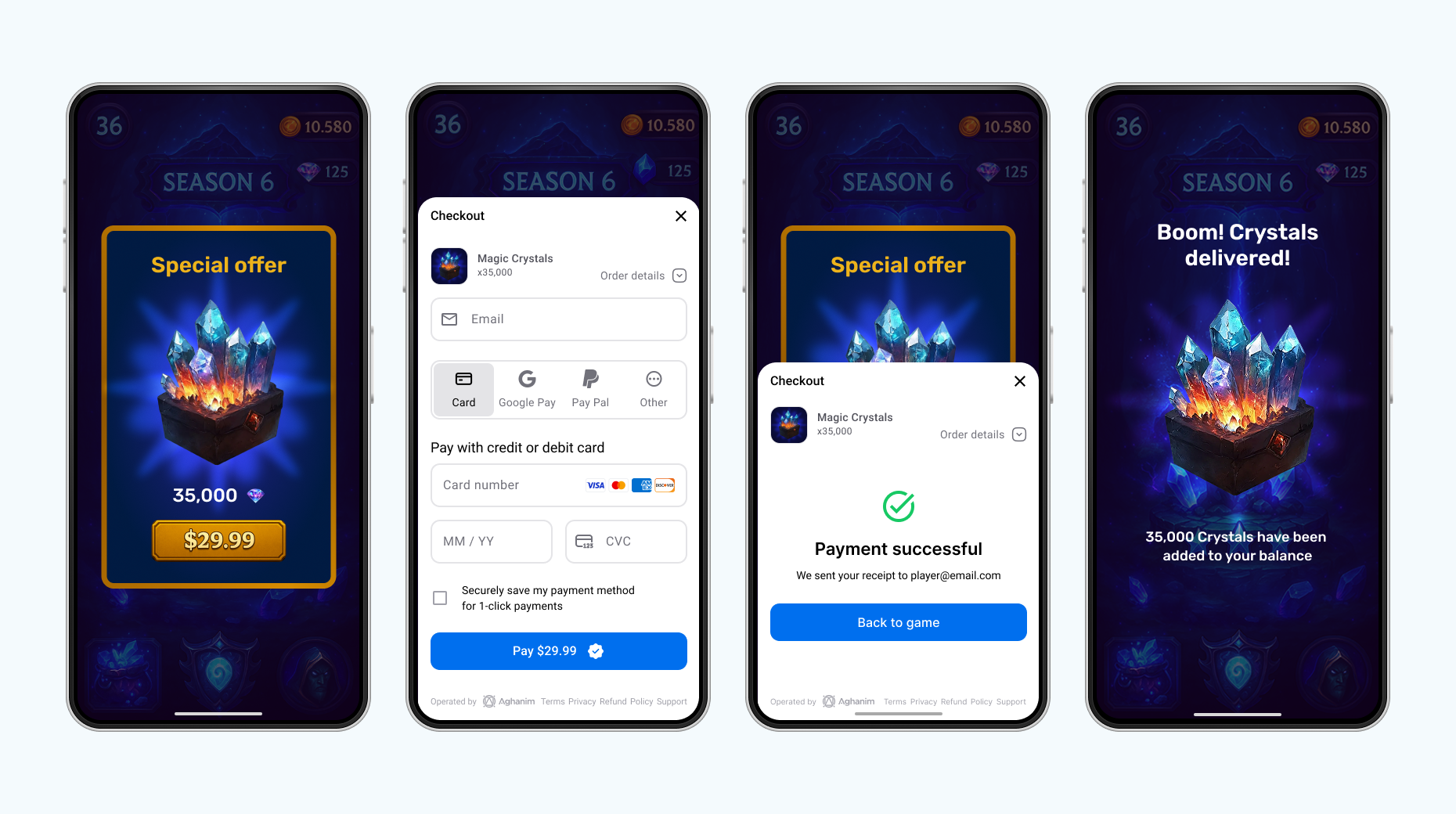
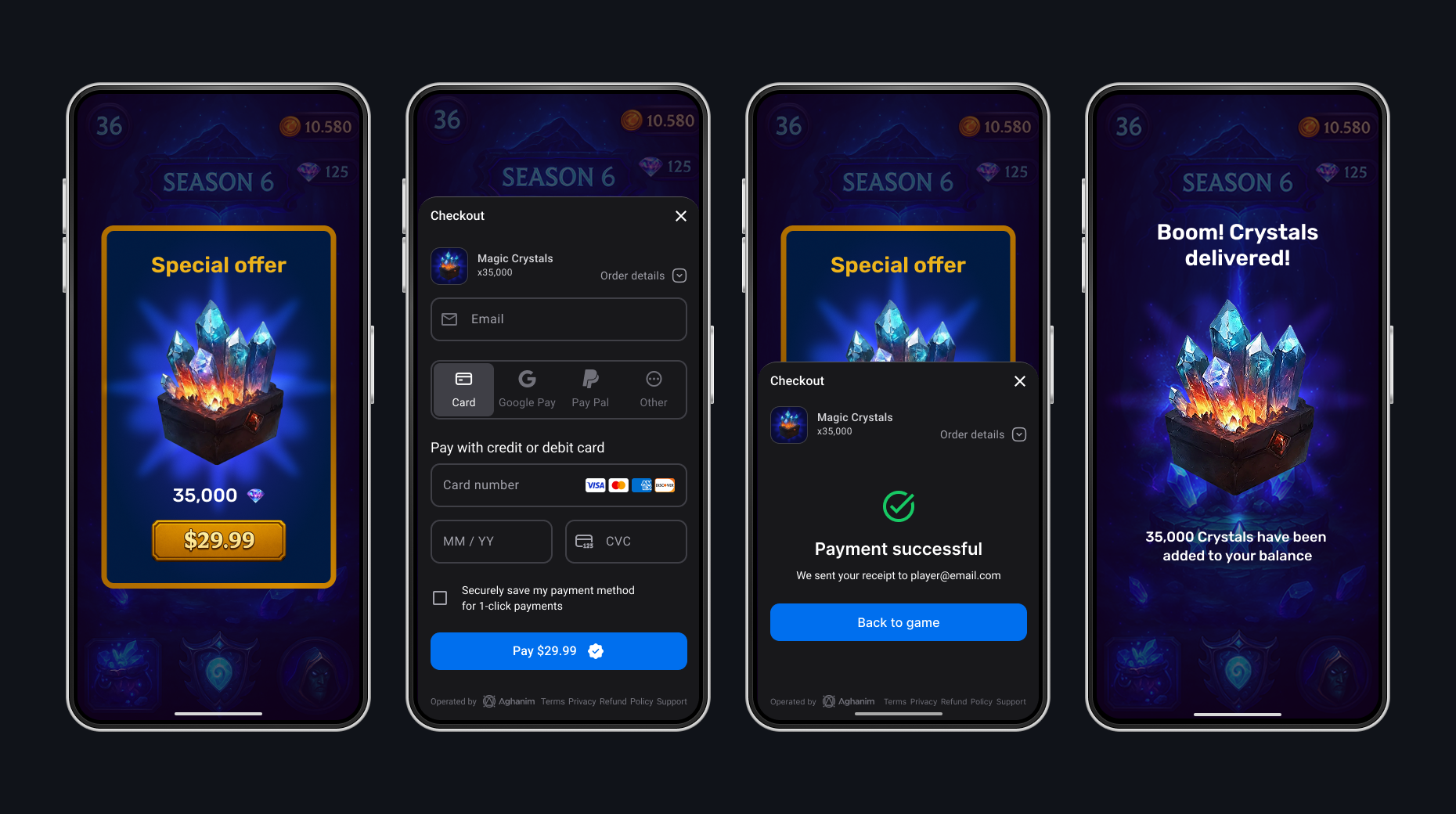
Register with Aghanim and link your game
First, register for an Aghanim account. At the end of registration, add the link to your mobile game. It should be published in Apple App Store or Google Play Store.
Set up environment
If you want to make real payments, you are all set as the live mode is used as default. Otherwise, use a sandbox, an isolated test environment, to simulate the Aghanim events to test payments without real money movement. To turn on the sandbox mode, set the Sandbox toggle to the active position.
Sandbox supports card payments only. Alternative methods (PayPal, wallets, local payment methods) appear only in live. See Test payments for the test cards.
While integrating, you will need an SDK key to authenticate requests to the Aghanim. Keep in mind that the sandbox and live modes have different keys. Find the SDK key in Integration → API keys.
Configure game client-side
Configure your game client to work with the Checkout by setting up the SDK and implementing the necessary code to process its methods.
Install SDK
To install the SDK, add android-sdk to the repositories’ block of your build system so it will know where to find the SDK dependencies.
- Kotlin DSL (build.gradle.kts)
- Groovy DSL (build.gradle)
- Maven (pom.xml)
repositories {
    maven {
        url = uri("https://us-central1-maven.pkg.dev/ag-registry/android-sdk")
    }
}
repositories {
    maven {
        url "https://us-central1-maven.pkg.dev/ag-registry/android-sdk"
    }
}
<repositories>
    <repository>
        <id>gcp-artifact-registry</id>
        <url>https://us-central1-maven.pkg.dev/ag-registry/android-sdk</url>
    </repository>
</repositories>
Configure dependencies
Add android-sdk to the dependencies’ block of your build system as well.
- Kotlin DSL (build.gradle.kts)
- Groovy DSL (build.gradle)
- Maven (pom.xml)
dependencies {
    implementation("com.aghanim.android:checkout-ui:1.16.0")
}
dependencies {
    implementation 'com.aghanim.android:checkout-ui:1.16.0'
}
<dependencies>
    <dependency>
        <groupId>com.aghanim.android</groupId>
        <artifactId>checkout-ui</artifactId>
        <version>1.16.0</version>
    </dependency>
</dependencies>
Initialize SDK
Initialize the SDK manually in the app class.
- Kotlin
import android.app.Application
import com.aghanim.android.sdk.common.api.Aghanim

class MyApplication : Application() {
    lateinit var aghanim: Aghanim

    override fun onCreate() {
        super.onCreate()
        aghanim = Aghanim(
            context = this,
            apiKey = "<YOUR_SDK_KEY>"
        )
    }
}
To let Android SDK know that it should use your app class as an Application, add the app class to the manifest.
- AndroidManifest.xml
<application
    android:name=".MyApplication"
>
</application>
With the SDK, you can read its logs from one of the supported levels. The SDK writes all log messages into Android logcat, the default tool for logging in Android.
- Simple
- Advanced
The simple usage of the SDK log messages means setting the log level you are interested in the most:
DEBUG— detailed debug information on almost every event.INFO— general information on the SDK instance state and its events.WARNING— warnings and recoverable errors.ERROR— critical and fatal errors.NONE— no logging. Used by default.
- Kotlin
import android.app.Application
import com.aghanim.android.sdk.common.api.Aghanim
import com.aghanim.android.sdk.logging.api.LogLevel

class MyApplication : Application() {
    lateinit var aghanim: Aghanim

    override fun onCreate() {
        super.onCreate()
        aghanim = Aghanim(
            context = this,
            apiKey = "<YOUR_SDK_KEY>"
        ) {
            logLevel = LogLevel.DEBUG
        }
    }
}
You can reroute the SDK logs from Android logcat to the system you have chosen for logging. To do so, provide a custom logger implementation to the SDK functions for the log levels:
DEBUG— detailed debug information on almost every event.INFO— general information on the SDK instance state and its events.WARNING— warnings and recoverable errors.ERROR— critical and fatal errors.NONE— no logging. Used by default.
- Kotlin
import android.app.Application
import com.aghanim.android.sdk.common.api.Aghanim
import com.aghanim.android.sdk.logging.api.LogLevel
import com.aghanim.android.sdk.logging.api.Logger

class MyApplication : Application() {
    lateinit var aghanim: Aghanim

    override fun onCreate() {
        super.onCreate()
        aghanim = Aghanim(
            context = this,
            apiKey = "<YOUR_SDK_KEY>"
        ) {
            logLevel = LogLevel.DEBUG

            logger = object : Logger {
                override fun d(message: String, throwable: Throwable?) {
                    // TODO: Send debug messages to your logging system
                }

                override fun i(message: String, throwable: Throwable?) {
                    // TODO: Send information messages to your logging system
                }

                override fun w(message: String, throwable: Throwable?) {
                    // TODO: Send warning messages to your logging system
                }

                override fun e(message: String, throwable: Throwable?) {
                    // TODO: Send error messages to your logging system
                }
            }
        }
    }
}
Configure player ID
Since a mobile game has one instance per device, the SDK allows to set the player ID once to use it in all following method calls.
When your game client has the player ID, set it for the current SDK instance. The call is suspend and returns ApiResult<Unit>, rejecting a blank player ID with ApiError.InvalidArgument.
- Kotlin
import com.aghanim.android.sdk.common.api.result.ApiResult
import android.util.Log

when (val result = aghanim.setPlayerId(playerId)) {
    is ApiResult.Success -> {
        // The SDK attaches the player ID to all following method calls
    }

    is ApiResult.Failure -> {
        // Log debug information for troubleshooting
        Log.e("Aghanim", "Failed to set player ID: ${result.error}")
        // TODO: Handle error
    }
}
When the player signs out, clear the ID so the SDK stops attaching the previous identity to API requests.
- Kotlin
import com.aghanim.android.sdk.common.api.result.ApiResult
import android.util.Log

when (val result = aghanim.clearPlayerId()) {
    is ApiResult.Success -> {
        // The SDK stops attaching the previous player ID to API requests
    }

    is ApiResult.Failure -> {
        // Log debug information for troubleshooting
        Log.e("Aghanim", "Failed to clear player ID: ${result.error}")
        // TODO: Handle error
    }
}
Order creation is tied to the player, so launching the Checkout without a player ID fails with ApiError.PlayerIdNotSet. Set it as soon as the player authenticates.
Create item
The integration needs the items to be added to the Dashboard. When creating items, each should have its SKU, a unique identifier for the item within your game backend. You can add their prices, currency, sale configuration, and more.
To add an item to the Dashboard:
- Go to SKU Management → Items.
- Click Add Item. The site will open the Add Item page.
- Enter the item name New item.
- Enter the item SKU items.new.ba68a028-2d51-46b4-a854-68fc16af328a.
- In the Price block:
- Select the Fiat price type for a real money item.
- Enter the price 1.99.
- Click Add item.
For integration purposes, we have shortened an item setup. Before going live, use every suitable feature while adding items to the Dashboard.
Get items with localized prices
The SDK retrieves items created in the Dashboard with localized prices based on the player's region. Use this to display accurate prices in your in-game store before the player proceeds to checkout.
- Coroutines
- Asynchronous callbacks
- Kotlin
import com.aghanim.android.sdk.common.api.result.ApiResult
import android.util.Log

when (val result = aghanim.items.get(
    skus = listOf("items.new.ba68a028-2d51-46b4-a854-68fc16af328a"),
)) {
    is ApiResult.Success -> {
        val items = result.value
        items.forEach { item ->
            // Use item.name, item.price.display, item.imageUrl to populate your store
            Log.d("Items", "${item.name}: ${item.price.display}")
        }
    }

    is ApiResult.Failure -> {
        // Log debug information for troubleshooting
        Log.e("Items", "Failed to get items: ${result.error}")
        // TODO: Handle error
    }
}
- Kotlin
import com.aghanim.android.sdk.common.api.callbacks.ItemsCallback
import com.aghanim.android.sdk.common.api.models.item.Item
import com.aghanim.android.sdk.common.api.result.ApiError
import android.util.Log

aghanim.items.getAsync(
    skus = listOf("items.new.ba68a028-2d51-46b4-a854-68fc16af328a"),
    locale = null,
    callback = object : ItemsCallback {
        override fun onSuccess(items: List<Item>) {
            items.forEach { item ->
                // Use item.name, item.price.display, item.imageUrl to populate your store
                Log.d("Items", "${item.name}: ${item.price.display}")
            }
        }

        override fun onError(failure: ApiError) {
            // Log debug information for troubleshooting
            Log.e("Items", "Failed to get items: ${failure.debugMessage}")
            // TODO: Handle error
        }
    }
)
Create Checkout item
It is time to create a variable that represents the items to be purchased.
- Kotlin
import com.aghanim.android.sdk.checkout.core.api.models.CheckoutItem

val checkoutItem = CheckoutItem(
    sku = "items.new.ba68a028-2d51-46b4-a854-68fc16af328a"
)
Create Checkout params
When you have the items’ variable, create another one that represents Checkout params. Checkout params are the programmatic representation of what the player sees when they are on the payment form. Checkout params are associated with a player and items, they are crucial for the Checkout to work. You can use the existing player from your game or create them at runtime.
- Kotlin
import com.aghanim.android.sdk.checkout.core.api.models.CheckoutParams
import com.aghanim.android.sdk.common.api.models.common.Locale

val checkoutParams = CheckoutParams(
    items = listOf(checkoutItem),
    // Optional. Locale for texts’ localization. Default is system locale
    locale = Locale.EN
)
You can attach custom metadata to the Checkout for item tracking purposes. You can access it through webhooks and in API responses from the Aghanim. Metadata has a structure of “key-value” pairs.
- Kotlin
import com.aghanim.android.sdk.checkout.core.api.models.CheckoutParams

val metadata = mapOf(
    "campaign" to "winter_sale",
    "source" to "mobile_app",
    "user_segment" to "premium",
    "ab_test_variant" to "variant_a",
    "player_level" to "42"
)

val checkoutParams = CheckoutParams(
    items = listOf(checkoutItem),
    metadata = metadata
)
You can choose the behavior of redirecting the player after they have completed the payment successfully. The difference in the provided by the SDK modes is a delay before redirecting or absence of redirecting.
- Immediate
- Delayed
- No redirect
When the player has completed the payment, the SDK redirects them immediately to the deep link from backToGameUrl.
- Kotlin
import com.aghanim.android.sdk.checkout.core.api.models.RedirectSettings
import com.aghanim.android.sdk.checkout.core.api.models.RedirectMode
import com.aghanim.android.sdk.checkout.core.api.models.CheckoutParams

val redirectSettings = RedirectSettings(
    mode = RedirectMode.IMMEDIATE
)

val checkoutParams = CheckoutParams(
    items = listOf(checkoutItem),
    backToGameUrl = backToGameUrl,
    redirectSettings = redirectSettings
)
When the player has completed the payment, the SDK shows the screen for the successful payment and then redirects the player to the deep link from backToGameUrl.
- Kotlin
import com.aghanim.android.sdk.checkout.core.api.models.RedirectSettings
import com.aghanim.android.sdk.checkout.core.api.models.RedirectMode
import com.aghanim.android.sdk.checkout.core.api.models.CheckoutParams

val redirectSettings = RedirectSettings(
    mode = RedirectMode.DELAYED,
    // Optional. Seconds to delay for. Default is 5 seconds
    delaySeconds = 5
)

val checkoutParams = CheckoutParams(
    items = listOf(checkoutItem),
    backToGameUrl = backToGameUrl,
    redirectSettings = redirectSettings
)
When the player has completed the payment, they stay on the screen for the successful payment. To exit it, they manually close it or navigate away. After, you should redirect them to the deep link from backToGameUrl by yourself.
- Kotlin
import com.aghanim.android.sdk.checkout.core.api.models.RedirectSettings
import com.aghanim.android.sdk.checkout.core.api.models.RedirectMode
import com.aghanim.android.sdk.checkout.core.api.models.CheckoutParams

val redirectSettings = RedirectSettings(
    mode = RedirectMode.NO_REDIRECT
)

val checkoutParams = CheckoutParams(
    items = listOf(checkoutItem),
    backToGameUrl = backToGameUrl,
    redirectSettings = redirectSettings
)
You can set the appearance mode for the Checkout UI. The SDK supports automatic detection based on the system setting, or you can force a specific mode.
- Auto
- Dark
- Light
The SDK automatically detects and applies the appropriate appearance mode based on the system setting.
- Kotlin
import com.aghanim.android.sdk.checkout.core.api.models.UiSettings
import com.aghanim.android.sdk.checkout.core.api.models.UiMode
import com.aghanim.android.sdk.checkout.core.api.models.CheckoutParams

val uiSettings = UiSettings(
    mode = UiMode.AUTO
)

val checkoutParams = CheckoutParams(
    items = listOf(checkoutItem),
    uiSettings = uiSettings
)
The SDK forces dark mode appearance for the Checkout UI.
- Kotlin
import com.aghanim.android.sdk.checkout.core.api.models.UiSettings
import com.aghanim.android.sdk.checkout.core.api.models.UiMode
import com.aghanim.android.sdk.checkout.core.api.models.CheckoutParams

val uiSettings = UiSettings(
    mode = UiMode.DARK
)

val checkoutParams = CheckoutParams(
    items = listOf(checkoutItem),
    uiSettings = uiSettings
)
The SDK forces light mode appearance for the Checkout UI.
- Kotlin
import com.aghanim.android.sdk.checkout.core.api.models.UiSettings
import com.aghanim.android.sdk.checkout.core.api.models.UiMode
import com.aghanim.android.sdk.checkout.core.api.models.CheckoutParams

val uiSettings = UiSettings(
    mode = UiMode.LIGHT
)

val checkoutParams = CheckoutParams(
    items = listOf(checkoutItem),
    uiSettings = uiSettings
)
Launch Checkout
Add a checkout button to your game client that launches the payment form. To display the form, the SDK uses the current activity context. The SDK creates an order from the provided checkout params and opens the Checkout UI. On success, you receive the Order ID to track the order. On failure, you receive an error with debug information for troubleshooting.
- Coroutines
- Asynchronous callbacks
- Kotlin
import com.aghanim.android.sdk.checkout.ui.api.startCheckout
import com.aghanim.android.sdk.common.api.result.ApiResult
import android.util.Log

when (val result = aghanim.startCheckout(
    context = context,
    checkoutParams = checkoutParams,
)) {
    is ApiResult.Success -> {
        // Order is created and checkout has launched successfully
        val orderId = result.value
        // TODO: Save order ID for further granting or tracking
    }

    is ApiResult.Failure -> {
        // Log debug information for troubleshooting
        Log.e("Checkout", "Failed to launch Checkout: ${result.error}")
        // TODO: Show user-friendly error message to player
    }
}
- Kotlin
import com.aghanim.android.sdk.checkout.ui.api.startCheckoutAsync
import com.aghanim.android.sdk.checkout.core.api.callbacks.LaunchCheckoutCallback
import com.aghanim.android.sdk.common.api.result.ApiError
import android.util.Log

aghanim.startCheckoutAsync(
    context = context,
    checkoutParams = checkoutParams,
    callback = object : LaunchCheckoutCallback {
        override fun onSuccess(orderId: String) {
            // Order is created and checkout has launched successfully
            // TODO: Save order ID for further granting or tracking
        }

        override fun onError(error: ApiError) {
            // Log debug information for troubleshooting
            Log.e("Checkout", "Failed to launch Checkout: ${error.debugMessage}")
            // TODO: Show user-friendly error message to player
        }
    }
)
Check unconsumed Orders
After the Checkout page has launched and the Order ID is ready, the player can leave the page and come back, and pay for the items in the Order or not pay for them. The main goal of the Checkout launch result is to tell whether the player has opened it successfully, closed it, or the launch has failed. So after, you need to know which Orders have been paid for and should be granted to the player. The SDK has functionality to get the list of the player paid Orders. When you know their IDs, you should mark them as consumed and grant to the player.
- Coroutines
- Asynchronous callbacks
- Kotlin
import com.aghanim.android.sdk.common.api.result.ApiResult
import android.util.Log

when (val unconsumedResult = aghanim.orders.getUnconsumed()) {
    is ApiResult.Success -> {
        // Player has paid but not granted items from orders
        val unconsumedOrderIds = unconsumedResult.value
        // TODO: Save order IDs for further consuming and granting
    }

    is ApiResult.Failure -> {
        // Log debug information for troubleshooting
        Log.e("Orders", "Failed to get unconsumed orders: ${unconsumedResult.error}")
        // TODO: Handle error
    }
}
- Kotlin
import com.aghanim.android.sdk.common.api.callbacks.OrderListCallback
import com.aghanim.android.sdk.common.api.result.ApiError
import android.util.Log

aghanim.orders.getUnconsumedAsync(
    callback = object : OrderListCallback {
        override fun onSuccess(orderIds: List<String>) {
            // Player has paid but not granted items from orders
            val unconsumedOrderIds = orderIds
            // TODO: Save order IDs for further consuming and granting
        }

        override fun onError(failure: ApiError) {
            // Log debug information for troubleshooting
            Log.e("Orders", "Failed to get unconsumed orders: ${failure.debugMessage}")
            // TODO: Handle error
        }
    }
)
Consume paid Orders
When you know the Order IDs that the player has paid for, you should mark them as consumed and grant to the player within your game logic.
- Coroutines
- Asynchronous callbacks
- Kotlin
import com.aghanim.android.sdk.common.api.result.ApiResult
import android.util.Log

when (val consumeResult = aghanim.orders.consume(orderId)) {
    is ApiResult.Success -> {
        // Paid orders are marked as consumed
        Log.d("Orders", "Order $orderId is successfully consumed")
        // TODO: Grant items in order to player
    }

    is ApiResult.Failure -> {
        // Log debug information for troubleshooting
        Log.e("Orders", "Failed to consume order: ${consumeResult.error}")
        // TODO: Handle error
    }
}
- Kotlin
import com.aghanim.android.sdk.common.api.callbacks.ConsumeCallback
import com.aghanim.android.sdk.common.api.result.ApiError
import android.util.Log

aghanim.orders.consumeAsync(
    orderId = orderId,
    callback = object : ConsumeCallback {
        override fun onSuccess() {
            // Paid orders are marked as consumed
            Log.d("Orders", "Order $orderId is successfully consumed")
            // TODO: Grant items in order to player
        }

        override fun onError(failure: ApiError) {
            // Log debug information for troubleshooting
            Log.e("Orders", "Failed to consume order: ${failure.debugMessage}")
            // TODO: Handle error
        }
    }
)
Full implementation code
- Coroutines
- Asynchronous callbacks
- Kotlin
import com.aghanim.android.sdk.checkout.core.api.models.CheckoutItem
import com.aghanim.android.sdk.checkout.core.api.models.CheckoutParams
import com.aghanim.android.sdk.checkout.ui.api.startCheckout
import com.aghanim.android.sdk.common.api.result.ApiResult
import android.util.Log

val checkoutItem = CheckoutItem(
    sku = "items.new.ba68a028-2d51-46b4-a854-68fc16af328a"
)

val checkoutParams = CheckoutParams(
    items = listOf(checkoutItem),
)

when (val result = aghanim.startCheckout(
    context = context,
    checkoutParams = checkoutParams,
)) {
    is ApiResult.Success -> {
        // Order is created and checkout has launched successfully
        val orderId = result.value
        // TODO: Save order ID for further granting or tracking
    }

    is ApiResult.Failure -> {
        // Log debug information for troubleshooting
        Log.e("Checkout", "Failed to launch Checkout: ${result.error}")
        // TODO: Show user-friendly error message to player
    }
}
- Kotlin
import com.aghanim.android.sdk.checkout.core.api.models.CheckoutItem
import com.aghanim.android.sdk.checkout.core.api.models.CheckoutParams
import com.aghanim.android.sdk.checkout.ui.api.startCheckoutAsync
import com.aghanim.android.sdk.checkout.core.api.callbacks.LaunchCheckoutCallback
import com.aghanim.android.sdk.common.api.result.ApiError
import android.util.Log

val checkoutItem = CheckoutItem(
    sku = "items.new.ba68a028-2d51-46b4-a854-68fc16af328a"
)

val checkoutParams = CheckoutParams(
    items = listOf(checkoutItem),
)

aghanim.startCheckoutAsync(
    context = context,
    checkoutParams = checkoutParams,
    callback = object : LaunchCheckoutCallback {
        override fun onSuccess(orderId: String) {
            // Order is created and checkout has launched successfully
            // TODO: Save order ID for further granting or tracking
        }

        override fun onError(error: ApiError) {
            // Log debug information for troubleshooting
            Log.e("Checkout", "Failed to launch Checkout: ${error.debugMessage}")
            // TODO: Show user-friendly error message to player
        }
    }
)
Make payment
Make a payment. If you have set the sandbox mode, use the test card below. In the sandbox, you can make payments only with the test cards — alternative methods like PayPal, wallets, and local payment methods appear only in the live environment. The test cards accept any digits as CVV and any future date as expiry date. Don’t forget to fill in an email address to check the receipt is sent and any postal code as a billing address.
Successful payments
After you complete the payment, you will receive a receipt sent to the specified email address and a transaction record in Aghanim Dashboard → Transactions.
| Card Brand | Card Number | CVV | Expiry date | Country |
|---|---|---|---|---|
| VISA (credit) | 4242 4242 4242 4242 | Any 3 digits | Any future date | GB |
Unsuccessful payments
Make an unsuccessful payment just in case you are curious. You will see the transaction in Aghanim Dashboard → Transactions as well.
| Number | CVV | Expiry date | Response code | Description |
|---|---|---|---|---|
4832 2850 6160 9015 | Any 3 digits | Any future date | 16 | Payment declined |
For the live mode, you can find all supported payment methods in Company settings → Payment methods. Turn on or off those you see suitable. Some payment methods are available globally by default. You can’t disable Credit cards, Apple Pay, Google Pay, and PayPal.
In Checkout, the Aghanim evaluates the currency and any restrictions, then dynamically presents only the payment methods available to the player based on evaluation.
When you use the live mode, the payment form shows to the player a setting to save their payment method so they can make a one-click payment in the future.
Handle post-payment events on game server-side
To complete the Checkout, handle items’ granting and chargebacks on your game backend. To do so, implement a webhook system that accepts the item.add and item.remove webhooks. See the code example with the implementation.
Comply with the Aghanim requirements for these webhooks:
- Use HTTPS schema for the single POST webhook endpoint.
- Check that webhooks are generated and signed by the Aghanim.
- Handle the
idempotency_keyfield in the webhook payload to prevent processing duplicate webhooks. - Respond with the HTTP status codes:
2xxfor successfully processed webhooks.4xxand5xxfor errors.
Grant items to player
The Aghanim sends the item.add webhook to let you know about the purchased items and ask for your permission to grant them to the player.
When the Aghanim has your 2xx answer, it can complete the checkout logic and redirect the player to a deep link if provided.
Support refunds and chargebacks
The Aghanim sends the item.remove webhook when a bank or payment system reverses the transaction, or you have requested refund in Aghanim Dashboard → Transactions. Partial refunds are not supported.
The suggested implementation handles the webhooks mentioned before:
item.addfor granting items. You need it for integration.item.removefor refunds and chargebacks. You might need it for integration.
- Python
- Ruby
- Node.js
- Go
# Use this sample code to handle webhook events in your integration.
#
# 1. Paste this code into a new file `server.py`.
#
# 2. Install dependencies:
#    python -m pip install fastapi[all]
#
# 3. Run the server on http://localhost:8000
#    python server.py

import fastapi, hashlib, hmac, json, typing
from fastapi.responses import JSONResponse

app = fastapi.FastAPI()

@app.post("/webhook")
async def webhook(request: fastapi.Request) -> dict[str, typing.Any]:
    secret_key = "<YOUR_S2S_KEY>"  # Replace with your actual webhook secret key

    raw_payload = await request.body()
    payload = raw_payload.decode()
    timestamp = request.headers["x-aghanim-signature-timestamp"]
    received_signature = request.headers["x-aghanim-signature"]

    if not verify_signature(secret_key, payload, timestamp, received_signature):
        raise fastapi.HTTPException(status_code=403, detail="Invalid signature")

    data = json.loads(payload)
    event_type = data["event_type"]
    event_data = data["event_data"]

    if event_type == "item.add":
        add_item(event_data)
        return {"status": "ok"}

    if event_type == "item.remove":
        remove_item(event_data)
        return {"status": "ok"}

    raise fastapi.HTTPException(status_code=400, detail="Unknown event type")

def verify_signature(secret_key: str, payload: str, timestamp: str, received_signature: str) -> bool:
    signature_data = f"{timestamp}.{payload}"
    computed_hash = hmac.new(secret_key.encode(), signature_data.encode(), hashlib.sha256)
    computed_signature = computed_hash.hexdigest()
    return hmac.compare_digest(computed_signature, received_signature)

def add_item(event_data: dict[str, typing.Any]) -> None:
    # Placeholder logic for processing the event and adding item.
    # In a real application, this function would interact with your database or inventory system.
    player_id = event_data["player_id"]
    for item in event_data["items"]:
      sku = item["sku"]
      print(f"Item {sku} has been credited to player's {player_id} account.")

def remove_item(event_data: dict[str, typing.Any]) -> None:
    # Placeholder logic for processing the event and removing item.
    # In a real application, this function would interact with your database or inventory system.
    player_id = event_data["player_id"]
    for item in event_data["items"]:
      sku = item["sku"]
      print(f"Item {sku} has been removed from player's {player_id} account.")

if __name__ == "__main__":
    import uvicorn
    uvicorn.run(app, host="0.0.0.0", port=8000)
# Use this sample code to handle webhook events in your integration.
#
# 1. Paste this code into a new file `server.rb`.
#
# 2. Install dependencies:
#    gem install sinatra json hmac
#
# 3. Run the server on http://localhost:8000
#    ruby server.rb

require 'sinatra'
require 'json'
require 'openssl'

post '/webhook' do
  secret_key = "<YOUR_S2S_KEY>"  # Replace with your actual webhook secret key

  payload = request.body.read
  timestamp = request.env["HTTP_X_AGHANIM_SIGNATURE_TIMESTAMP"]
  received_signature = request.env["HTTP_X_AGHANIM_SIGNATURE"]

  unless verify_signature(secret_key, payload, timestamp, received_signature)
    halt 403, "Invalid signature"
  end

  data = JSON.parse(payload)
  event_type = data["event_type"]
  event_data = data["event_data"]

  if event_type == "item.add"
    add_item(event_data)
    return { status: "ok" }.to_json
  end

  if event_type == "item.remove"
    remove_item(event_data)
    return { status: "ok" }.to_json
  end

  halt 400, "Unknown event type"
end

def verify_signature(secret_key, payload, timestamp, received_signature)
  signature_data = "#{timestamp}.#{payload}"
  computed_signature = OpenSSL::HMAC.hexdigest('sha256', secret_key, signature_data)
  OpenSSL.secure_compare(computed_signature, received_signature)
end

def add_item(event_data)
  # Placeholder logic for processing the event and adding item.
  # In a real application, this function would interact with your database or inventory system.
  player_id = event_data["player_id"]
  for item in event_data["items"] do
    sku = item["sku"]
    puts "Item #{sku} has been credited to player's #{player_id} account."
  end
end

def remove_item(event_data)
  # Placeholder logic for processing the event and removing item.
  # In a real application, this function would interact with your database or inventory system.
  player_id = event_data["player_id"]
  for item in event_data["items"] do
    sku = item["sku"]
    puts "Item #{sku} has been removed from player's #{player_id} account."
  end
end

if __FILE__ == $0
  require 'sinatra'
  set :bind, '0.0.0.0'
  set :port, 8000
end
// Use this sample code to handle webhook events in your integration.
//
// 1. Paste this code into a new file `server.js`.
//
// 2. Install dependencies:
//    npm install express
//
// 3. Run the server on http://localhost:8000
//    node server.js

const express = require('express');
const crypto = require('crypto');

const app = express();

app.post('/webhook', express.raw({ type: "*/*" }), async (req, res) => {
  const secretKey = '<YOUR_S2S_KEY>'; // Replace with your actual webhook secret key

  const rawPayload = req.body;
  const timestamp = req.headers['x-aghanim-signature-timestamp'];
  const receivedSignature = req.headers['x-aghanim-signature'];

  if (!verifySignature(secretKey, rawPayload, timestamp, receivedSignature)) {
    return res.status(403).send('Invalid signature');
  }

  const payload = JSON.parse(req.body);
  const { event_type, event_data } = payload;

  if (event_type === 'item.add') {
    addItem(event_data);
    return res.json({ status: 'ok' });
  }

  if (event_type === 'item.remove') {
    removeItem(event_data);
    return res.json({ status: 'ok' });
  }

  return res.status(400).send('Unknown event type');
});

function verifySignature(secretKey, payload, timestamp, receivedSignature) {
  const signatureData = `${timestamp}.${payload}`;
  const computedSignature = crypto
    .createHmac('sha256', secretKey)
    .update(signatureData)
    .digest('hex');
  return crypto.timingSafeEqual(Buffer.from(computedSignature), Buffer.from(receivedSignature));
}

function addItem(event_data) {
  // Placeholder logic for processing the event and adding item.
  // In a real application, this function would interact with your database or inventory system.
  const playerId = event_data.player_id;
  for (const item of event_data.items) {
    const sku = item.sku;
    console.log(`Item ${item.sku} has been credited to player's ${playerId} account.`);
 }
}

function removeItem(event_data) {
  // Placeholder logic for processing the event and removing item.
  // In a real application, this function would interact with your database or inventory system.
  const playerId = event_data.player_id;
  for (const item of event_data.items) {
    const sku = item.sku;
    console.log(`Item ${item.sku} has been removed from player's ${playerId} account.`);
 }
}

app.listen(8000, () => {
  console.log('Server is running on http://localhost:8000');
});
// Use this sample code to handle webhook events in your integration.
//
// 1. Paste this code into a new file `server.go`.
//
// 2. Run the server on http://localhost:8000
//    go run server.go

package main

import (
  "crypto/hmac"
  "crypto/sha256"
  "encoding/hex"
  "encoding/json"
  "fmt"
  "io/ioutil"
  "net/http"
)

func webhookHandler(w http.ResponseWriter, r *http.Request) {
  secretKey := "<YOUR_S2S_KEY>"  // Replace with your actual webhook secret key

  rawPayload, _ := ioutil.ReadAll(r.Body)
  payload := string(rawPayload)
  timestamp := r.Header.Get("X-Aghanim-Signature-Timestamp")
  receivedSignature := r.Header.Get("X-Aghanim-Signature")

  if !verifySignature(secretKey, payload, timestamp, receivedSignature) {
    http.Error(w, "Invalid signature", http.StatusForbidden)
    return
  }

  var data map[string]interface{}
  if err := json.Unmarshal(rawPayload, &data); err != nil {
    http.Error(w, "Invalid payload", http.StatusBadRequest)
    return
  }

  eventType := data["event_type"].(string)
  eventData := data["event_data"].(map[string]interface{})

  if eventType == "item.add" {
    addItem(eventData)
    w.WriteHeader(http.StatusOK)
    json.NewEncoder(w).Encode(map[string]string{"status": "ok"})
    return
  }

  if eventType == "item.remove" {
    removeItem(eventData)
    w.WriteHeader(http.StatusOK)
    json.NewEncoder(w).Encode(map[string]string{"status": "ok"})
    return
  }

  http.Error(w, "Unknown event type", http.StatusBadRequest)
}

func verifySignature(secretKey, payload, timestamp, receivedSignature string) bool {
  signatureData := fmt.Sprintf("%s.%s", timestamp, payload)
  mac := hmac.New(sha256.New, []byte(secretKey))
  mac.Write([]byte(signatureData))
  computedSignature := hex.EncodeToString(mac.Sum(nil))
  return hmac.Equal([]byte(computedSignature), []byte(receivedSignature))
}

func addItem(eventData map[string]interface{}) {
  // Placeholder logic for processing the event and adding item.
  // In a real application, this function would interact with your database or inventory system.
  playerID := eventData["player_id"].(string)
  items := eventData["items"].([]interface{})
  for _, item := range items {
    itemMap := item.(map[string]interface{})
    sku := itemMap["sku"].(string)
    fmt.Printf("Item %s has been credited to player's %s account.\\n", sku, playerID)
  }
}

func removeItem(eventData map[string]interface{}) {
  // Placeholder logic for processing the event and removing item.
  // In a real application, this function would interact with your database or inventory system.
  playerID := eventData["player_id"].(string)
  items := eventData["items"].([]interface{})
  for _, item := range items {
    itemMap := item.(map[string]interface{})
    sku := itemMap["sku"].(string)
    fmt.Printf("Item %s has been removed from player's %s account.\\n", sku, playerID)
  }
}

func main() {
  http.HandleFunc("/webhook", webhookHandler)
  fmt.Println("Server is running on http://localhost:8000")
  http.ListenAndServe(":8000", nil)
}
Add webhook endpoint to Aghanim
When the webhook handling is ready, add the endpoint to the account so the Aghanim could start sending the events.
- Dashboard
- API
- Go to Integration → Webhooks.
- Click Add webhook. The site will open the Create webhook window.
- Copy and paste the URL
https://<YOUR_DOMAIN>/webhook. - Click Select events. The site will open the Select events to send window.
- Expand the Main class and select the Item add, Item remove checkboxes.
- Click Apply.
- Click Add. The site will redirect you to the webhook page.
- Click Back.
- cURL
- Python
- Ruby
- Node.js
- Go
curl -X POST https://api.aghanim.com/s2s/v1/webhooks \
  -H 'Content-Type: application/json' \
  -H 'Authorization: Bearer <YOUR_S2S_KEY>' \
  -d '{
    "events": [
      "item.add",
      "item.remove"
    ],
    "url": "https://<YOUR_DOMAIN>/webhook",
    "description": "The endpoint for all webhooks",
    "method": "POST",
    "enabled": true,
    "enabled_logs": true,
    "player_context_enabled": true
  }'
import requests

def create_webhook():
    payload = {
        "events": ["item.add", "item.remove"],
        "url": "https://<YOUR_DOMAIN>/webhook",
        "description": "The endpoint for all webhooks",
        "method": "POST",
        "enabled": True,
        "enabled_logs": True,
        "player_context_enabled": True
    }

    headers = {"Authorization": "Bearer <YOUR_S2S_KEY>", "Content-Type": "application/json"}
    resp = requests.post("https://api.aghanim.com/s2s/v1/webhooks", json=payload, headers=headers)
    return resp.json()
require 'net/http'
require 'json'
require 'uri'

def create_webhook
  uri = URI("https://api.aghanim.com/s2s/v1/webhooks")
  req = Net::HTTP::Post.new(uri, 'Content-Type' => 'application/json', 'Authorization' => 'Bearer <YOUR_S2S_KEY>')
  req.body = {
    events: ["item.add", "item.remove"],
    url: "https://<YOUR_DOMAIN>/webhook",
    description: "The endpoint for all webhooks",
    method: "POST",
    enabled: true,
    enabled_logs: true,
    player_context_enabled: true
  }.to_json

  res = Net::HTTP.start(uri.hostname, uri.port, use_ssl: true) { |http| http.request(req) }
  JSON.parse(res.body)
end
const axios = require('axios');

async function createWebhook() {
  const payload = {
    events: ["item.add", "item.remove"],
    url: "https://<YOUR_DOMAIN>/webhook",
    description: "The endpoint for all webhooks",
    method: "POST",
    enabled: true,
    enabled_logs: true,
    player_context_enabled: true
  };

  const res = await axios.post('https://api.aghanim.com/s2s/v1/webhooks', payload, {
    headers: { 'Authorization': 'Bearer <YOUR_S2S_KEY>', 'Content-Type': 'application/json' }
  });
  return res.data;
}
package main

import (
	"bytes"
	"encoding/json"
	"net/http"
)

func createWebhook() map[string]interface{} {
	payload := map[string]interface{}{
		"events":                 []string{"item.add", "item.remove"},
		"url":                    "https://<YOUR_DOMAIN>/webhook",
		"description":            "The endpoint for all webhooks",
		"method":                 "POST",
		"enabled":                true,
		"enabled_logs":           true,
		"player_context_enabled": true,
	}
	data, _ := json.Marshal(payload)

	req, _ := http.NewRequest("POST", "https://api.aghanim.com/s2s/v1/webhooks", bytes.NewBuffer(data))
	req.Header.Set("Authorization", "Bearer <YOUR_S2S_KEY>")
	req.Header.Set("Content-Type", "application/json")

	client := &http.Client{}
	resp, _ := client.Do(req)
	defer resp.Body.Close()

	var webhook map[string]interface{}
	json.NewDecoder(resp.Body).Decode(&webhook)
	return webhook
}
Test your integration
After you have handled the webhooks, check that the purchased items are in your inventory. That’s all.
Next steps
- See Currency codes and minor units to learn how the Aghanim represents monetary amounts.
- See Payment Webhook to learn about the payment progress when the player visits the payment form.
FAQ
checkout-ui supports the Checkout for the Native UI integration mode with maximum control over appearance and behavior.
checkout-web supports the Checkout for the In-app browser or Default browser integration modes, providing quick integration and automatic UI updating.
You can use the modules independently or together according to your needs.
The size impact depends on your build setup and which SDK modules you integrate. In comparison, checkout-ui has higher impact than checkout-web. The SDK itself is already minified, and we strive to keep the footprint as small as possible.
Key factors that affect the final binary size:
- R8/ProGuard configuration.
- Code shrinking.
- Feature usage.
The SDK should have minimal impact on app startup:
- No operations are performed automatically when the app launches.
- Initialization can be triggered either manually or at app startup, but even then it has little effect since all components use lazy initialization.
- All operations are completed when the payment UI is closed.
As a result, the SDK has no measurable impact on app startup time.
Your app performance may still depend on the app configuration:
- Initialization order.
- Baseline profiles.
- And build optimizations.
The SDK works optimally with apps that use EdgeToEdge mode. The modern Android UI approach provides a seamless, immersive experience by extending your app content behind the system bars.
The SDK supports R8, the default code shrinker and obfuscator for modern Android projects. It has all required rules for proper operation of the Android SDK already bundled in the artifact and will be applied automatically during the build process. So if you use R8 or ProGuard, you don’t need to add extra rules.
Need help?
Contact our integration team at integration@aghanim.com