Aghanim-Apple Login Integration
This guide explains how to integrate Aghanim with Sign in with Apple to enable users to authenticate using their Apple ID credentials when accessing your game hub.
Requirements
- An Apple Developer Account.
- A registered App ID with Sign In with Apple capability enabled.
- A valid Service ID (Client ID).
Step 1: Set Up Sign In with Apple
- Log in to your Apple Developer Account.
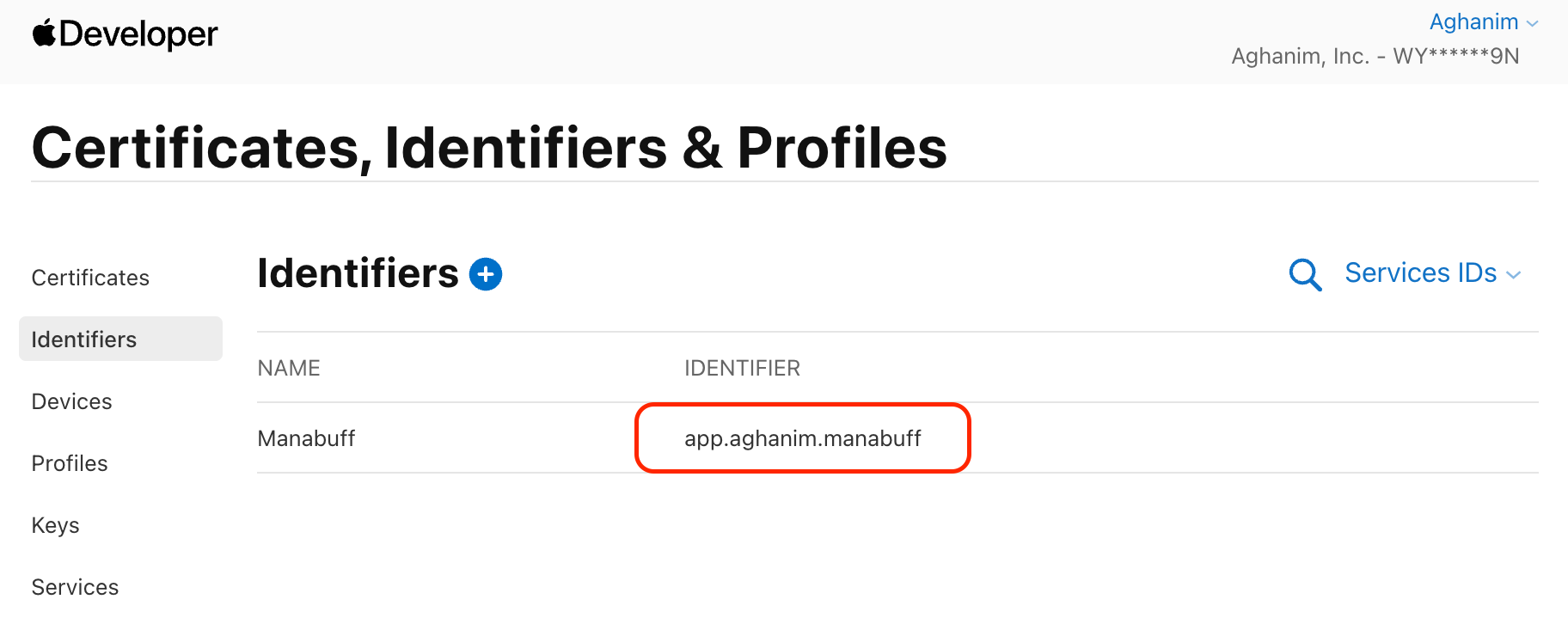
- Go to Service Identifiers.
- Copy the Service ID (Client ID) for use in the next step.

Step 2: Configure the Integration in Aghanim
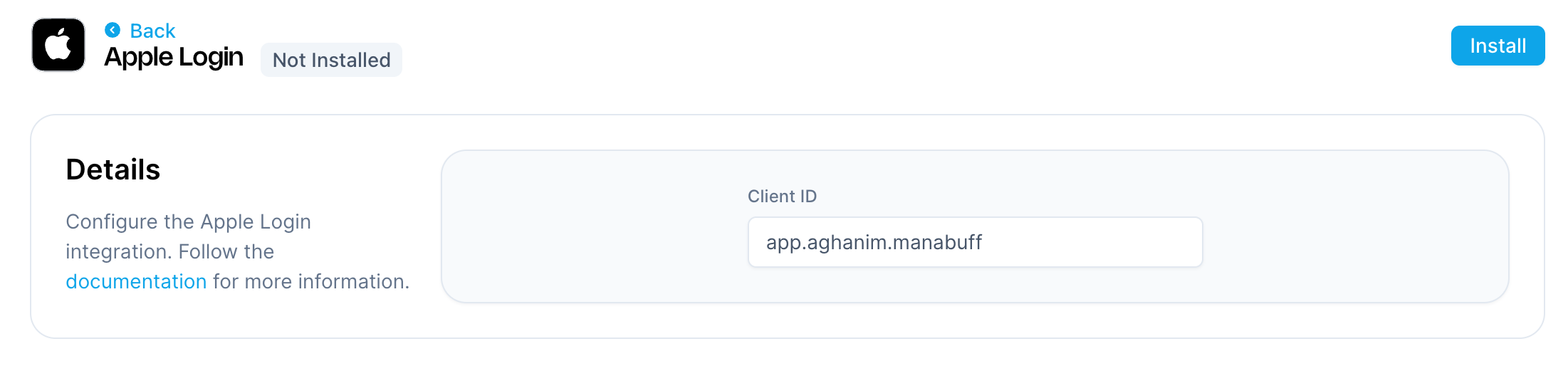
- Go to the Aghanim Dashboard → Aghanim Connect → Apple Login.
- Fill in Client ID – your Apple Service ID from the previous step.
- Click the Install button to enable the integration.

Step 3: Configure the Login Method on the Game Hub
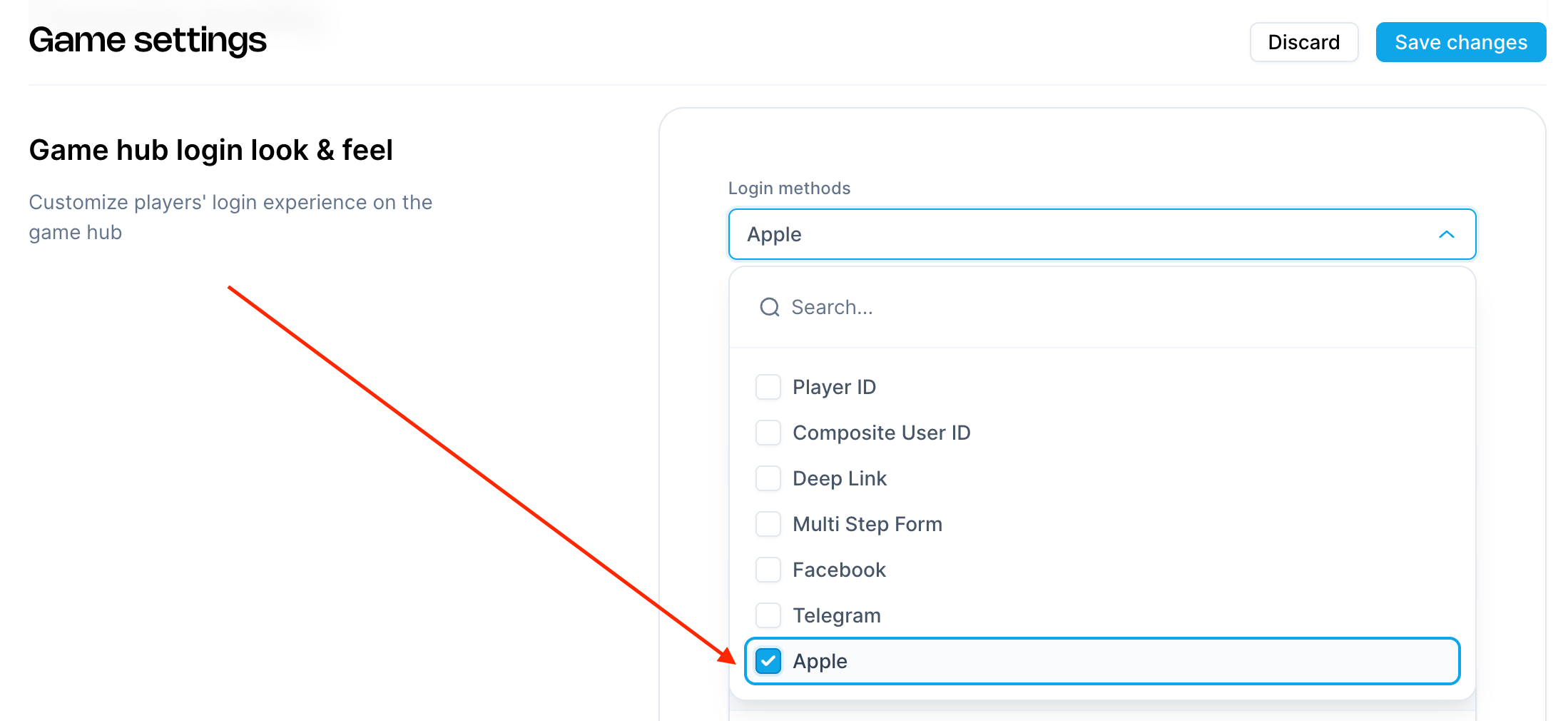
- Navigate to Game → Settings in the Aghanim dashboard.
- Under Game hub login look & feel, click the Login methods dropdown.
- Select Apple from the list of login options.
- Click Save changes.

Step 4: Set Up Player Verification
Set up player verification by following the Social Authentication guide.
Once configured, users will be able to sign in to your hub using their Apple ID credentials.
Need help?
Contact our integration team at integration@aghanim.com