Aghanim-Zendesk Pages Integration
This guide explains how to integrate Aghanim with Zendesk to automatically import articles into your game hub.
Requirements
- A Zendesk account with Admin access.
- An active Help Center and access to the Zendesk API.
- The following API credentials:
- API URL (e.g.,
https://yourdomain.zendesk.com) - Agent Email address
- API Token (generated via the Admin panel)
- API URL (e.g.,
Step 1: Generate a Zendesk API Token
- Log in to your Zendesk account.
- Go to Admin Center → Apps and integrations → Zendesk API.
- Under Token Access, enable Token Access if not already enabled.
- Click Add API Token, give it a label (e.g., "Aghanim Integration"), and copy the generated token.
- Note your Zendesk subdomain for use in the API URL (
https://<subdomain>.zendesk.com).
Step 2: Configure the Integration in Aghanim
- Go to the Aghanim Dashboard → Aghanim Connect → Zendesk Pages.
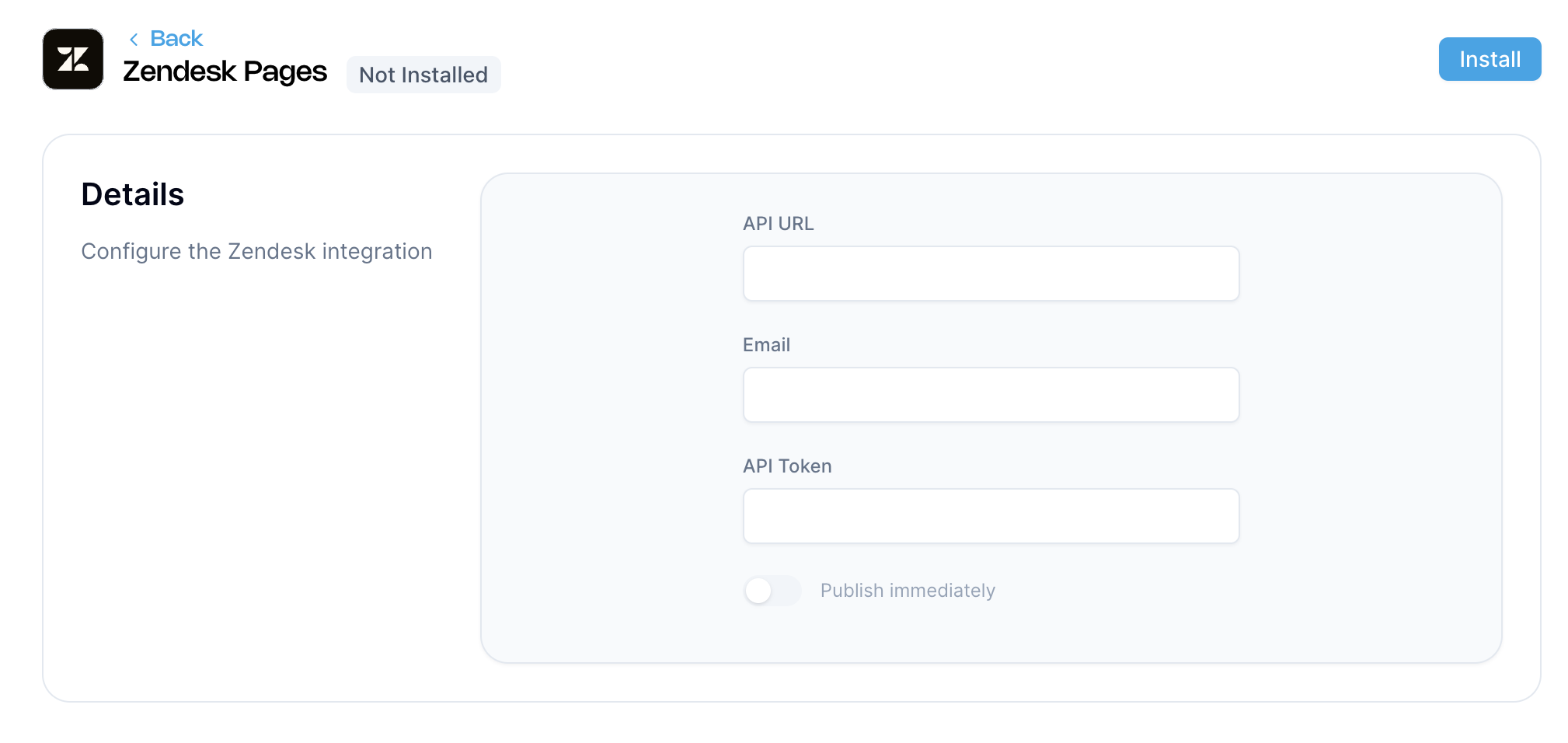
- Fill in the required fields:
- API URL – e.g.,
https://yourdomain.zendesk.com - Email – the email of the Zendesk agent used to generate the API token
- API Token – the token copied in Step 1
- API URL – e.g.,
- (Optional) Enable Publish immediately to have articles appear automatically in the hub’s news section without manual review.
- Click the Install button to activate the integration.

Once installed, articles from your Zendesk Help Center will be synced and available in the Game Hub Builder to attach to menu items.
Need help?
Contact our integration team at integration@aghanim.com