Unity SDK 参考
Aghanim Unity SDK 允许你在 Android 和 iOS 应用中使用 Checkout。
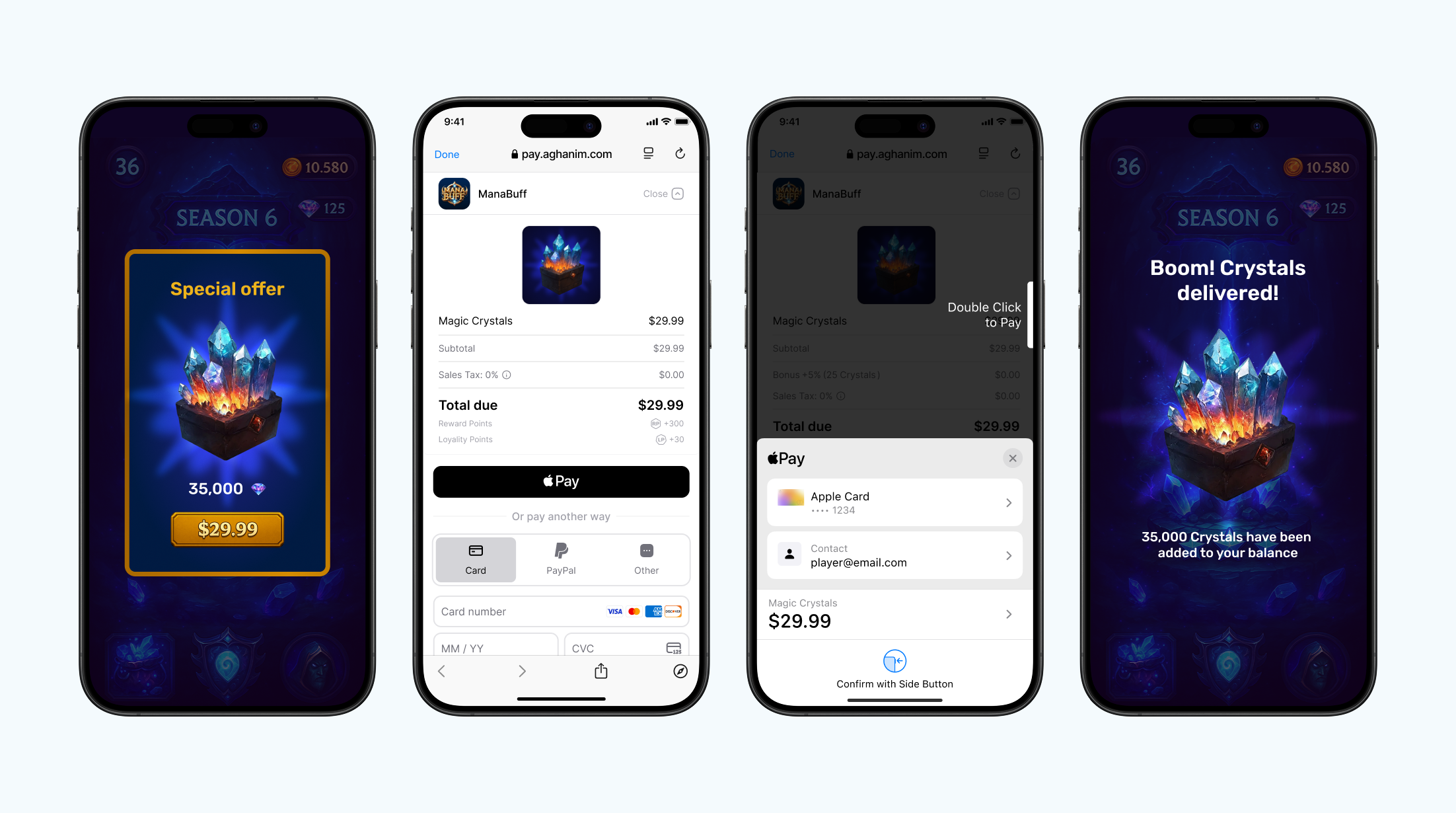
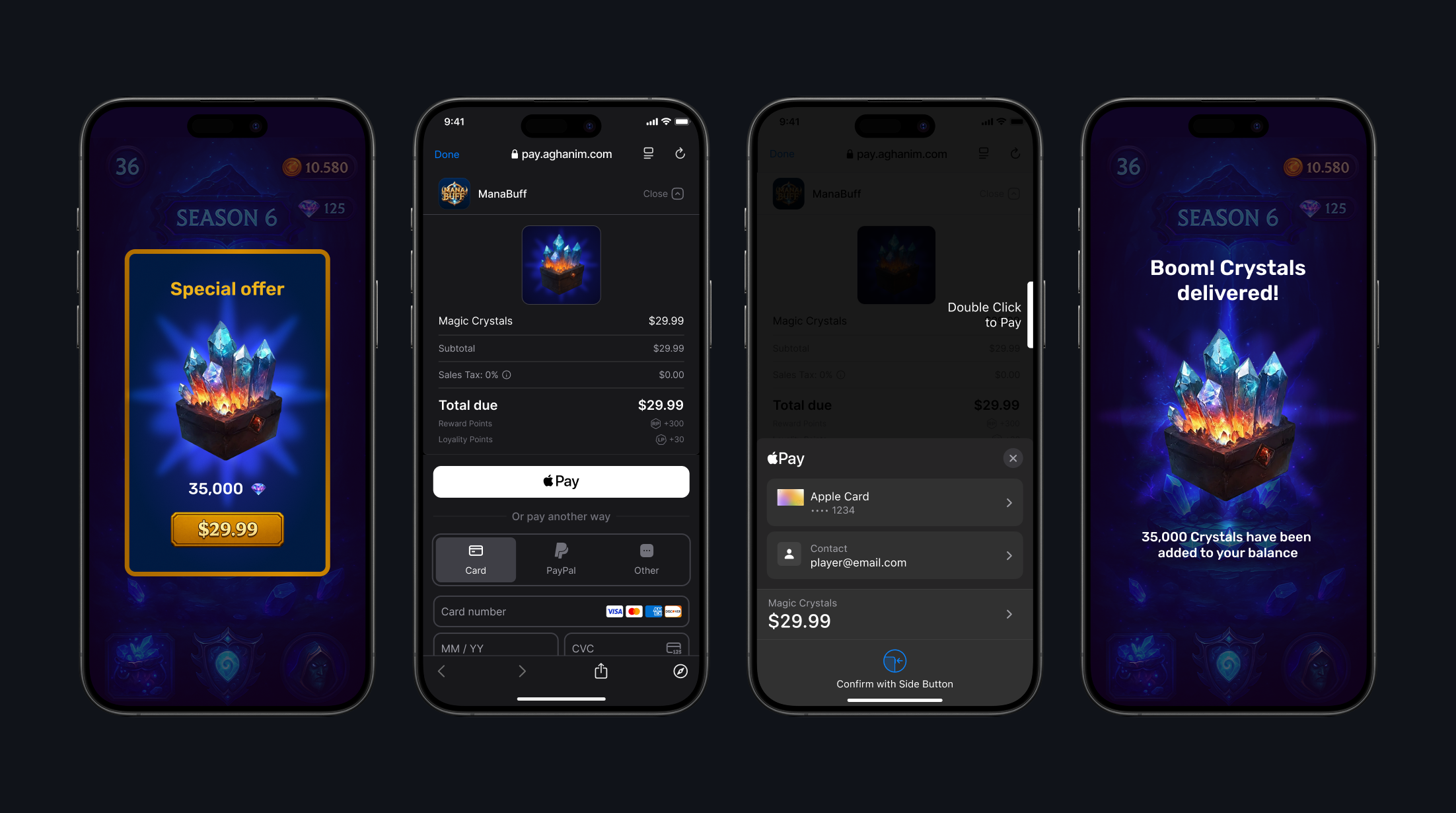
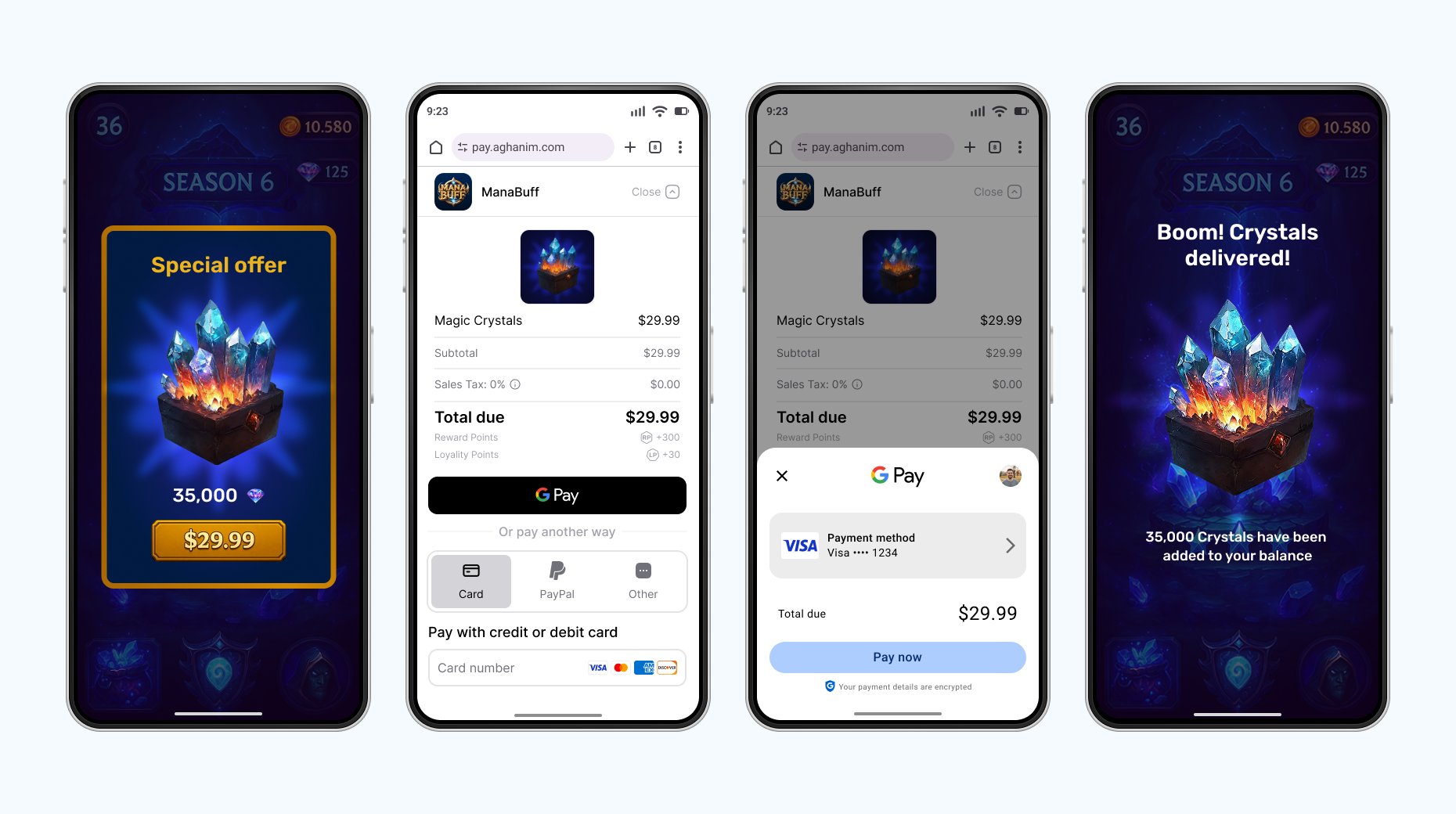
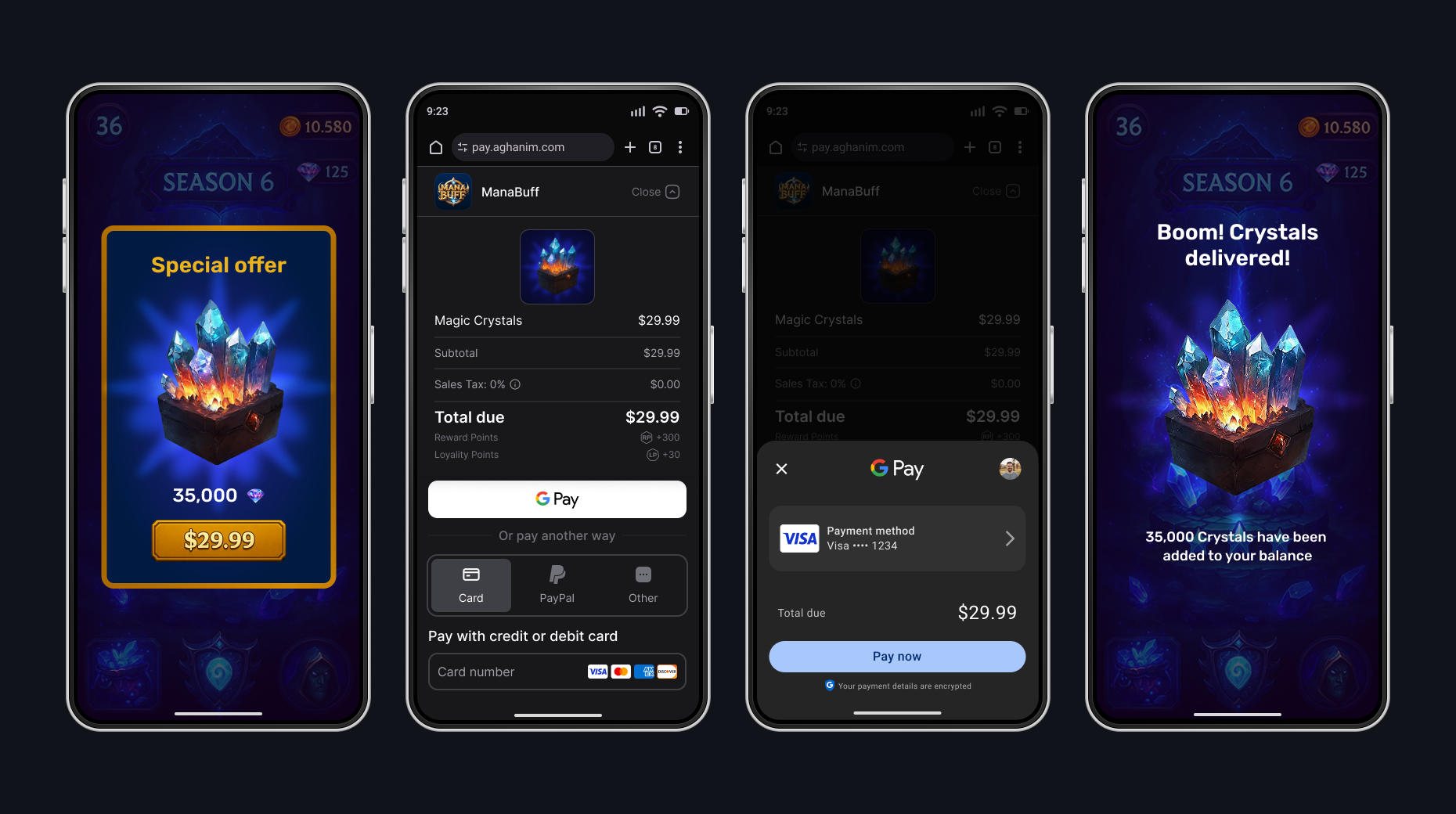
Android. 默认浏览器
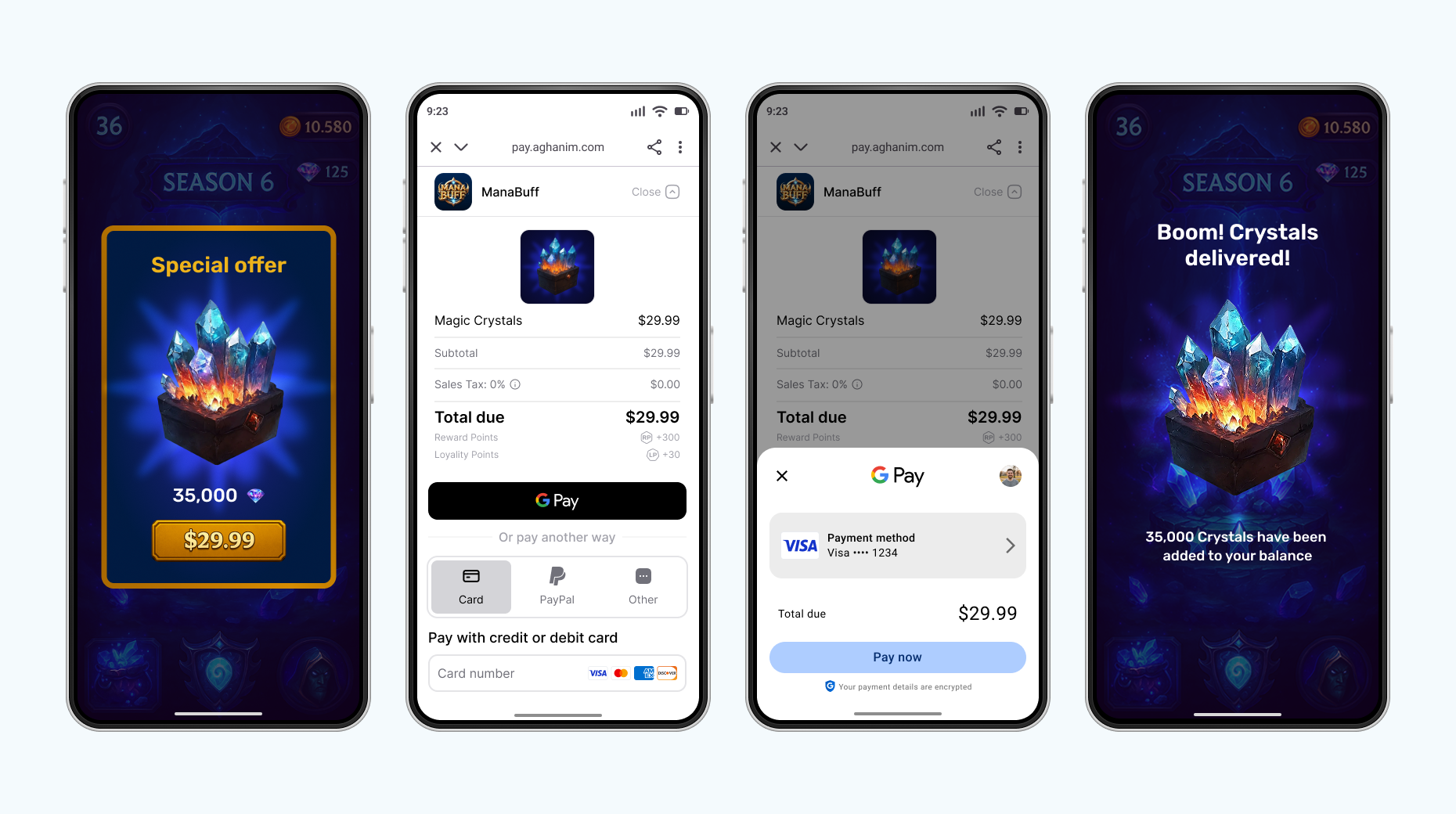
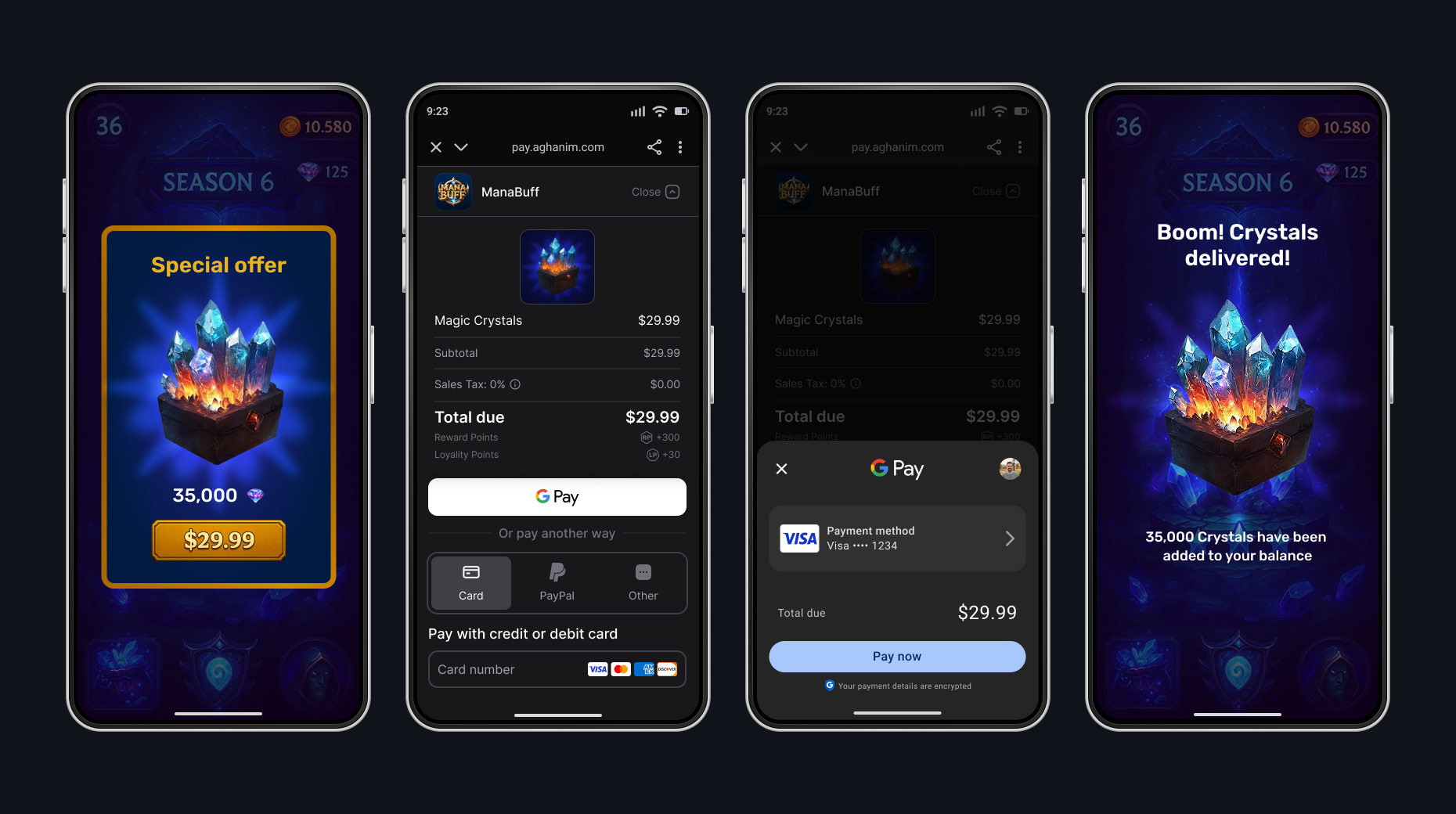
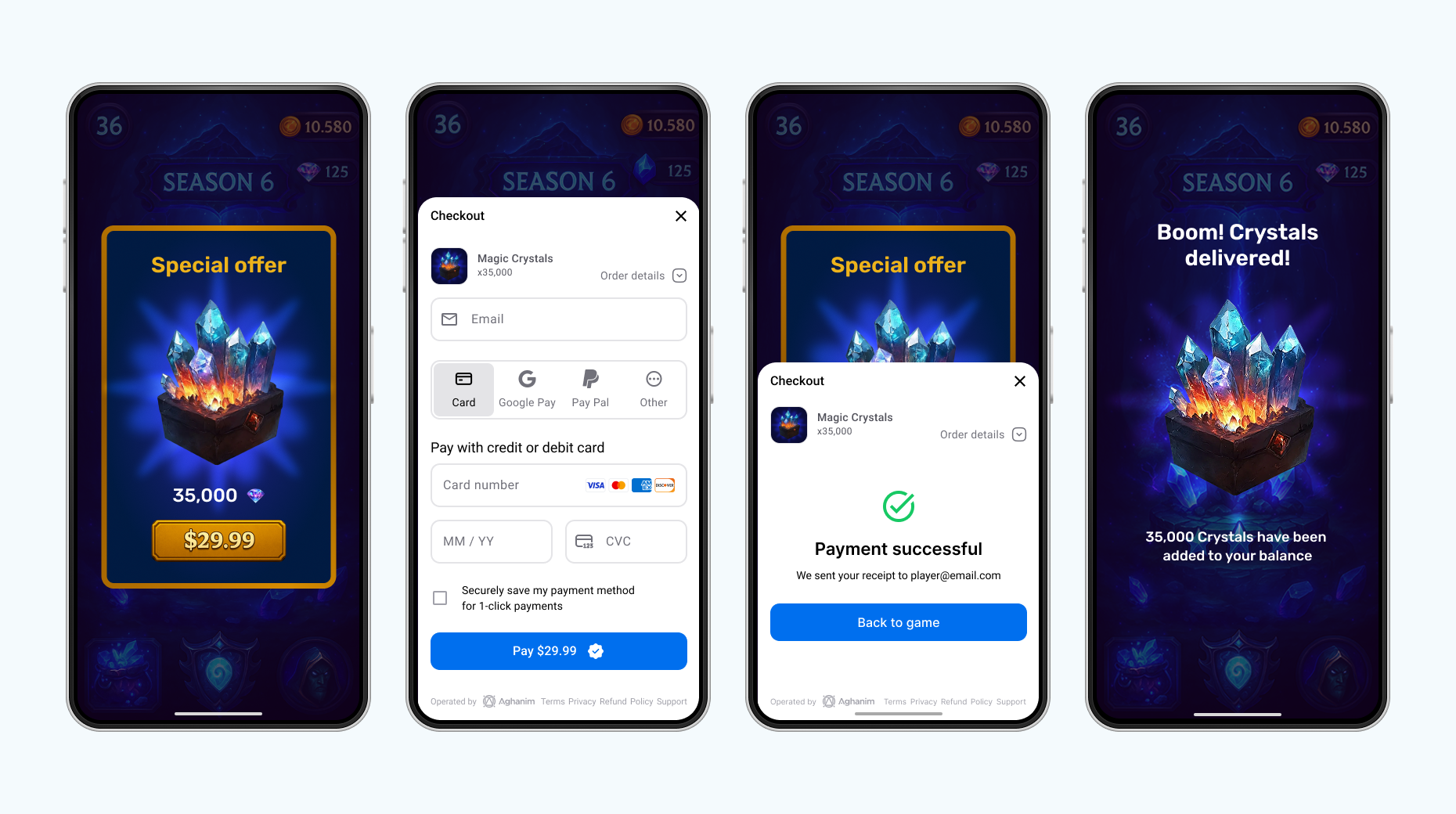
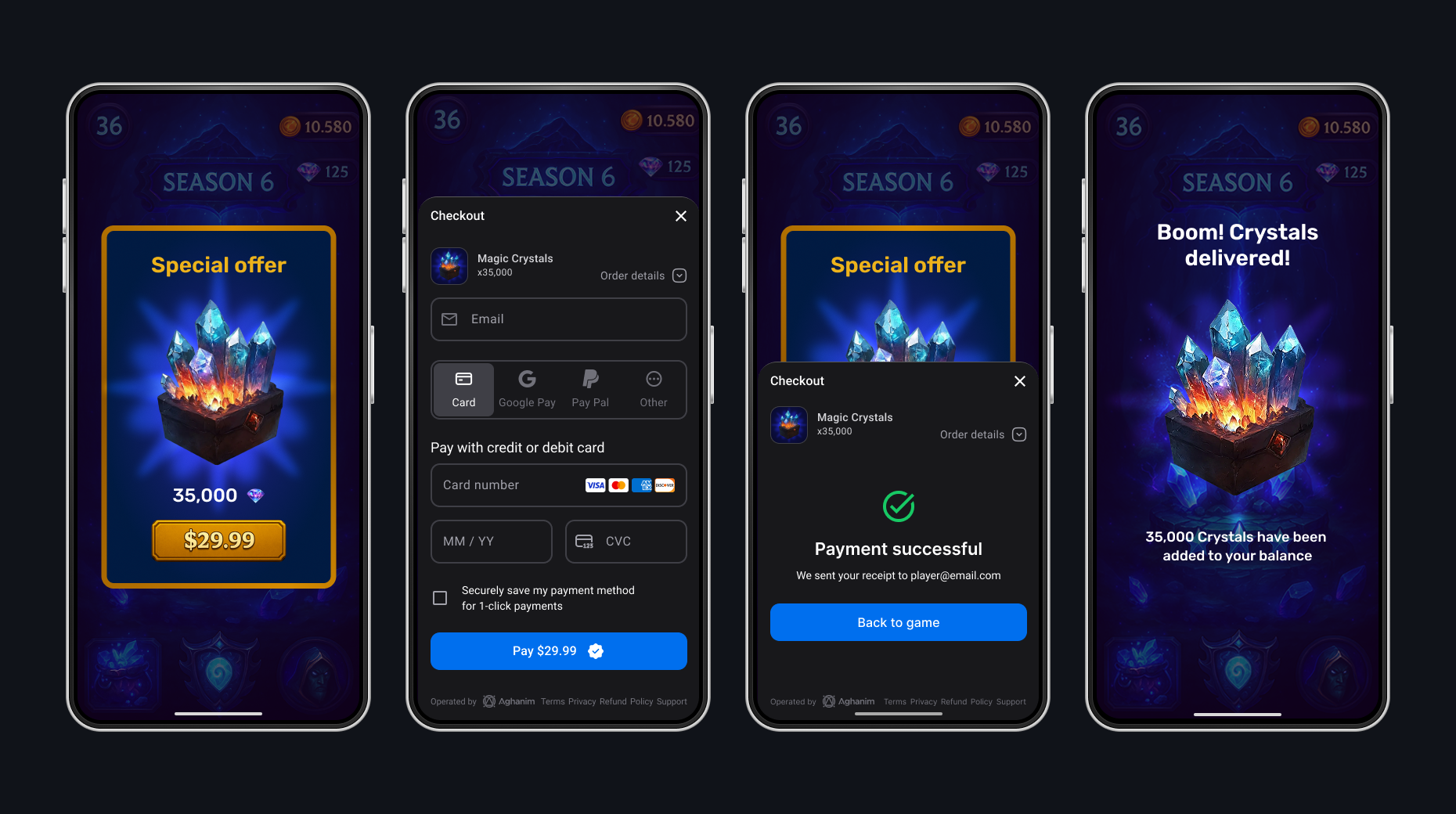
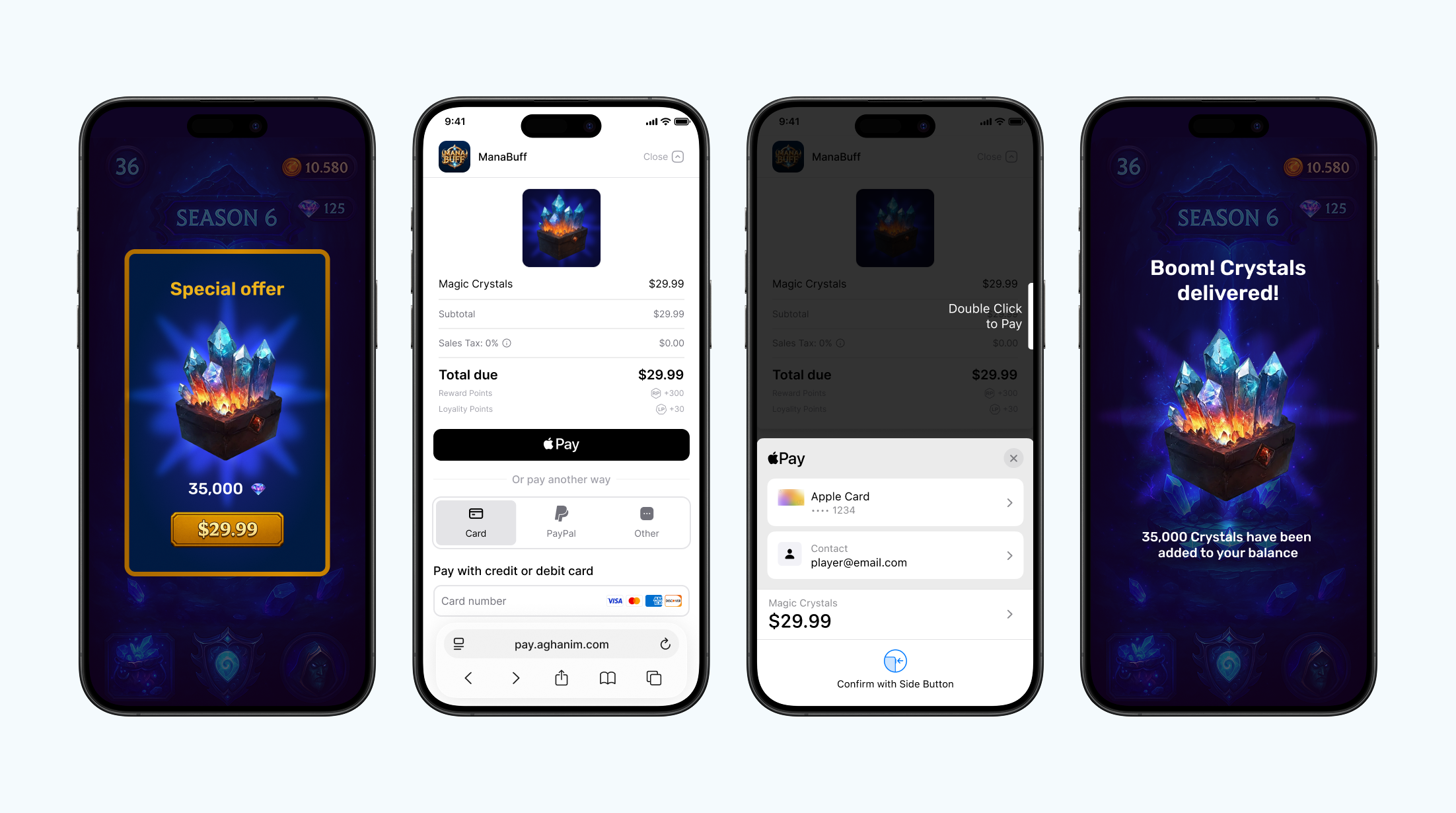
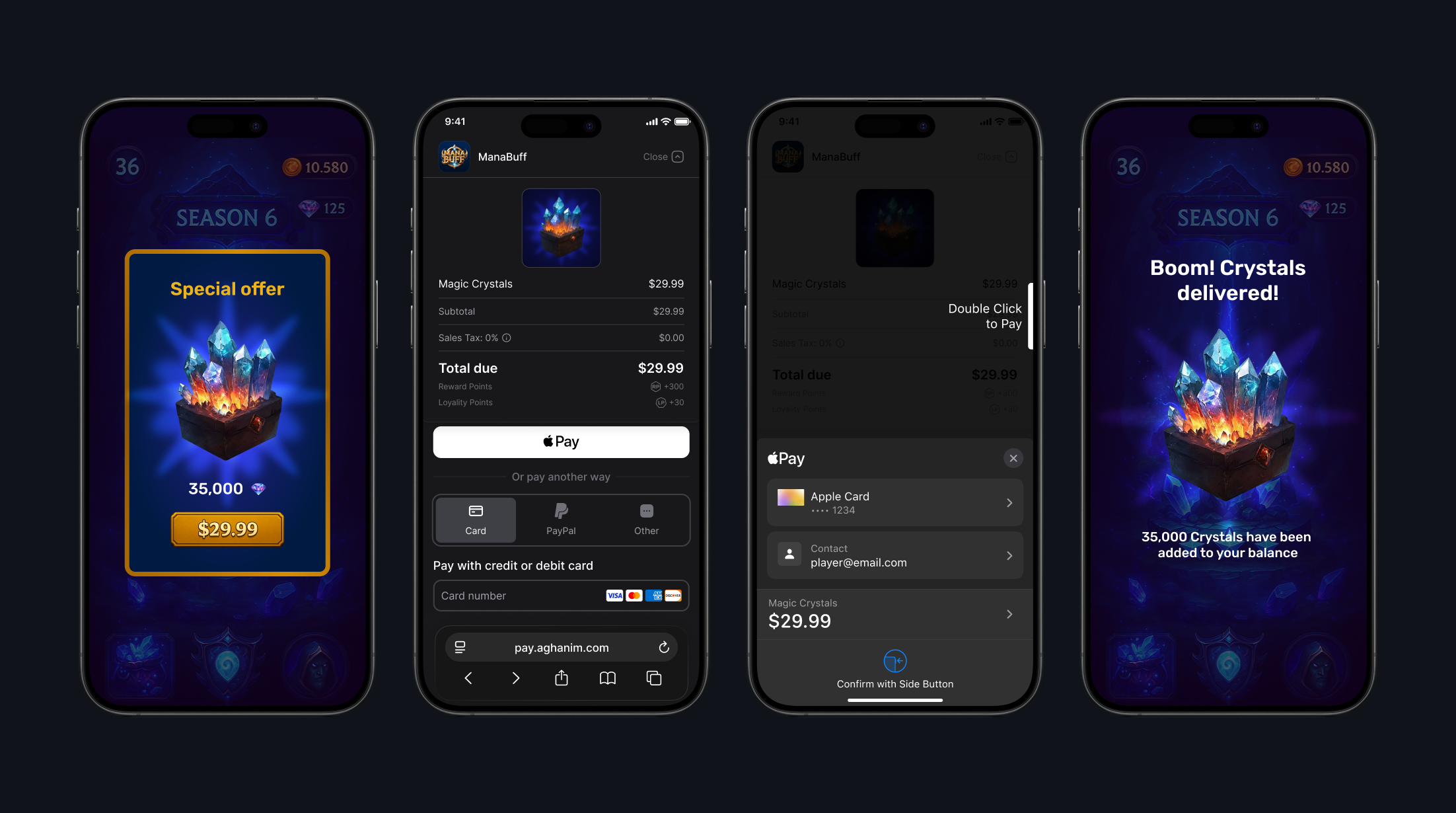
集成
要集成 SDK,请查看其先决条件和有关 Integrate → Unity 的详细说明。
方法参考
SDK 提供直接访问 Aghanim API 通过 Aghanim 实体。
获取订单
要获取订单详细信息,请使用 GetOrder 方法。
- C#
Aghanim.GetOrder(
    orderId: "order_123",
    onSuccess: (order) => {
        Debug.Log($"Order ID: {order.id}");
        Debug.Log($"Player ID: {order.player_id}");
        Debug.Log($"Total price: {order.price_minor_unit} {order.currency}");
    },
    onError: (error) => {
        Debug.LogError($"Failed to get order: {error}");
    }
);
| 参数 | 类型 | 必填项 | 描述 |
|---|---|---|---|
orderId | string | 是 | 订单的唯一 ID。 |
onSuccess | Action<OrderRead> | 如果没有错误,则是 | 在成功结果时调用的回调函数。 |
onError | Action<string> | 如果没有成功,则是 | 在失败结果时调用的回调函数。 |
获取未消费的订单
要了解哪些订单已支付但尚未发放,请使用 GetUnconsumedOrders 方法。
- C#
Aghanim.GetUnconsumedOrders(
    onSuccess: (response) =>
    {
        // Player has paid but not granted items from orders
        var unconsumedOrderIds = response.Orders;
        // TODO: Save order IDs for further consuming and granting
    },
    onError: (debugMessage) =>
    {
        // Log debug information for troubleshooting
        Debug.LogError($"Failed to get unconsumed orders: {debugMessage}");
        // TODO: Handle error
    }
);
| 参数 | 类型 | 必填项 | 描述 |
|---|---|---|---|
onSuccess | Action<UnconsumedOrdersResponse> | 如果没有错误,则是 | Callback that is invoked on successful result. Use response.Orders to access the array of order IDs. |
onError | Action<string> | 如果没有成功,则是 | 在失败结果时调用的回调函数。 |
何时使用
GetUnconsumedOrders 和 ConsumeOrder 专为没有专用服务器(无服务器)的游戏设计。 它们允许你完全在客户端处理物品发放。
如果你的游戏有服务器,请改用 item.add webhook —— 它让你的服务器直接控制物品发放。 请参阅集成指南中的 在游戏服务器端处理支付后事件。
何时调用 GetUnconsumedOrders 取决于你使用的启动模式:
默认浏览器、应用内浏览器、按平台自定义且带原生 UI(Android)
对于这些模式,请订阅标准 Unity 回调 OnApplicationFocus 和 OnApplicationPause —— 当玩家完成支付后返回应用时,它们会触发:
- C#
private void OnApplicationFocus(bool hasFocus)
{
    if (hasFocus)
    {
        CheckUnconsumedOrders();
    }
}

private void OnApplicationPause(bool isPaused)
{
    if (!isPaused)
    {
        CheckUnconsumedOrders();
    }
}

private void CheckUnconsumedOrders()
{
    Aghanim.GetUnconsumedOrders(
        onSuccess: (response) =>
        {
            foreach (var orderId in response.Orders)
            {
                ConsumeAndGrantOrder(orderId);
            }
        },
        onError: (debugMessage) =>
        {
            Debug.LogError($"Failed to get unconsumed orders: {debugMessage}");
        }
    );
}
应用内浏览器(iOS)
在 iOS 上,除了 OnApplicationFocus / OnApplicationPause 之外,当玩家关闭应用内浏览器的那一刻也会触发 onViewClosed 回调:
- C#
var launchMode = new LaunchMode(
    android: AndroidLaunchMode.InAppBrowser(),
    ios: IOSLaunchMode.InAppBrowser(
        onViewClosed: (e) =>
        {
            // Earliest point to check order status on iOS
            CheckUnconsumedOrders();
        }
    )
);
消费订单
要让 SDK 确认您已通过订单授予玩家物品,请使用 ConsumeOrder 方法。
- C#
Aghanim.ConsumeOrder(
    orderId: orderId,
    onSuccess: () =>
    {
        // Paid order is marked as consumed
        Debug.Log($"Order consumed: {orderId}");
        // TODO: Grant items in order to player
    },
    onError: (debugMessage) =>
    {
        // Log debug information for troubleshooting
        Debug.LogError($"Failed to consume order: {debugMessage}");
        // TODO: Handle error
    }
);
| 参数 | 类型 | 必填项 | 描述 |
|---|---|---|---|
orderId | string | 是 | 订单的唯一 ID。 |
onSuccess | Action | 如果没有错误,则是 | 在成功结果时调用的回调函数。 |
onError | Action<string> | 如果没有成功,则是 | 在失败结果时调用的回调函数。 |
何时使用
在获取未消耗订单后调用 ConsumeOrder,将其标记为已发放。 这可以防止在下一次调用 GetUnconsumedOrders 时再次发放同一订单。
- C#
private void ConsumeAndGrantOrder(string orderId)
{
    Aghanim.ConsumeOrder(
        orderId: orderId,
        onSuccess: () =>
        {
            Debug.Log($"Order consumed: {orderId}");
            // TODO: Grant items to player
        },
        onError: (debugMessage) =>
        {
            Debug.LogError($"Failed to consume order: {debugMessage}");
        }
    );
}
设置玩家 ID
要为当前 SDK 实例设置玩家 ID,使用 SetPlayerId 方法。 SDK 将在所有后续方法调用中使用该 ID。
- C#
Aghanim.SetPlayerId(playerId);
| 参数 | 类型 | 必填项 | 描述 |
|---|---|---|---|
playerId | string | 是 | 玩家的唯一 ID。 |
获取商品列表
要检索带有本地化价格的商品,请使用 GetItems 方法。 该方法返回在 SKU Management → Items 中创建的商品,并根据玩家的区域设置对价格进行本地化。
- C#
Aghanim.GetItems(
    skus: new List<string> { "your-item-sku" },
    onSuccess: (items) =>
    {
        foreach (var item in items)
        {
            // Use item.Name, item.Price.Display, item.ImageUrl to populate your store
            Debug.Log($"{item.Name}: {item.Price.Display}");
        }
    },
    onError: (error) =>
    {
        // Log debug information for troubleshooting
        Debug.LogError($"Failed to get items: {error}");
        // TODO: Handle error
    }
);
| 参数 | 类型 | 必填项 | 描述 |
|---|---|---|---|
skus | List<string> | 是 | 要检索的商品 SKU 列表(最多 50 个)。 |
区域设置 | 区域设置 | 否 | 用于价格格式化的区域设置。 在支付→区域设置 中找到支持的全部区域设置列表。 |
onSuccess | Action<Item[]> | 无错误则是 | 在结果成功时调用的回调。 |
onError | Action<string> | 无成功则是 | 在结果失败时调用的回调。 |
创建 Checkout 商品
要创建商品表示,请使用 CheckoutItem 方法。 商品应已在 SKU Management → Items 中创建。
- C#
var items = new List<CheckoutItem>
{
    new CheckoutItem("CRS-82500")
};
| 参数 | 类型 | 必填项 | 描述 |
|---|---|---|---|
sku | string | 是 | 来自控制台的商品 SKU。 |
name | string | 否 | 来自控制台的商品名称。 |
description | string | 否 | 来自控制台的商品描述。 |
imageUrl | string | 否 | 来自控制台的商品图片 URL。 |
quantity | int | 否 | 商品数量。 |
创建重定向行为
要选择玩家成功支付后重定向的行为,请使用 RedirectSettings 方法。
- Immediate
- Delayed
- No redirect
当玩家完成付款后,SDK 会立即将其重定向到 backToGameUrl 的深度链接。
- C#
var redirectSettings = new RedirectSettings(
    mode: RedirectMode.Immediate
);
当玩家完成付款后,SDK 会显示成功付款的屏幕,然后将玩家重定向到 backToGameUrl 的深度链接。
- C#
var redirectSettings = new RedirectSettings(
    mode: RedirectMode.Delayed,
    delaySeconds: 5
);
当玩家完成付款后,他们会停留在成功付款的屏幕上。 要退出,他们可以自行关闭或导航离开。 之后,你应该自行将他们重定向到 backToGameUrl 的深度链接。
- C#
var redirectSettings = new RedirectSettings(
    mode: RedirectMode.NoRedirect
);
| 参数 | Type | 必填项 | 描述 |
|---|---|---|---|
mode | RedirectMode | 是 | 重定向模式。可能的值:Immediate,Delayed,NoRedirect。 可能的值:Immediate,Delayed,NoRedirect。 |
delaySeconds | int | 如果为 Delayed,则是 | 延迟秒数。对于 Delayed 模式,默认值是 5。 对于 Delayed 模式,默认值为 5。 |
创建 UI 设置
要为 Checkout 设置外观模式,请使用 UiSettings 方法。
- Auto
- Dark
- Light
SDK 会根据系统设置自动检测并应用相应的外观模式。
- C#
var uiSettings = new UiSettings(
    mode: UiMode.Auto
);
SDK 强制 Checkout UI 使用深色模式外观。
- C#
var uiSettings = new UiSettings(
    mode: UiMode.Dark
);
SDK 强制 Checkout UI 使用浅色模式外观。
- C#
var uiSettings = new UiSettings(
    mode: UiMode.Light
);
| 参数 | Type | 必填项 | 描述 |
|---|---|---|---|
mode | UiMode | 是 | UI 模式。 可选值:Auto、Dark、Light。 |
创建 Checkout 参数
要创建 Checkout 参数,即玩家在支付表单上看到的表示,请使用 CheckoutParams 方法。
- C#
var checkoutParams = new CheckoutParams(
    items: items,
    backToGameUrl: "https://<YOUR_DOMAIN>/checkout-complete"
);
| 参数 | Type | 必填项 | 描述 |
|---|---|---|---|
商品 | List<CheckoutItem> | 是 | 商品列表。 |
metadata | Dictionary<string, string> | 否 | 用于跟踪目的的“键值”对的元数据。 |
priceTemplateId | string | 否 | 从 获取价格点 用于本地化定价的价格模板 ID。 |
区域设置 | string | 否 | 用于本地化商品名称和描述的区域设置。 在 Checkout → Locales 中查找支持的区域设置完整列表。 |
backToGameUrl | string | 否 | 返回玩家到应用的深链接 URL。 |
redirectSettings | RedirectSettings | 否 | 支付后重定向行为。 |
uiSettings | UiSettings | 否 | Checkout 外观设置。 |
使用支付启动模式
要启动支付表单,使用 LaunchMode 实体。
- In-app browser
- Default browser
- Custom per platform
对于 Android 和 iOS,在应用内浏览器启动模式通过 Android 自定义标签 和 iOS SFSafariViewController 创建无缝的玩家体验。
- C#
LaunchMode.InternalBrowser
对于 Android 和 iOS,默认浏览器启动模式在玩家默认浏览器中工作。 当您希望将玩家重定向到应用外时,使用此模式。
- C#
LaunchMode.DefaultBrowser
您可以为每个平台使用不同的启动模式。
- C#
var launchMode = new LaunchMode(
    android: AndroidLaunchMode.NativeUI(),
    ios: IOSLaunchMode.InAppBrowser()
);
| 参数 | Type | 必填项 | 描述 |
|---|---|---|---|
android | AndroidLaunchMode | 是 | Android 平台的启动模式。 Possible values: NativeUI(), InAppBrowser(), DefaultBrowser(). |
ios | IOSLaunchMode | 是 | iOS 平台的启动模式。 Possible values: InAppBrowser(), DefaultBrowser(). |
On iOS, IOSLaunchMode.InAppBrowser() accepts an optional onViewClosed callback. It is invoked when the player closes the SFSafariViewController. You can use it to check the order status and grant items when the player returns to the game.
- C#
var launchMode = new LaunchMode(
    android: AndroidLaunchMode.InAppBrowser(),
    ios: IOSLaunchMode.InAppBrowser(
        onViewClosed: (e) =>
        {
            // The player closed the in-app browser
            // You can check order status and grant items if needed
        }
    )
);
| 参数 | Type | 必填项 | 描述 |
|---|---|---|---|
onViewClosed | Action<CheckoutViewClosedEvent> | 否 | Callback invoked when the in-app browser is closed on iOS. |
启动支付
要开始支付流程,使用 StartCheckout 方法。 该方法会根据提供的 checkout 参数创建订单并打开 Checkout UI。 成功时,你会收到订单 ID。 失败时,你会收到包含调试信息的错误。
- In-app browser
- Default browser
- Custom per platform
对于 Android 和 iOS,应用内浏览器启动模式通过 Android Custom Tabs 和 iOS SFSafariViewController 为玩家打造无缝体验。
- C#
Aghanim.StartCheckout(
    checkoutParams,
    LaunchMode.InternalBrowser,
    onSuccess: (orderId) =>
    {
        // Order is created and checkout has launched successfully
        // TODO: Save order ID for further granting or tracking
    },
    onError: (error) =>
    {
        // Log debug information for troubleshooting
        Debug.LogError($"Failed to launch Checkout: {error}");
        // TODO: Show user-friendly error message to player
    }
);
对于 Android 和 iOS,默认浏览器启动模式会在玩家的默认浏览器中运行。 当你希望将玩家重定向到应用外时使用该模式。
- C#
Aghanim.StartCheckout(
    checkoutParams,
    LaunchMode.DefaultBrowser,
    onSuccess: (orderId) =>
    {
        // Order is created and checkout has launched successfully
        // TODO: Save order ID for further granting or tracking
    },
    onError: (error) =>
    {
        // Log debug information for troubleshooting
        Debug.LogError($"Failed to launch Checkout: {error}");
        // TODO: Show user-friendly error message to player
    }
);
你可以为每个平台使用不同的启动模式。
- C#
Aghanim.StartCheckout(
    checkoutParams,
    launchMode,
    onSuccess: (orderId) =>
    {
        // Order is created and checkout has launched successfully
        // TODO: Save order ID for further granting or tracking
    },
    onError: (error) =>
    {
        // Log debug information for troubleshooting
        Debug.LogError($"Failed to launch Checkout: {error}");
        // TODO: Show user-friendly error message to player
    }
);
| 参数 | 类型 | 必填项 | 描述 |
|---|---|---|---|
checkoutParams | CheckoutParams | Yes | Checkout 配置。 |
launchMode | LaunchMode | Yes | Checkout 的启动模式。 |
onSuccess | Action<string> | Yes | Checkout 启动成功时调用的回调,参数为订单 ID。 |
onError | Action<string> | Yes | Checkout 启动失败时调用的回调,参数为错误消息。 |
展示 Checkout
若要为现有订单展示 Checkout UI,请使用 PresentCheckout 方法。 当你拥有通过服务器到服务器创建订单获得的订单 ID,或在继续先前放弃的 checkout 时使用此方法。
- In-app browser
- Default browser
- Custom per platform
对于 Android 和 iOS,In-app browser 启动模式通过 Android Custom Tabs 和 iOS SFSafariViewController 创建无缝的玩家体验。
- C#
Aghanim.PresentCheckout(
    orderId,
    LaunchMode.InternalBrowser,
    onSuccess: (orderId) =>
    {
        // Checkout has launched successfully for the existing order
    },
    onError: (error) =>
    {
        // Log debug information for troubleshooting
        Debug.LogError($"Failed to present Checkout: {error}");
        // TODO: Show user-friendly error message to player
    }
);
对于 Android 和 iOS,Default browser 启动模式在玩家的默认浏览器中运行。 当你想将玩家重定向到你的应用外部时,请使用该模式。
- C#
Aghanim.PresentCheckout(
    orderId,
    LaunchMode.DefaultBrowser,
    onSuccess: (orderId) =>
    {
        // Checkout has launched successfully for the existing order
    },
    onError: (error) =>
    {
        // Log debug information for troubleshooting
        Debug.LogError($"Failed to present Checkout: {error}");
        // TODO: Show user-friendly error message to player
    }
);
你可以为每个平台使用不同的启动模式。
- C#
Aghanim.PresentCheckout(
    orderId,
    launchMode,
    onSuccess: (orderId) =>
    {
        // Checkout has launched successfully for the existing order
    },
    onError: (error) =>
    {
        // Log debug information for troubleshooting
        Debug.LogError($"Failed to present Checkout: {error}");
        // TODO: Show user-friendly error message to player
    }
);
| Parameter | Type | Required | Description |
|---|---|---|---|
orderId | string | Yes | 要打开的现有订单的 ID。 |
launchMode | LaunchMode | 是 | 用于 Checkout 的启动模式。 |
onSuccess | Action<string> | 是 | 在成功启动 Checkout 时,使用订单 ID 调用的回调。 |
onError | Action<string> | 是 | 在启动 Checkout 失败时,使用错误消息调用的回调。 |
常见问题
需要技术支持?
联系我们的集成技术团队: integration@aghanim.com